




How do I apply music sound effects?
Introduction.
Many professional DJs use special equipment and software to make their tracks sound like a charm. However the today's computer technologies enable every user to experience the power of music mixing. I bet many of us want to try themselves as party DJ, and here we will discuss how even an inexperienced computer user can master music editing software and add sound effects to his favorite songs. We will use AVS Audio Editor for mixing music and applying effects.
Step 1: Download and install the program.
Download AVS Audio Editor and install it on your computer.
Step 2: Start the program. Load a music file to apply sound effects.
Launch the audio mixer program. In the main window, click "File" - "Open" on the toolbar:
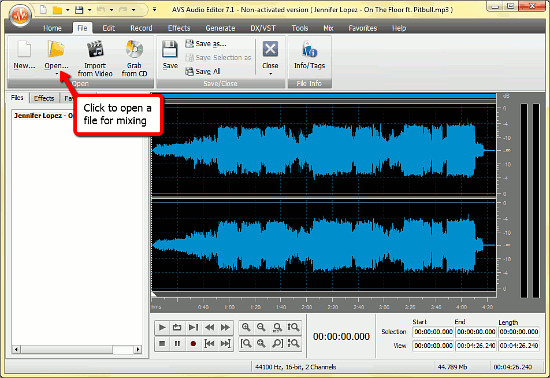
The tabs in the upper part of the window contain all necessary tools to manipulate and edit music tracks. The "Home" tab contains the most used controls, you can find the "Open file" button there as well as on the "File" tab.
After opening and loading an audio track the program displays its waveform on the right. This enables you to set the 'cursor' to the needed position on the waveform and insert sound effects using the timeline.
The toolbar changes its appearance and contents as you switch the tabs above. Do not hesitate to experiment and try each of them to figure out how this audio track editor works and what it can do.
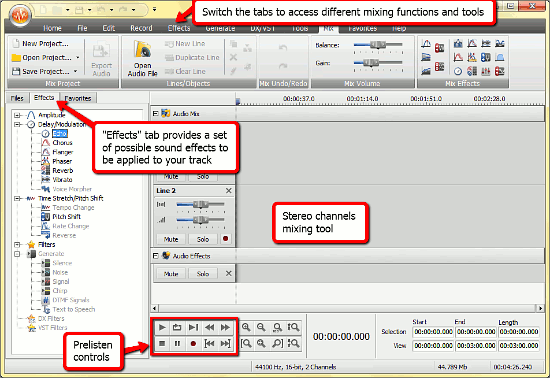
Now let's concentrate on applying sound effects and look at the "Effects" tab in the left section of the program window. Here you find all necessary functions for music editing. These functions are represented on the "Effects" tab on the toolbar above as well.
In order to apply music effects you need to select a region of the waveform first. To do so, simply hold the left mouse button and move it until the required fragment is selected. Then simply click some function on the "Effects" tab to see what happens. We will try the fade in/out effect for our example:
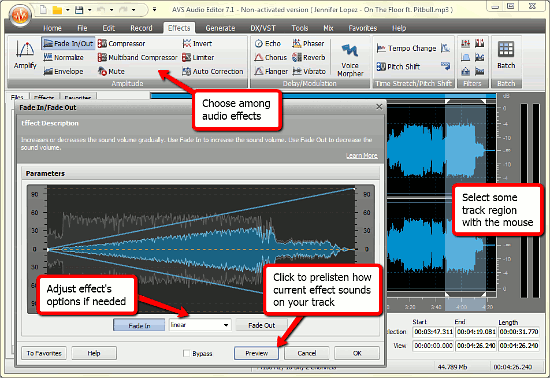
After the effect is clicked a new window appears with several options to be set. Select the Fade in or out mode and click "Preview" to hear how your mixing will sound with the current track. If everything is right, click "OK" to proceed.
One more effect we will check is "Generate silence". This mixing sound effect allows you to insert a period of total silence into the track. As in the previous case, you need to specify where exactly you want this effect to be inserted. So click somewhere on the waveform and hit the "Silence" button on the toolbar, the "Generate" tab.
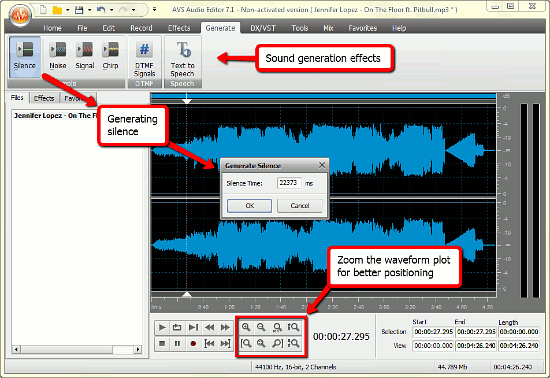
You will be asked about the duration of the audio effect, and after clicking "OK" it will be applied to the track.
The other mixing tools work in the similar way, and you can master them fast and easy.
When the work is done the track should be saved to your hard drive in an appropriate format. Click the orange button in the upper left corner of the program window and select the "Save as" option from the list. A new window will show up:
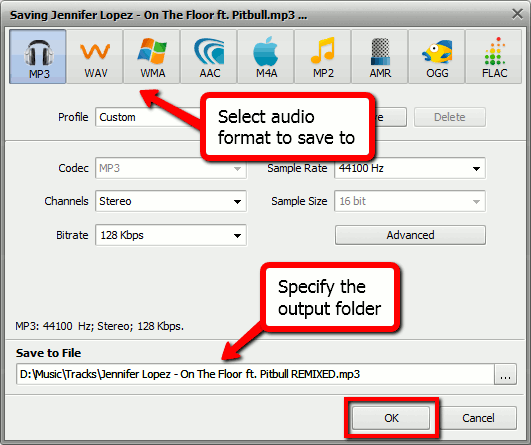
From the top tabs you can choose a format for saving your song containing the sound effects. Format settings can be adjusted in the central area of the window, if necessary. The lower part shows the output folder for the mixed music track (Save to File), you can also choose another folder by entering the path directly into the field or clicking the "..." button on the right.
Finally click "OK" to apply mixing effects and save your audio.
The trial version of AVS Audio Editor adds a sound logo to each saved file. If you like the program, you can register it and remove the limitations.


Search
Related
Ask our expert
- How to share screen videos online?
- How to sort duplicate music files by ID3 tags?
- How to get quick updates on movies by director?
- How to convert multiple MIDI files into an MP3?
- How to rotate videos?
- How to convert WMA to WAV?
- How to play MIDIs on an iPhone?
- How to split an audio file into equal parts?
- How to split m4b audiobooks into chapters for free?
- How to convert videos for You Tube?
