




How do I control volume with hotkeys?
Introduction.
If you use computer a lot, you surely know everything about situations when volume needs to be changed quickly. For example, you are enjoining music and suddenly get an Internet call. You need to reduce volume of music, but not volume of your application for Internet calls. You can surely stop the music altogether. However, there is another way, more elegant and flexible.
We will take a look at the application called Power Mixer. It allows you to do magic things with sound. By pressing a combination of keys you can easily change settings for a group of programs, switch between devices, apply presets, control additional sound cards, and much more.
Step 1: Download and install the program.
Download Power Mixer to a known location. Launch setup and follow on-screen instructions to install the program.
Step 2: Launch the program. Set hotkeys to control it.
Launch the audio mixer tool. The program will show its main window:
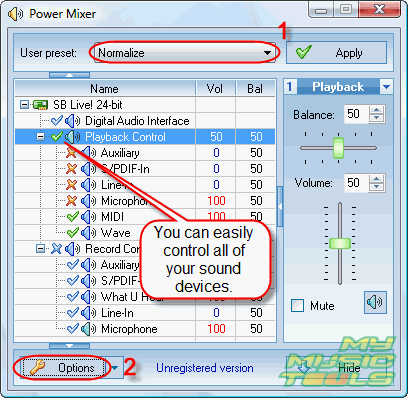
It automatically detects your system's settings, so you can see status of all multimedia devices. It is possible to enable or disable a device with a single click. You can also control volume with hotkeys, add most frequently used devices to the desk (on the right) for easy access, and so on. Power Mixer allows you to use presets (1), which greatly reduces amount of time and effort required to set values for different devices. The program can even automatically lower sound when it's late, or raise it in the morning.
However, let's proceed with hotkeys. Click "Options" (2).
New window will appear. Here you can set all kinds of program's behavior. For example, by default the program increases or decreases volume in a 10% step. It is possible to change the accuracy, as shown on the next screen shot.
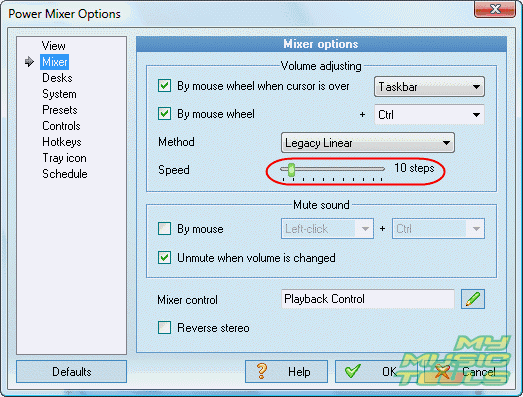
Now, click "Hotkeys" in the list (left pane).
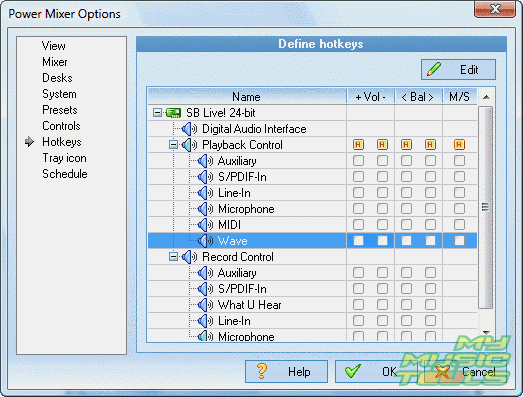
Choose a device (for example, Wave, as shown on the screen shot above) and double click empty box on the right.
Again, a new window pops up.
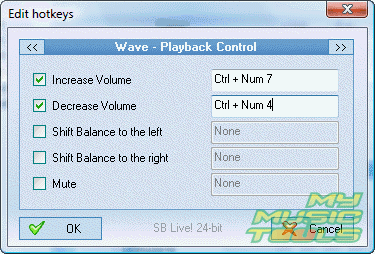
Check boxes for the options you want to use, click the field on the right and press some combination of keys. Click "OK" to confirm your input. The window will disappear. Click "OK" to close "Options" window as well, then click "Hide" in the right lower corner of the main window. Power Mixer will minimize itself to tray.
Now you can control your sound by pressing corresponding keys on your keyboard. Nice on-screen display will help you to adjust volume visually.

However, be careful when trying this software. After several days of using Power Mixer you will hate to return to the usual volume control.


Search
Related
Ask our expert
- How to share screen videos online?
- How to sort duplicate music files by ID3 tags?
- How to get quick updates on movies by director?
- How to convert multiple MIDI files into an MP3?
- How to rotate videos?
- How to convert WMA to WAV?
- How to play MIDIs on an iPhone?
- How to split an audio file into equal parts?
- How to split m4b audiobooks into chapters for free?
- How to convert videos for You Tube?
