




How do I convert MIDI to MP3?
Introduction.
If you compose music, work with MIDI files, or just like tunes that are available only in MIDI format, you have surely thought of converting those MIDI files into real music. MIDI files are extremely small and easy to share (that's why they are available virtually everywhere on the internet), but they have some drawbacks. Firstly, most usual devices, like players, aren't able to play them. On the other hand, devices that do play them in most cases play them differently. On a quality sound card music will be magnificent. But if you use a cheaper card, you'll probably find the same sound too artificial and not enjoyable at all.
So, you may have considered to turn MIDI files into more stable and predictable format. MP3 is one of the options.
We will consider how it can be done with help of MIDI Converter Studio. This program allows you to convert MIDI to MP3 and to get quality sound even on a system with a poor soundcard, or even on a system without any soundcard. All that you need is a quality SoundFont. The program comes with a pretty good one, but you can download more from a free online repository.
Step 1. Download and install MIDI Converter Studio.
Download MIDI Converter Studio to a known location. After download is complete, launch setup and follow instructions.
Step 2. Launch MIDI Converter Studio and add files to convert.
Start the MIDI to MP3 converter. Click "Add files..." button.
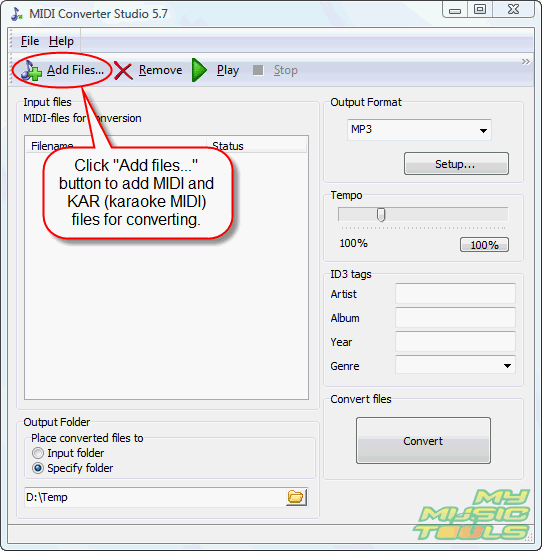
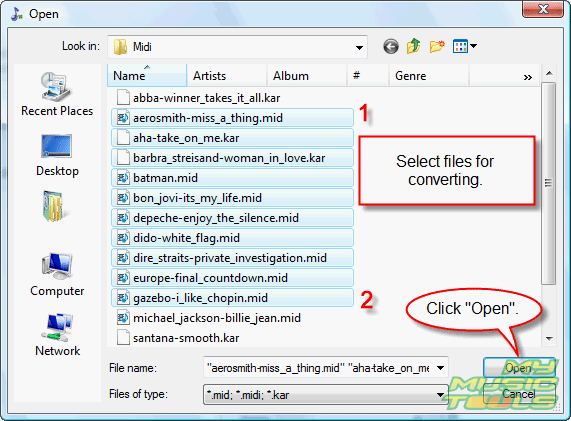
In the usual Windows "Open"-dialog, select the file(s) you want to convert to MP3 format, then click "Open" button.
Step 3: Set output folder and format.
On the right pane, in the "Output Format" area, select "MP3" from dropdown menu (1). This settings will influence all resulting files.
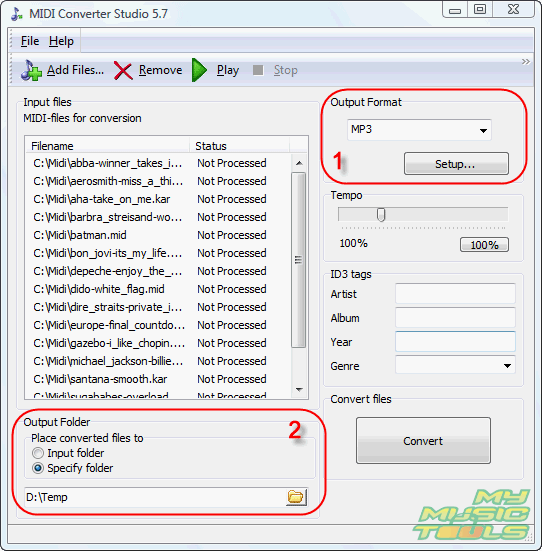
In the lower part of the program's window, there is an "Output Folder" area (2). Here you can set folder where the output MP3 files will be saved. You can easily choose to put files into the same folder where your MIDI files are, or you can select any folder on your computer by either browsing to it or by typing the full path into the corresponding field. Please note that you should have necessary permissions for the folder to be able to save output files there.
Step 4: Converting.
Now it's time to click that big button in the right lower corner of the program.
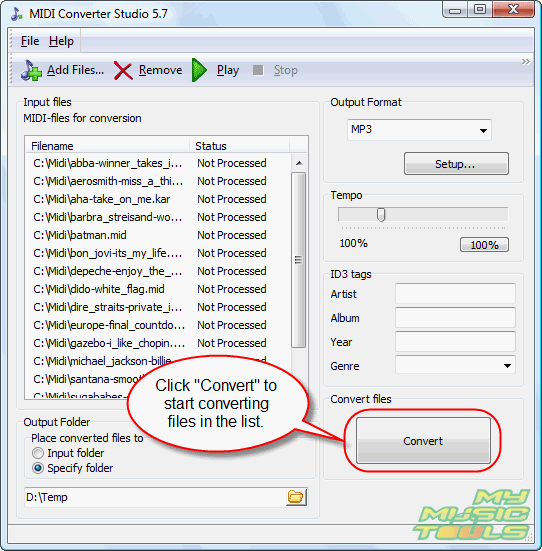
The program starts converting MIDI to MP3. All functions of the window will be disabled, except the big button that will become "Stop". By clicking it you can cancel the process any time. The program will stop immediately, leaving current MIDI file and all following ones unconverted. If program's window is big enough, you will be able to see progress bar while converting.
After converting is done, you can find resulting MP3 files in the folder that you've specified in Step 3.
Trial version of MIDI Converter Studio allows you to convert only 60 seconds of each MIDI tune. If you are satisfied with quality and interface, you can purchase the software and remove all restrictions with your registration data.


Search
Related
- How to convert multiple MIDI files into an MP3?
- How to play MIDIs on an iPhone?
- Play MIDI files on your iPod!
- How do I convert MIDI to WAV?
- How to convert MIDI to OGG?
- How to convert MIDI to WAV?
- How to convert MIDI to CDA?
- How to convert MIDI to MP3 using several SoundFonts?
- How to convert MIDI to WMA?
 How to convert MIDI to MP3
- MIDI to MP3 converter with ID3 tags support
- MIDI to Ringtone Converter
- How do I convert KAR to MP3?
- How do I convert MIDI to MP3?
- Fast MIDI to MP3 Converter 5.6 review
- How to convert a mid to mp3?
- ManiacTools Releases MIDI Converter Studio 4.6
- How do I edit MIDI files?
- WIDI Recognition System Professional 3.3 Review
- How do I convert MP3 to MIDI?
- Able MIDI Editor 1.3 review
Ask our expert
- How to share screen videos online?
- How to sort duplicate music files by ID3 tags?
- How to get quick updates on movies by director?
- How to convert multiple MIDI files into an MP3?
- How to rotate videos?
- How to convert WMA to WAV?
- How to play MIDIs on an iPhone?
- How to split an audio file into equal parts?
- How to split m4b audiobooks into chapters for free?
- How to convert videos for You Tube?
