




How do I convert to DVD?
Introduction.
Converting your favorite movie or birthday party video to DVD can be quite useful, as this format is still "the" format for movies and is recognized by all players, including the next generation Blu-Ray and HD DVD players. We will discuss how to convert video to DVD with Movavi Video Converter.
Step 1: Download and install the program.
Download Movavi Video Converter to a known location. Run setup and follow on-screen instructions to install the application.
Step 2: Start the program. Add files to convert.
Launch Movavi Video Converter. The main window will be shown:
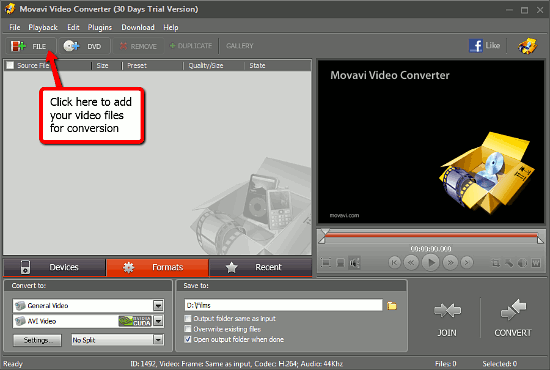
On the upper toolbar, we can see the "+File" button. Let's click it. A usual "Browse" window appears:
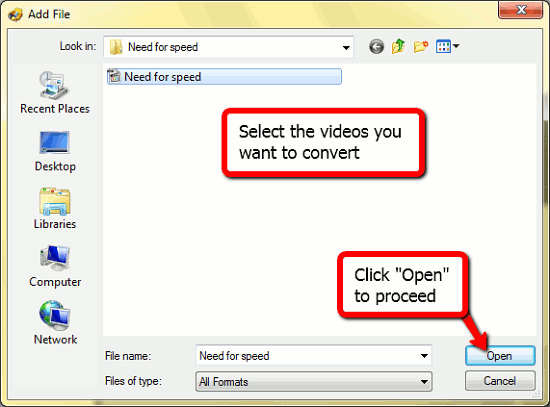
Now we need to look through our folders and find the video to convert to DVD. Once it's done, just select the video with a single click and press "Open".
The file will be added to the DVD conversion list. Now we can adjust some options.
Step 3: Adjusting options and converting to DVD.
Let's look at the lower part of the DVD converter window. On the "Formats" tab, the most important options are shown.
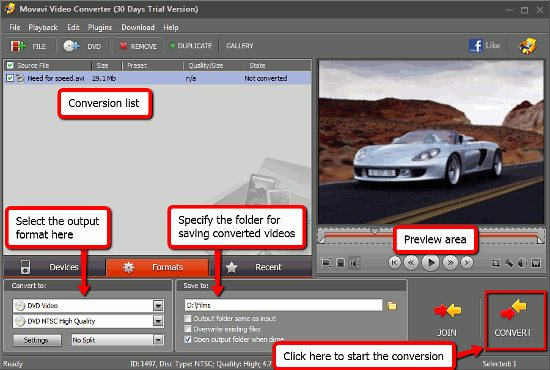
In the "Convert to:" area we should select the output video format. As we want to convert to DVD, let's select DVD Video from the drop-down list. If you'd like to adjust some advanced video format options, click the "Settings" button below. The "Save to:" area specifies the folder where converted videos are to be saved. We can choose to save output videos to the same folder where our source file is stored. Alternatively, select any other folder on your computer. (If you have any troubles saving output video, make sure that your Windows user account has necessary privileges to save to the folder.)
The preview area shows us the video and allows to apply such changes as: crop, shift brightness, modify the length, rotate, add watermark, etc.
Finally click the "Convert" button in the lower right corner of the program to convert video to DVD.
You can try Movavi Video Converter for free during 30 days of its trial period. If you like the software and its features, just register it to remove all limitations.


Search
Related
- How to convert videos for You Tube?
- How to convert a video file with subtitles?
- How to convert video for Android?
- How to convert MKV to DVD?
- How to convert TS to AVI?
- How to convert AVI to WMV?
- How to convert AVI to FLV?
- How to convert MKV to MP4?
- How to convert DVD to MKV?
- How to convert MKV to AVI?
- How do I convert to DVD?
- How to convert DVD to MP4?
- How to convert MOV to AVI?
- How to convert AVI to MOV?
- How to convert MP4 to AVI?
- How to merge video files?
- How do I convert AVI to PSP format?
- How do I convert AVI to 3GP?
- How do I convert WMV to AVI?
- How do I convert video to flash?
- ConvertMovie 4.0 review
- Imtoo 3GP Video Converter 3.1 review
- How to convert a video file into the 3GP format?
- Xilisoft 3GP Video Converter 2.1 review
- Videozilla review
- How do I convert MTS to AVI?
Ask our expert
- How to share screen videos online?
- How to sort duplicate music files by ID3 tags?
- How to get quick updates on movies by director?
- How to convert multiple MIDI files into an MP3?
- How to rotate videos?
- How to convert WMA to WAV?
- How to play MIDIs on an iPhone?
- How to split an audio file into equal parts?
- How to split m4b audiobooks into chapters for free?
- How to convert videos for You Tube?
