




How do I convert video to iPhone?
Introduction.
iPhone is a stylish mobile phone produced by Apple. It has a large touch-sensitive display that is used to control the device, so no additional buttons or other types of controls are required. You can simply point your finger to a name to call the person.
iPhone has also a significant amount of memory. Combined with its large display, this means a good setup for watching movies and other kinds of videos. However, if you want to transfer some videos from your computer, it is reasonable to convert them to a format that is known to work good on iPhone. It will produce the best possible picture and consume as little space as possible. This is where an AVI to iPhone converter could be useful.
Let's consider how to convert video to iPhone format with Cucusoft iPhone Video Converter.
Step 1: Download and install the program.
Download Cucusoft iPhone Video Converter to a known location. Run setup package and follow on-screen instructions to install it.
Step 2: Start the program. Open video files that you want to convert to iPhone format.
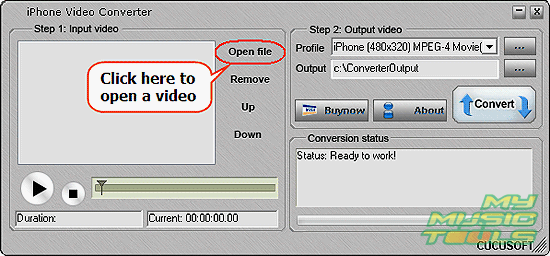
Launch Cucusoft iPhone Video Converter. The program shows two windows: the main one, and the preview that looks like iPhone. In the main window, click "Open file" to add video files that you want to transfer to your iPhone.
A usual "Open" dialog pops up. Browse to the folder where your video files are stored, pick out one of them.
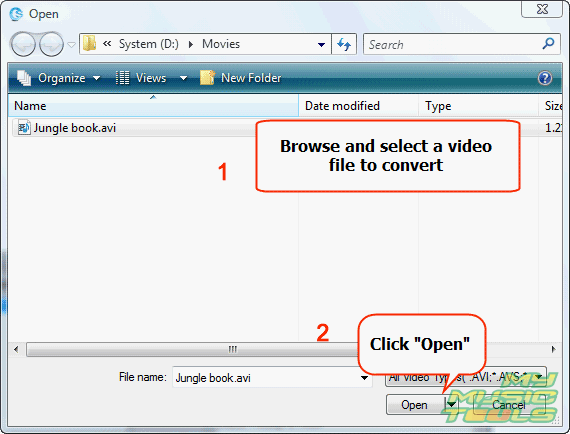
Click "Open" to add the file to the list of files to convert.
Step 3: Set profile and output folder. Convert your videos to iPhone format.
Now the movie is on the list.
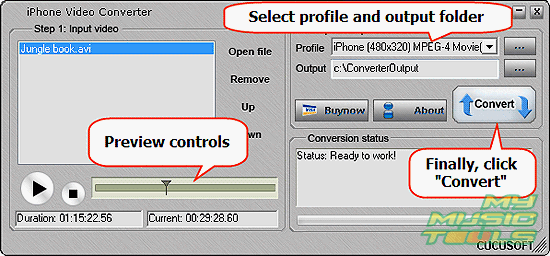
On the right, find "Output video" area. Here you can select one of the preset profiles for easy converting. If you need to adjust video parameters manually, just click the "..." button on the right. However, you don't need to do this, as the best settings are used by default.
In the "Output" field, select a folder for saving converted videos. If converter fails to save files in the selected folder, simply check if you have necessary privileges on the folder, or choose another folder.
Finally, click the large "Convert" button. The program will start converting AVI to iPhone format. This process may take some time, depending on your system and the length of your video.
You can preview videos from the list before converting. The program also shows preview while converting.
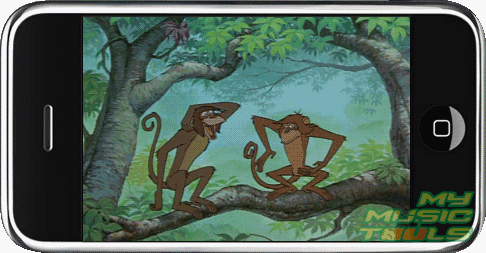
The trial version of Cucusoft iPhone Video Converter puts a watermark logo in the center of the converted videos. If you like the program, you can remove this restriction with your data after registering.


Search
Related
Ask our expert
- How to share screen videos online?
- How to sort duplicate music files by ID3 tags?
- How to get quick updates on movies by director?
- How to convert multiple MIDI files into an MP3?
- How to rotate videos?
- How to convert WMA to WAV?
- How to play MIDIs on an iPhone?
- How to split an audio file into equal parts?
- How to split m4b audiobooks into chapters for free?
- How to convert videos for You Tube?
