




How do I create DVD Video with menu?
Home Video gets more and more popular as new camcorders appear. Nowadays it is practically impossible to imagine a family without family videos. At least wedding day should be there to make life of your guests not unnecessarily easy.
Some people take full advantage out of camcorders and record practically everything. With such an excessive recording, sooner or later a huge collection of different parts and episodes forms on your hard disk, taking some space and scaring by cryptic filenames. One day owner of the collection may look at it and say: "Well, those three movies are worth of a DVD, I wanna show that to my mom".
But a DVD-Video disc has its own structure and format. You can't simply copy a file from your camcorder. Process of DVD-Video burning usually includes transcoding, i.e. making videos DVD-compliant. Also, DVDs have nice feature, DVD menus, which gives you easy access to different parts of your movie.
It is possible to create a DVD Video with a menu quite easily. We will consider how to do it with help of Xilisoft DVD Creator - an easy-to-use DVD authoring tool.
Step 1: Download and install Xilisoft DVD Creator.
Download the program to a known location. Launch setup and follow on-screen instructions to install the application.
Step 2: Launch the program. Add video.
Launch Xilisoft DVD Creator. The main window appears:
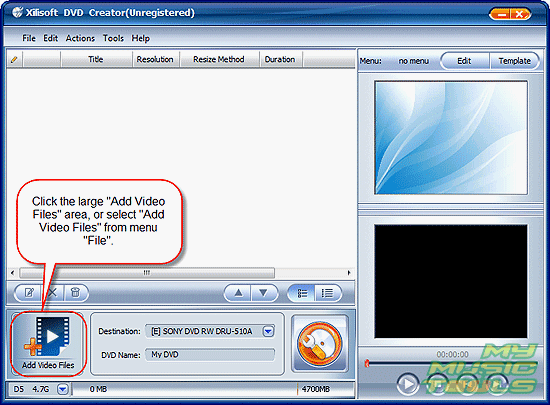
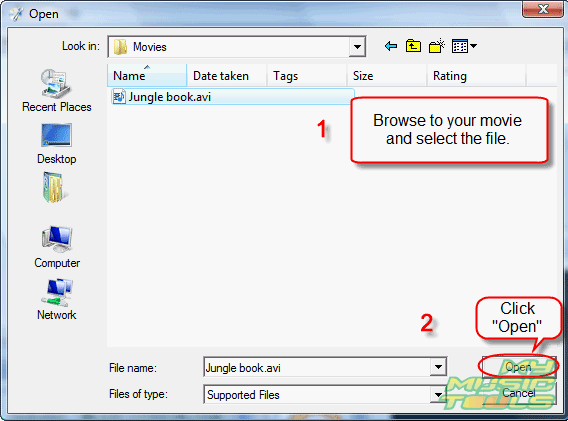
Click large "Add Video Files" button to add movies to DVD-Video project. Usual "Open" dialog pops up. Browse to the folder where your movies are, select a movie to burn, click "Open".
Now the movie will appear in the program's window.
Step 3: Select menu style. Burn DVD-Video.
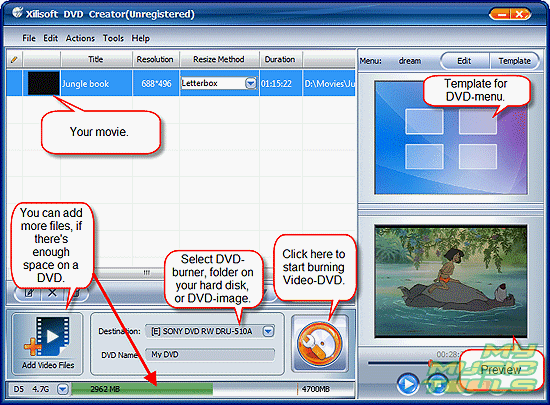
The example shows only one movie. You can add as many parts as you like (if it fits your DVD). Usual single-layer DVD can take up to 4700 Mbytes of video-data. Please note that in most cases your files will have different size on DVD, so keep an eye on the band in the lower part of the program's window. You can choose DVD-menu style by clicking "Template" button. Xilisoft DVD Creator will automatically create a separate menu item for every movie in the list (at the example, there is only one movie, so only one menu item will be created). It is also possible to create a DVD without menu (the first video will be played immediately).
Finally select DVD-burner device, or a folder where you want to save DVD-Video files (if you don't want to burn them immediately), and click "Burn". The program will automatically transcode your video and create all necessary structure. It will take some time.
If you prefer to burn DVD-Video immediately, don't forget to insert an empty DVD into your DVD burner.
Xilisoft DVD Creator allows you also to choose exact picture from your video that will be used with menu item, and to make all necessary adjustments. However, keeping our tutorial simple, we won't go in such detail.
Trial version of the program adds logo to your videos. Full version doesn't have this limitation.


Search
Related
Ask our expert
- How to share screen videos online?
- How to sort duplicate music files by ID3 tags?
- How to get quick updates on movies by director?
- How to convert multiple MIDI files into an MP3?
- How to rotate videos?
- How to convert WMA to WAV?
- How to play MIDIs on an iPhone?
- How to split an audio file into equal parts?
- How to split m4b audiobooks into chapters for free?
- How to convert videos for You Tube?
