




How do I mix MP3 audio tracks?
Introduction.
Mixing of different audio tracks is not unusual. In fact, it is pretty usual. All modern music is done separately for each instrument and voice, and only later they are mixed into a single piece. Audio books are read with some musical background that helps to deepen emotional experience. Sometimes it is just fun to put unrelated things together to make people laugh, or to explore new dimensions of ordinary things.
Well, isn't that a bit philosophic? We want to something real, don't we?
Let's consider a simple example of how to mix MP3 audio tracks with the help of Acoustica MP3 Audio Mixer - an easy-to-use sound editor with professional capabilities.
Step 1: Download and install the program.
Download Acoustica MP3 Audio Mixer to a known location. Run setup package and follow on-screen instructions to install it.
Step 2: Launch the program, create new project.
Launch Acoustica MP3 Audio Mixer. A demo-project will be opened and played. It shows you how different tracks can be mixed.
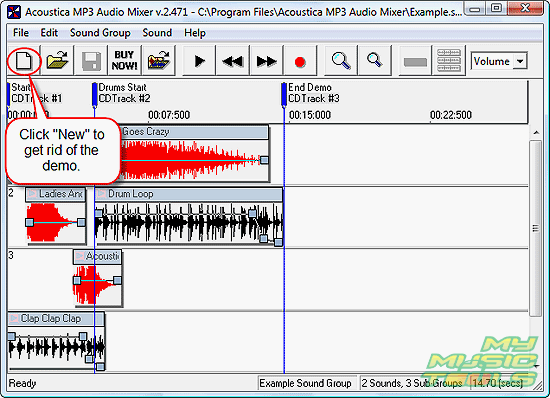
We don't need this demo now, so let's click "New Sound Group" button to create a new project.
Step 3: Add MP3 files to mix.
The demo tracks will be gone.
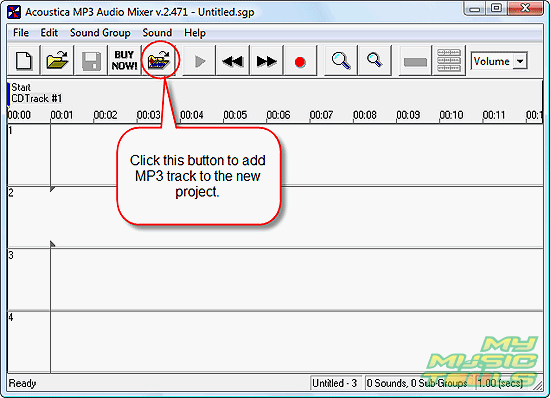
Click "Add a sound to the session" button to start adding your own tracks. Usual "Open" dialog appears.
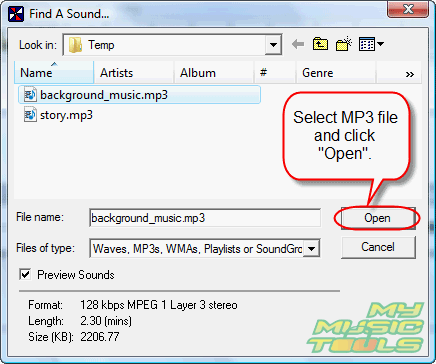
You can browse to your files and select the one you need. Preview is available: the MP3 mixer starts to play selected file.
Step 4: Arrange tracks, add more tracks.
In order to mix MP3, you need at least two tracks. Of course, the program allows you to record different sounds, for example, from microphone, so you can create another track in this way. I have prepared my tracks (voice and music) earlier and just want to mix them. But you may want to mix three or even more MP3 files together. Just repeat step 3.
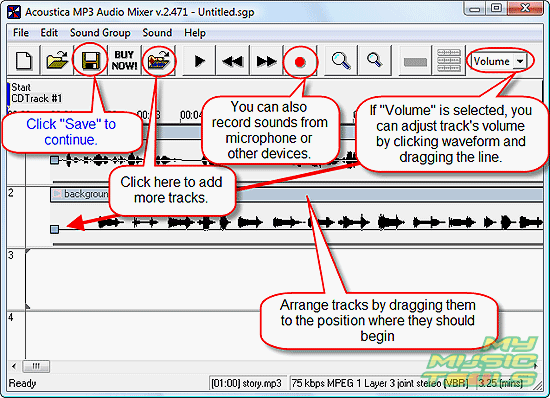
Acoustica MP3 Audio Mixer allows you to arrange tracks visually, by dragging them to their positions. Interface is pretty obvious. If you drag a track to the left, it will start earlier, to the right - the track will be played with delay. There is a scale above the tracks showing time in seconds (you can zoom in or out). Volume adjustments are very easy: click on a track and drag horizontal line up or down.
To preview the results of your audio mixing, just click usual "Play" button on the program's toolbar.
If you are satisfied with the results, click "Save".
Step 5: Save your mix as MP3 file.
The program offers you to save your work as project ("SoundGroup File") by default. However, we need a ready-made product, so let's save our mix as MP3 file.
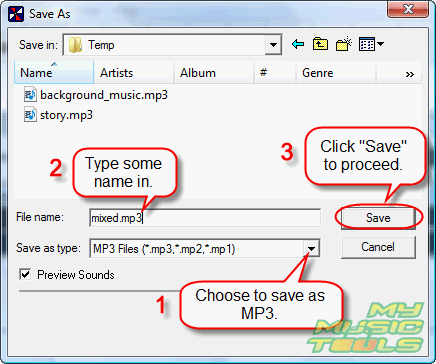
Done? Not yet.
The following window appears:
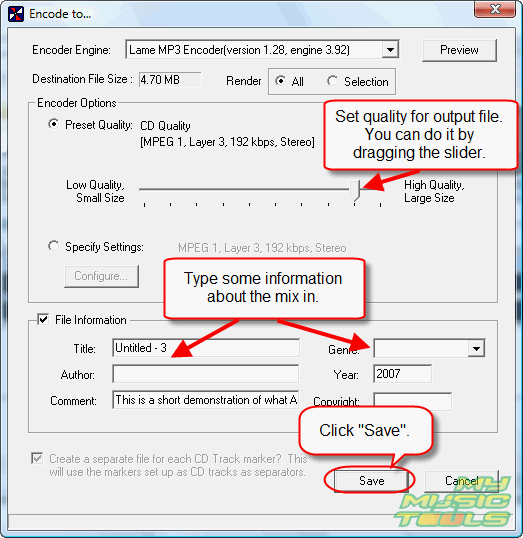
Here you can set codec, quality, and provide some meta-information (ID3 tag) about the file, as title, author, year etc. By default quality is set to 192 kbit/s, which is good enough for most records.
Click "Save" to start saving the mix.
It will take some time, depending on your system, as the program should encode audio. Wait until it finishes, then find output file in the folder specified in step 5.


Search
Related
Ask our expert
- How to share screen videos online?
- How to sort duplicate music files by ID3 tags?
- How to get quick updates on movies by director?
- How to convert multiple MIDI files into an MP3?
- How to rotate videos?
- How to convert WMA to WAV?
- How to play MIDIs on an iPhone?
- How to split an audio file into equal parts?
- How to split m4b audiobooks into chapters for free?
- How to convert videos for You Tube?
