




How do I organize my movie collection?
Introduction.
Most people collect movies. Myself, I have hundreds of DVDs, which is far from being impressive. Some real movie aficionados have many thousands of discs and cassettes.
With such quantities, it is hard to keep track of particular movies. This DVD was given to a friend, that was taken by a relative, another one... well, did I have it at all?
If the situation is somewhat familiar to you, you may have already wondered: does it need to be so difficult? Is there an easy way to organize my movie collection?
Let's take a look at Movienizer. It's a movie organizer that supports a number of powerful features. We will discuss only the basic operation - adding a movie to the database. If you need more, you will easily find necessary functions. The interface is self-explainable, and the program is good documented.
Step 1: Download and install the program.
Download Movienizer to a known location. Run the downloaded setup and follow on-screen instructions to install the application.
Step 2: Start the program. Create a new database.
Start Movienizer. The program comes with a sample database. When first started, it offers you to create a new movie database. Do it by clicking menu "File" - "New database".
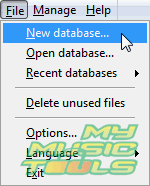
A usual "Save As" dialog window pops up. Browse your folders to the location where you want to keep your DVD database, type some name for the database in, click "Save".
Windows Vista users should be aware that User Account Control (UAC) doesn't allow certain kinds of operations, so the best place to keep your files is your home directory (where your documents, pictures etc. are). If you choose to save the database in another folder, make sure that you are listed as owner of that folder.
Step 3: Add a movie to your database.
Now, let's look at the program window:
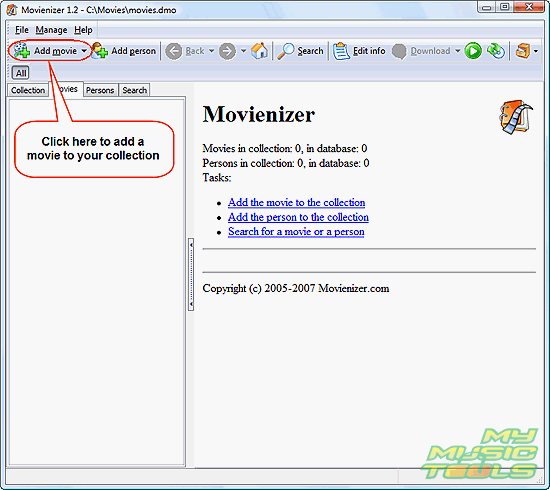
On the left side of the toolbar you can see the big "Add movie" button. Click it.
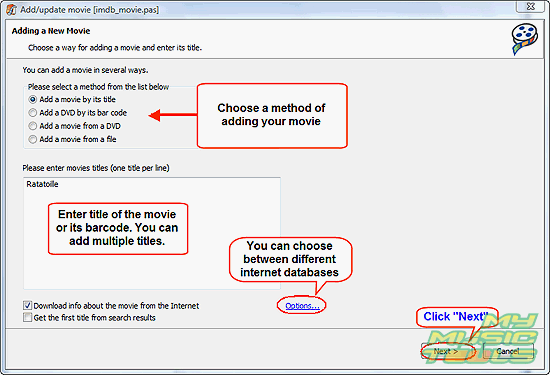
Movienizer offers you a number of choices. You can add a movie by its title, by its barcode, from a DVD, from a file. If you store some video files on your hard disk, you may want to use the last option. The program reads filenames to guess the title, so you don't need to type it in. Besides, later you can start playing the movie directly from the program with a single click.
You can also choose between different internet databases by clicking "Options".
For now, we just add a movie by its title. Type some title in, click "Next".
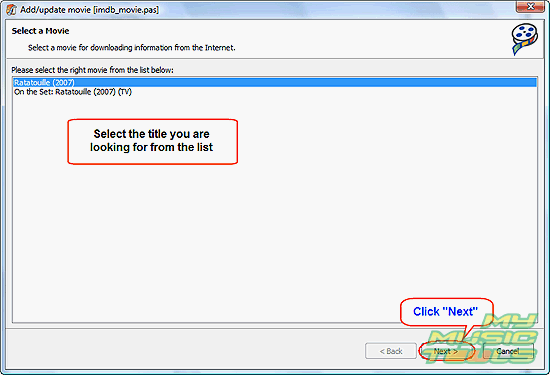
Movienizer searches the internet and delivers a list of titles that somehow match your criteria. You can also let the program grab the first title from the list, it's almost always the one you are looking for. Click "Next"
The program will download some data. It can take more or less time, depending on your internet connection and availability of the services. Finally, Movienizer shows a summary page:
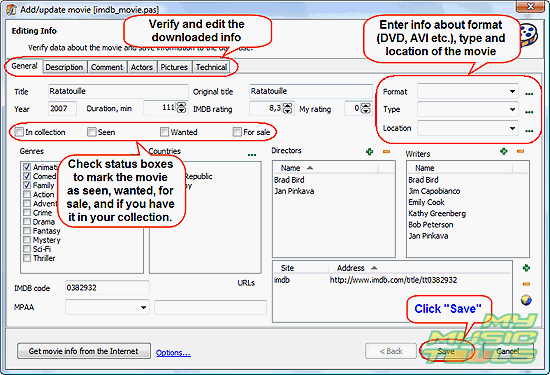
Here you can edit, add, or remove any information, but for now let's pay attention to the following details.
- Check the "In collection" box to notify the program that you have the movie in your collection. This results in showing the movie in the "short list".
- Enter where the movie is located (select a location from the dropdown list in the right part of the window). You can edit locations, add new ones, by clicking "..." to the right of the menu.
- Click "Save" to add the downloaded and edited information to your database.
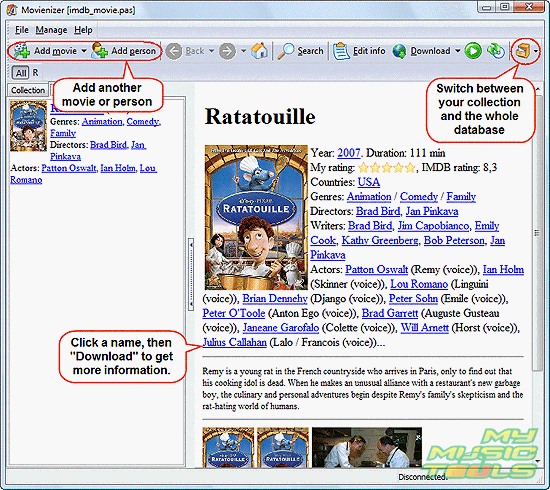
Now you can add another movie or person. If you want to learn more about some person from the downloaded movie, just click the name, then click the "Download" button on the toolbar.


Search
Related
Ask our expert
- How to share screen videos online?
- How to sort duplicate music files by ID3 tags?
- How to get quick updates on movies by director?
- How to convert multiple MIDI files into an MP3?
- How to rotate videos?
- How to convert WMA to WAV?
- How to play MIDIs on an iPhone?
- How to split an audio file into equal parts?
- How to split m4b audiobooks into chapters for free?
- How to convert videos for You Tube?
