




How do I record and mix multiple audio tracks?
Introduction.
Recording and mixing of multiple audio tracks is a usual practice for creating music and songs. You need drums, bass, piano or guitar, voice. Usually all of them are recorded separately and then mixed into one piece. This way, you can always get what you want with every particular track. If something is not good, you can rerecord the track, or just remove the problem using a sound editor. Professional musicians are able to record a whole song without help from anyone, track by track.
However, if you can't play all those instruments, it is still possible to enjoy creating music. You can use already existing samples as building blocks for your songs, bringing them together with an MP3 mixer.
Either way, you need some software that can record and mix multiple audio tracks. Let's take a look at Acoustica Mixcraft, as it is specially designed for this kind of tasks.
Step 1: Download and install the program.
Download Acoustica Mixcraft to a known location. Run setup and follow on-screen instructions to install the application.
Step 2: Start the program. Create a new project.
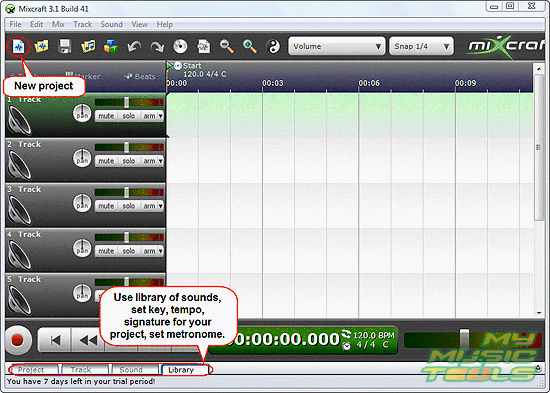
Start Acoustica Mixcraft. It will open and play a demo project. To clear everything, click the "Create new project" button on the toolbar.
Step 3: Record tracks or add samples from the library.
The best way to get acquainted with the program is to mix some samples from its library. Click the "Library" tab highlighted on the previous screen shot.
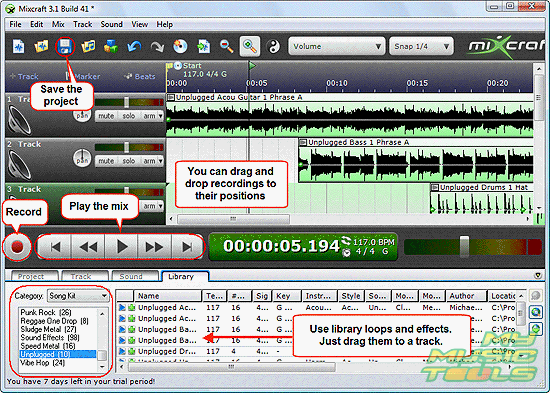
Choose a preferred category in the left part. See a list of available samples on the right. Double click a sample to preview it. Drag a sample from the library to a particular track to add it to your project.
After adding several tracks you may want to preview the whole mix. Click the "Play" button in the left part of the window, under the tracks. Use other controls to rewind to the very beginning, fast forward etc.
Finally, save the project by clicking the diskette on the toolbar.
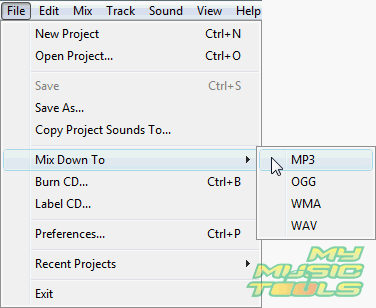
The program saves your MP3 mix as a project, which means that you won't be able to play it normally using conventional player. If you want just ordinary audio file, click menu "File". Select "Mix Down To", then choose some format from the list. Acoustica Mixcraft supports saving mix into MP3, OGG, WMA, and WAV.


Search
Related
Ask our expert
- How to share screen videos online?
- How to sort duplicate music files by ID3 tags?
- How to get quick updates on movies by director?
- How to convert multiple MIDI files into an MP3?
- How to rotate videos?
- How to convert WMA to WAV?
- How to play MIDIs on an iPhone?
- How to split an audio file into equal parts?
- How to split m4b audiobooks into chapters for free?
- How to convert videos for You Tube?
