




How do I take a screenshot?
Introduction.
The need to take a screenshot can emerge any time when you'd like to show what exactly happens on your computer screen. You might want to share a funny dialog from ICQ or Skype, capture an awesome shot from a movie, or the situation may be more serious when you need some help with your PC and the events on the screen should be described precisely. Anyway, the best solution in such situations will be an image of the screen contents. So let's discuss the easiest way of making a screenshot with the help of Screen VidShot. Along with the simple screen capture feature it is capable of recording on-screen events and making a series of screenshots with a predefined interval. So it's an all-in-one handy instrument for sharing your screen.
Step 1: Download and install the program.
Download Screen VidShot to a known location. Run the setup and follow on-screen instructions to install the application.
Step 2: Start the program. Choose a capture mode.
Launch Screen VidShot. The main window will be shown:
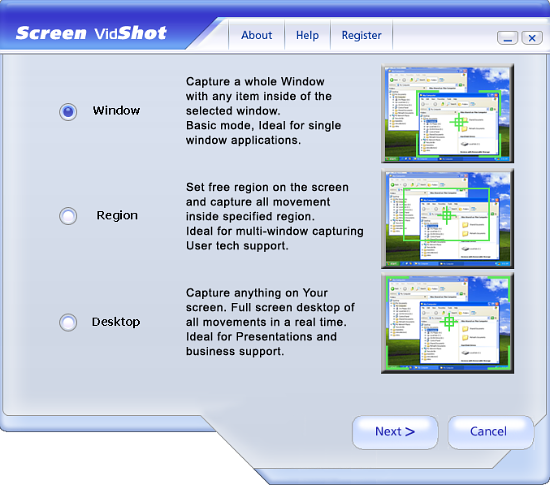
Here you are supposed to choose what are you going to capture: a single program window, a region of the screen regardless of windows or the entire desktop (screen).
Depending on your needs, pick an option, in this article we'll check "Region" and click "Next".
Step 3: Taking screenshot.
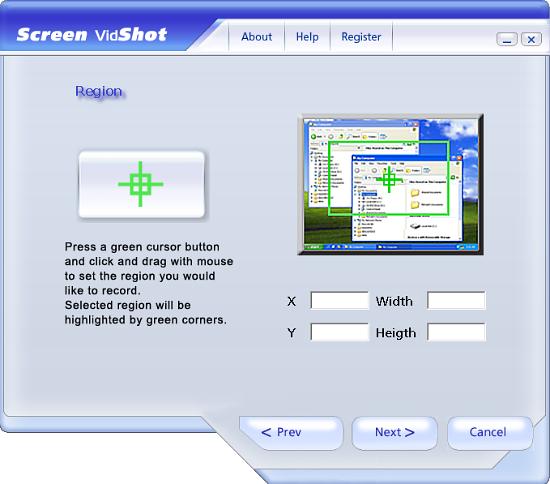
Now the program offers us to initiate the screen capture by pressing the "Green cursor" button. After doing so we should select the region of the screen that we need to be saved as an image. Move the mouse cursor to one of the corners of the region to capture, press and keep holding the left mouse button, then move to the opposite corner. After the region is selected, the Screen VidShot's window appears again, now with coordinates:
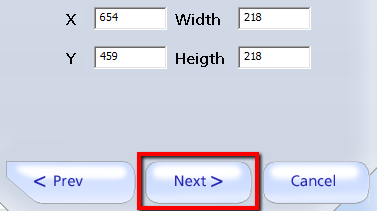
If our selection is correct, we click "Next", otherwise click the "Green cursor" button again and redo the region selection.
The next step is about choosing the mode of screen capturing: capture as image, video or image series.
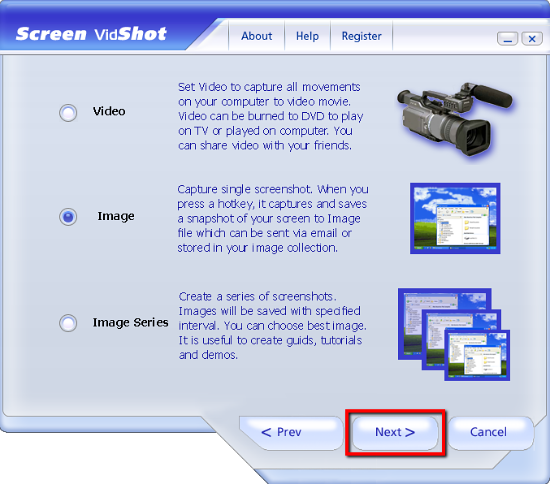
As you see, Screen VidShot is capable of recording video tutorials. It can also be helpful if you want to catch one perfect moment during some process on the screen.
Since we need only one static screenshot, let's pick the "Image" option and click "Next" to proceed.
The next step of the Wizard offers us to choose a location, name and file type for the screenshot file. Let's do it by clicking on the "..." button:
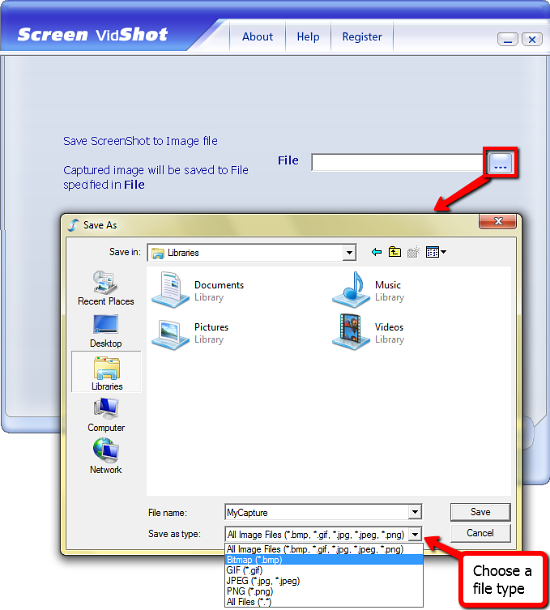
Finally press "Save" to save our screenshot to the specified location.
The trial version of Screen VidShot adds a logo to all captures that you make with the program. You can register the program to remove all its limitations.


Search
Related
- How to share screen videos online?
- How to rotate videos?
- How to capture video?
- How do I convert AVI to Zune?
- Movavi VideoSuite 4.4 review
- How to record a screen video?
- How to make a video tutorial?
 How to add a watermark to your video?
- How to fix a blurred video?
- How to increase brightness of a dark video?
- How do I combine AVI episodes into a full-length professional looking movie?
- How do I stay anonymous in a webcam chat?
- How do I improve quality of videos and old movies?
- AVS Video Editor 3.4 review
- MOVAVI Releases EnhanceMovie 2.0
- MOVAVI Releases EnhanceMovie 1.3
- How to play MKV file?
- How to play any video?
Ask our expert
- How to share screen videos online?
- How to sort duplicate music files by ID3 tags?
- How to get quick updates on movies by director?
- How to convert multiple MIDI files into an MP3?
- How to rotate videos?
- How to convert WMA to WAV?
- How to play MIDIs on an iPhone?
- How to split an audio file into equal parts?
- How to split m4b audiobooks into chapters for free?
- How to convert videos for You Tube?
