




How to change bitrate of MP3 files?
Introduction.
As usual, please feel free to skip the introduction.
MP3 is a popular audio format supported by the majority of modern multimedia devices, including DVD players, portable players, mobile phones, and so on. It is a 'lossy' format, which means that if you encode your music into this format, some quality is inevitably lost. In exchange for this loss MP3 offers a very attractive feature: small file size. MP3 files may be ten and more times smaller than uncompressed WAV audio of the same length. Meanwhile quality losses are rarely noticeable at decent bitrates.
Bitrate is a characteristic of MP3 files that defines how much space a certain fragment of an audio can have for itself. Bitrate value is set when encoding audio to MP3. It can be changed only by re-encoding.
Some people believe that by increasing bitrate of existing MP3 files they produce files of better quality. This is not true. If you convert a file from 128 Kbit/s to 320 Kbit/s, the overall quality will become worse than at 128 Kbit/s! So, if you convert from lower to higher bitrates, you end up with large files and very poor sound.
Consider an analogy. You go out for a hike and need to take some things with you. However, your backpack is pretty small, and a few things don't fit in. Finally you decide to leave them and go out.
Now, even if you buy a bigger backpack somewhere on your way, there is no chance to recover the things that you have left at home. You can only lose a few more small things, when transferring them from the old backpack to the new one.
Of course, you can go back after getting a bigger backpack and put all things into it. For audio files this means returning to the source (for example, to the Audio CD) and getting a quality copy.
Another story is conversion from higher to lower bitrates. Here you don't need all that quality and are ready to exchange some of it for smaller file size, so you are looking for an MP3 resizer program to make your MP3 smaller. This is perfectly okay and can be easily done with a bitrate changer tool like AudioConverter Studio.
Step 1: Download and install the program.
Download AudioConverter Studio to a known location. Run the downloaded package and follow on-screen instructions to install the program.
Step 2: Start the program. Open a folder with MP3s to convert.
Launch AudioConverter Studio.
The program offers a user-friendly Wizard mode. You can follow hints of the wizard to change bitrate of MP3 files. For our example, we will use the classic mode, as it is quicker.
To follow our instructions, cancel or close the wizard. This will bring us to the main window (classic mode):
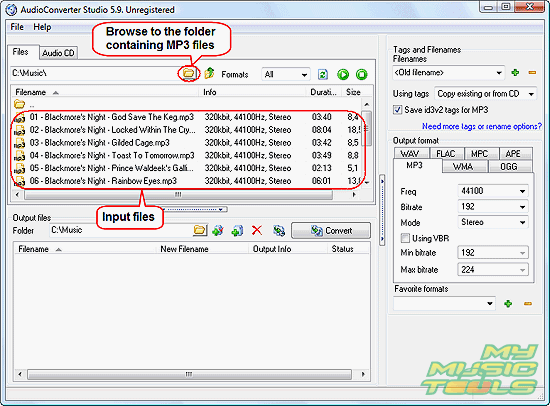
Make sure that the "Files" tab is selected, then click the folder icon in the address field. This will invoke a usual "Browse" dialog, where you can select your folder with high-bitrate MP3 files. You can also type in the path directly or navigate between folders in the explorer-like manner: double click a folder to enter it, use the "Level up" button to leave the current folder.
Once you open the right folder, your MP3 files will be shown in the upper part of the window. You can see their characteristics and other details.
Step 3: Set up MP3 bitrate and other parameters.
On the right pane, there are two areas. Let's take a look at the "Output format" area:
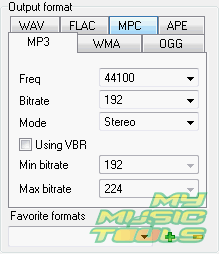
Select here the MP3 tab and adjust frequency, bitrate and mode parameter, as needed.
Then go to the Tags and Filenames area:
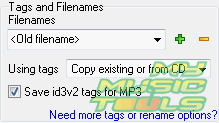
We will use "Old filename", which means that converted files will have exactly the same filenames. If your files contain some ID3 tags, you can rename the files while converting.
From the "Using tags" dropdown list, select "Copy existing". This will copy any tags your files might have to converted files.
Step 4: Select output folder. Change bitrate of your MP3 files.
Now all necessary preparations have been done.
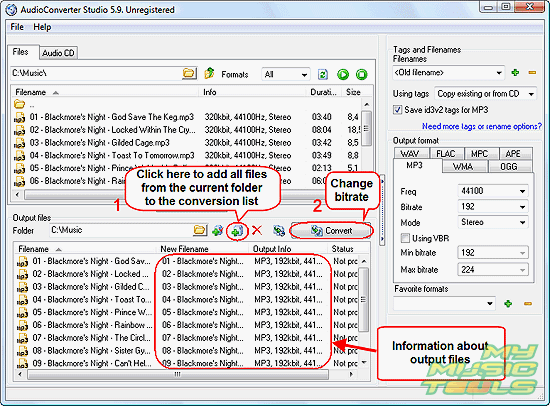
Click the "Add all" button in the "Output files" area (highlighted on the screenshot above (1)) to add all files from the current folder to the converting list (the lower part of the window). Then choose a folder to save converted files (files with the new bitrate). Attention: if you choose the input folder, files won't be converted!
Finally, click the "Convert" button (2). Wait for the program to finish, then get converted files in the output folder.


Search
Related
- How to convert WMA to WAV?
- How to convert FLAC to WAV?
- How to convert APE to FLAC?
- How to rip Audio CD to APE?
- How to rip Audio CD to FLAC?
- How to convert MP3 to WAV?
- How to convert WMA to MP3?
- How do I convert MPC to MP3?
- How to change bitrate of MP3 files?
- How to convert WAV to MP3?
- How to convert CDA to MP3?
- How to convert OGG to MP3?
- How do I convert APE to MP3?
- How do I convert FLAC to MP3?
- How to convert a whole folder of audio files into the OGG format?
- AudioConverter Studio 6.0 review
- AudioConverter Studio review
Ask our expert
- How to share screen videos online?
- How to sort duplicate music files by ID3 tags?
- How to get quick updates on movies by director?
- How to convert multiple MIDI files into an MP3?
- How to rotate videos?
- How to convert WMA to WAV?
- How to play MIDIs on an iPhone?
- How to split an audio file into equal parts?
- How to split m4b audiobooks into chapters for free?
- How to convert videos for You Tube?
