




How to convert AVI to iPad?
Introduction.
Apple iPad is one of the most popular tablet computers. Having a big screen, it makes watching movies on the go quite convenient. But how can we convert a typical movie to iPad?
In this article we will take AVI, as it is one of the most popular video formats, and convert AVI to iPad using Cucusoft iPad Video Converter. This smart program will automatically select necessary settings to convert our video so that it fits the iPad screen precisely, thus producing high-quality iPad video in the required format.
Step 1: Download and install the program.
Download Cucusoft iPad Video Converter to your computer and start the program. A setup wizard will be shown, guiding you through the rest of the installation process.
Step 2: Open AVI to convert to iPad.
Launch the iPad video converter. Its main window will be shown, along with an additional preview window that looks like iPad.
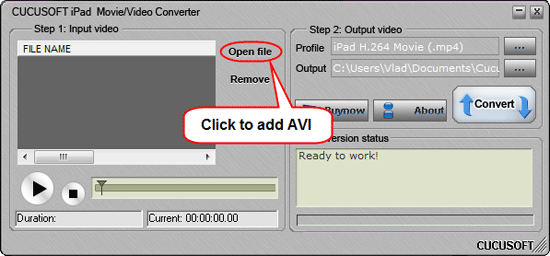
Click the "Open file" button in the main window. A typical "Open file" Windows dialog will appear. Browse to the folder where you keep your AVI movies, select the ones you want to convert to iPad and confirm your selection by clicking the "Open" button.
The dialog will be closed, and the videos will appear in the "Input video" area on the left. You can add more videos in the same way, or remove the ones you do not want to convert by selecting them in the list and clicking on the "Remove" button.
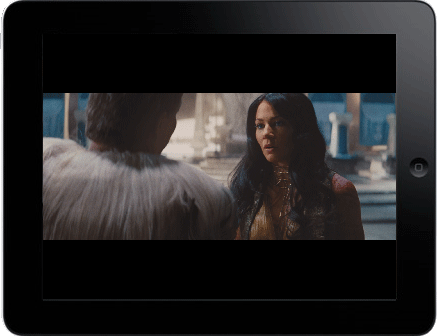
After adding movies to the list we can preview them by selecting a file in the "Input video" area and using the play and stop buttons right below the list. The preview will be shown in the preview window that looks like an iPad:
Step 3: Select output folder. Convert AVI to iPad.
The main window prompts to select an output folder and an output profile. However, we will not change the iPad profile that is installed by default, there is no need.
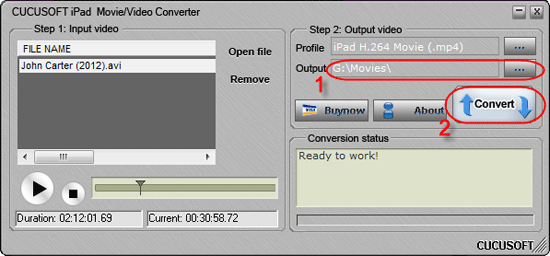
So, let's select some output folder (1), this is where the converted iPad movies will be saved.
Finally, click the "Convert" button on the right (2) to convert AVI to iPad movie.
The free trial version of Cucusoft iPad Video Converter adds a logo to all converted videos (the source files always remain unchanged). You can register the program and remove all limitations.


Search
Related
Ask our expert
- How to share screen videos online?
- How to sort duplicate music files by ID3 tags?
- How to get quick updates on movies by director?
- How to convert multiple MIDI files into an MP3?
- How to rotate videos?
- How to convert WMA to WAV?
- How to play MIDIs on an iPhone?
- How to split an audio file into equal parts?
- How to split m4b audiobooks into chapters for free?
- How to convert videos for You Tube?
