




How to convert AVI to MP3?
Introduction.
Sometimes we need to extract sounds or music from a video clip or movie. This audio can be used as a ringtone or simply saved as a soundtrack from the movie. But how can one split the whole media file into the video and audio tracks and take only a certain piece of the audio stream? This can be easily achieved with the modern software like Video To MP3/WAVE Extract. Let's see how this program can handle converting AVI to MP3.
Step 1: Download and install the program.
Download Video To MP3/WAVE Extract to a known location. Run setup and follow on-screen instructions to install the application.
Step 2: Start the program. Add file to convert.
Launch Video To MP3/WAVE Extract. The main window will be shown:
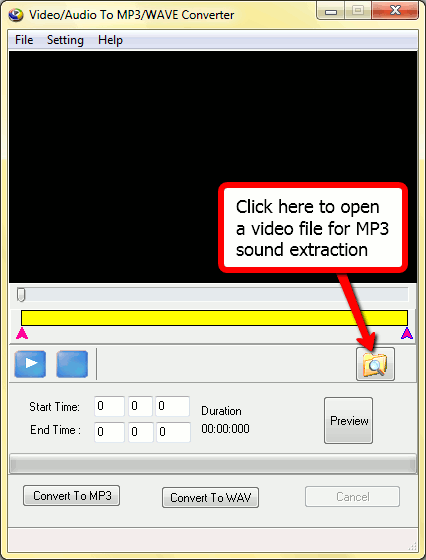
The first thing we should do is to show the program where we want to extract mp3 audio from. Click the "Open" button as shown on the screenshot above to invoke the "Browse" dialog.
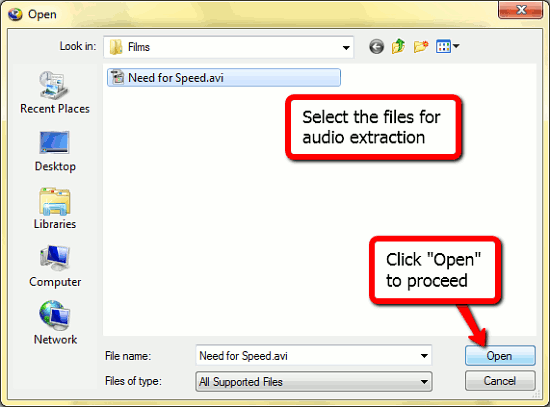
After selecting an AVI file, click "Open". The AVI will be loaded into the audio extractor program.
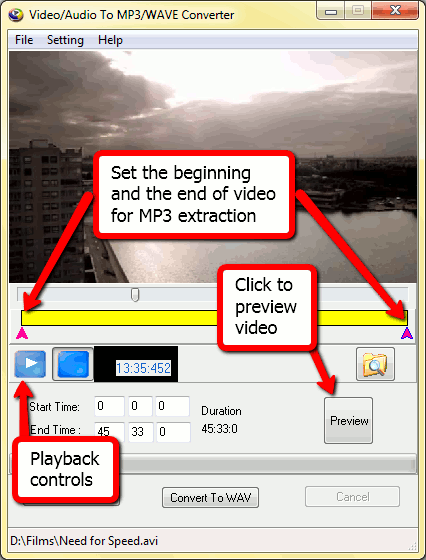
Now we can play back the file using special navigation controls, search for particular fragments and set bounds for our MP3 extraction. If you do not want to convert the whole video to MP3, you can specify a custom start and an end time of the part to convert either with the special markers as shown on the screenshot above or directly entering the time into the special fields a bit lower.
Step3: Specify MP3 output settings. Convert AVI to MP3.
Now let's take a closer look at our MP3 track that we are going to extract from the video. We can adjust its quality properties. In order to do so, click the "Settings" button on the toolbar.
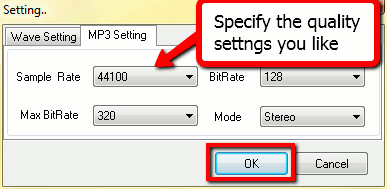
In the new window you can select any set of values controlling the output MP3 sound quality. There are two tabs: "Wave settings" and "MP3 settings". Obviously, the program can convert AVI to WAV as well, but for our example we will use only MP3 settings. Higher bitrates give us better sound but result in bigger files, lower bitrates produce smaller files.
Click "Ok" to close the window and apply your settings.
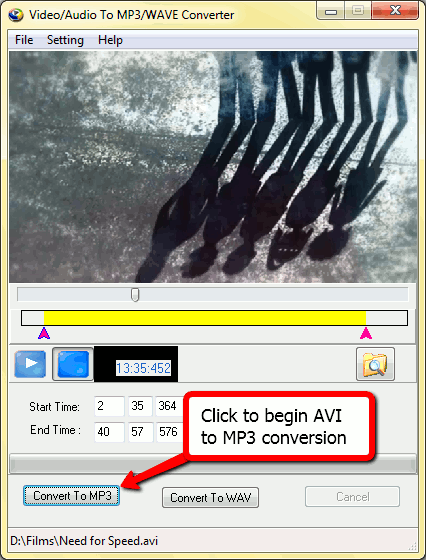
Now we are ready to convert AVI to MP3, so simply click the corresponding button as shown on the screenshot above. The "Save to" dialog will pop up:
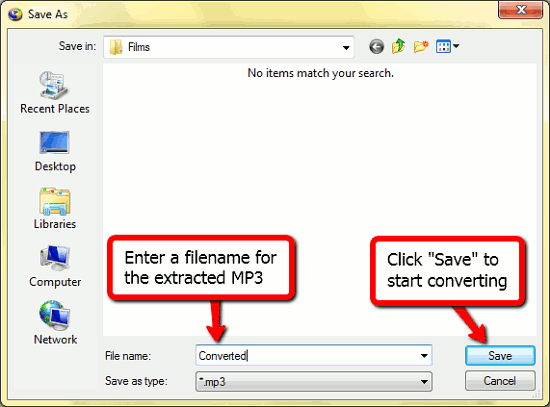
The last step asks you where to save the output MP3 track, and under what name. Enter a filename and click "Save" to begin the AVI to MP3 conversion.
The progress bar will appear, helping you estimate how long the conversion will take. When the conversion is complete, you will find the converted MP3 file in the output folder that you specified.
The trial version of Video To MP3/WAVE Extract can convert only 3 minutes of video. If you like the program, you can register it and enjoy extracting MP3 from video without limitations.

Search
Related
- How to share screen videos online?
- How to rotate videos?
- How to capture video?
- How do I convert AVI to Zune?
- Movavi VideoSuite 4.4 review
- How to record a screen video?
- How to make a video tutorial?
 How to add a watermark to your video?
- How to fix a blurred video?
- How to increase brightness of a dark video?
- How do I combine AVI episodes into a full-length professional looking movie?
- How do I stay anonymous in a webcam chat?
- How do I improve quality of videos and old movies?
- AVS Video Editor 3.4 review
- MOVAVI Releases EnhanceMovie 2.0
- MOVAVI Releases EnhanceMovie 1.3
- How to play MKV file?
- How to play any video?
Ask our expert
- How to share screen videos online?
- How to sort duplicate music files by ID3 tags?
- How to get quick updates on movies by director?
- How to convert multiple MIDI files into an MP3?
- How to rotate videos?
- How to convert WMA to WAV?
- How to play MIDIs on an iPhone?
- How to split an audio file into equal parts?
- How to split m4b audiobooks into chapters for free?
- How to convert videos for You Tube?
