




How to convert DVD to MKV?
Introduction.
MKV is a container format for all sorts of audio, video and subtitle tracks. It was initially designed with the ability to keep multiple audio and subtitle tracks, and to contain high quality video, which makes it an ideal solution to back up DVD movies. MKV can hold Full HD video, although we will not need this kind of resolution if we have a DVD as the source (a typical DVD resolution is 720*480 for NTSC or 720*576 for PAL).
We will consider how to convert DVD to MKV quickly and easily with Movavi Video Converter.
Step 1: Download and install the program.
Download Movavi Video Converter to your computer and start the downloaded file. It will launch a setup wizard that will guide you through the installation process.
Step 2: Start the program. Select DVD to convert.
Launch Movavi Video Converter. The main window of the program will appear:
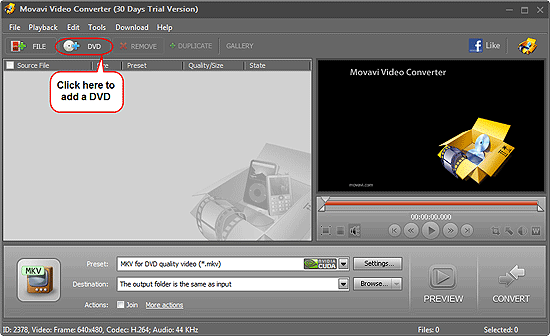
Click the "DVD" button on the toolbar. A "Browse for folder" dialog will be shown:
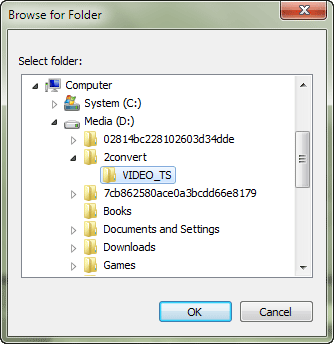
Select a DVD drive or a folder containing files copied from a DVD and click "OK".
Step 3: Select output folder and format. Convert DVD to MKV.
Movavi Video Converter will scan the selected DVD and display all available titles:
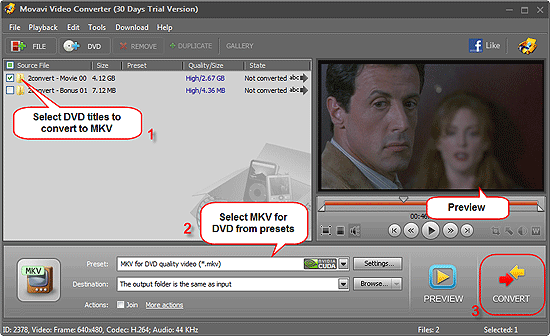
The converter detects the main movie title and selects it automatically. However, you can unselect it, or select additional titles, depending on what you need to convert (1). To preview a title, select it in the list and use the buttons in the preview area (on the right).
In the lower part of the area, click the arrow in the "Preset" field and choose "MKV for DVD quality video" from the dropdown list:
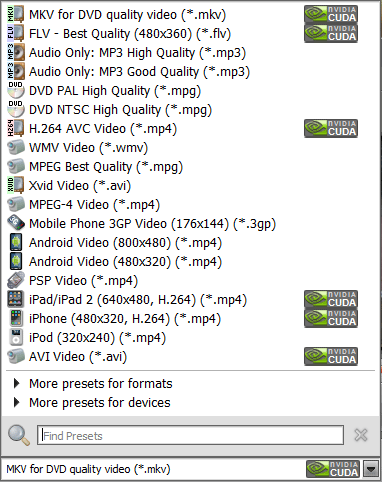
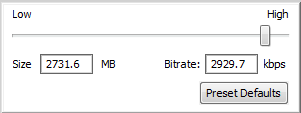
Experienced users can adjust parameters of any preset manually by clicking the "Settings" button next to the preset field. Video quality and target file size can be adjusted directly in the list of titles. Just click the corresponding entry in the "Quality/Size" column and drag the slider to the left (smaller file) or to the right (better quality):
A typical DVD contains several audio and subtitle tracks. Right-click on the title you need to convert and choose the desired audio track from the context menu:
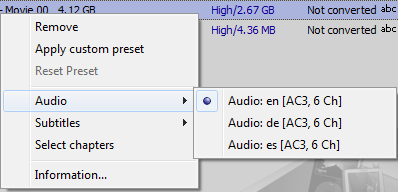
In the same way you can select a subtitle track to be saved to MKV.
In the "Destination" field (just below the "Preset" field), select the folder you are planning to save the converted MKV file to.
Finally, click the "Convert" button (3) to convert your DVD to MKV.
The free trial version of Movavi Video Converter adds a logo to all converted files. If you like the program, you can register it and remove all limitations.


Search
Related
- How to convert videos for You Tube?
- How to convert a video file with subtitles?
- How to convert video for Android?
- How to convert MKV to DVD?
- How to convert TS to AVI?
- How to convert AVI to WMV?
- How to convert AVI to FLV?
- How to convert MKV to MP4?
- How to convert DVD to MKV?
- How to convert MKV to AVI?
- How do I convert to DVD?
- How to convert DVD to MP4?
- How to convert MOV to AVI?
- How to convert AVI to MOV?
- How to convert MP4 to AVI?
- How to merge video files?
- How do I convert AVI to PSP format?
- How do I convert AVI to 3GP?
- How do I convert WMV to AVI?
- How do I convert video to flash?
- ConvertMovie 4.0 review
- Imtoo 3GP Video Converter 3.1 review
- How to convert a video file into the 3GP format?
- Xilisoft 3GP Video Converter 2.1 review
- Videozilla review
- How do I convert MTS to AVI?
Ask our expert
- How to share screen videos online?
- How to sort duplicate music files by ID3 tags?
- How to get quick updates on movies by director?
- How to convert multiple MIDI files into an MP3?
- How to rotate videos?
- How to convert WMA to WAV?
- How to play MIDIs on an iPhone?
- How to split an audio file into equal parts?
- How to split m4b audiobooks into chapters for free?
- How to convert videos for You Tube?
