




How to convert MKV to AVI?
Introduction.
MKV is an extension of the Matroska container format used for storing all sorts of audio and video tracks. The last letter of the file extension stands for Video. MKV is often used to back up movies, as it is capable of storing high definition video (HD video) and an unlimited number of audio /subtitle tracks.
However, you may want to convert MKV to AVI in various situations. AVI is supported by a bigger number of hardware and software players, so it is preferable if your video must be playable. You may also want to reduce file size while keeping reasonable quality.
We will see how MKV can be converted to AVI using Movavi Video Converter.
Step 1: Download and install the program.
Download Movavi Video Converter to your computer and start the file. Follow on-screen instructions to install the video converter.
Step 2: Start the program. Select MKV to convert to AVI.
Start the video converter. The main window of the program will be shown:
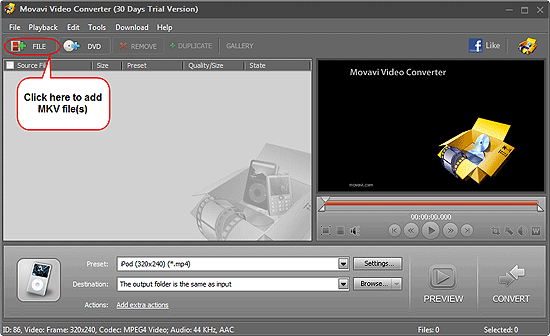
Click the "File" button on the toolbar. A usual "Open" dialog will pop up:
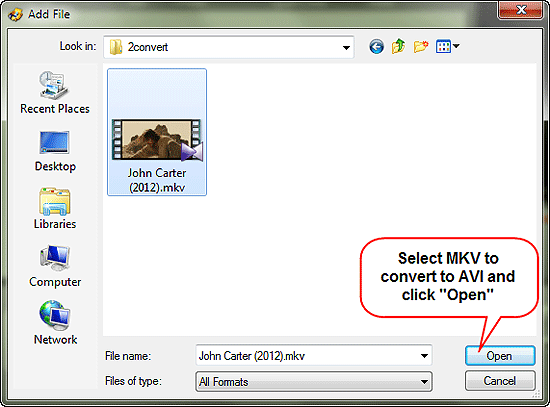
Browse to the folder where you keep your MKV files, highlight the file in question and click "Open". You can also add several files at once.
Step 3: Set output format and folder. Convert MKV to AVI.
Your MKV video will appear in the conversion list:
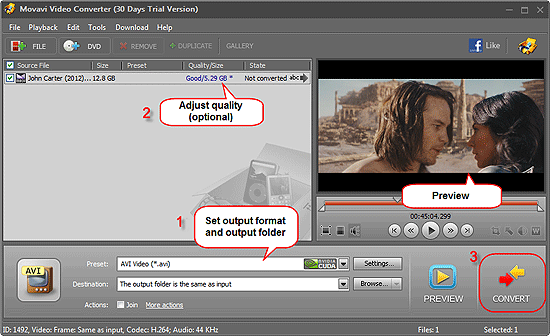
You can preview the video, using the preview area on the right.
In the lower part of the window, click the arrow in the "Preset" field. A list similar to the following one will be shown:
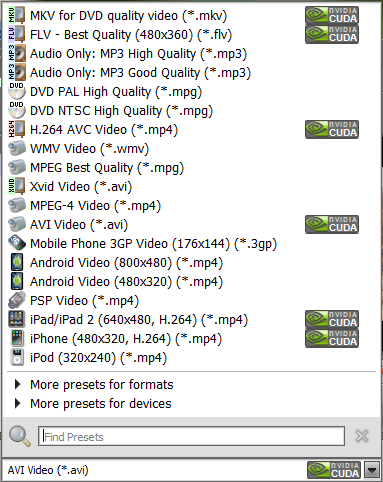
Select "AVI Video (*.avi)" from the list.
Under the "Preset" field, find the "Destination" field and choose a folder for saving converted AVI files. We selected saving AVI into the same folder where our MKV was.
There is an easy way to control quality / size of the output file. Just click the link in the "Quality/Size" column (2). The following control will pop up:
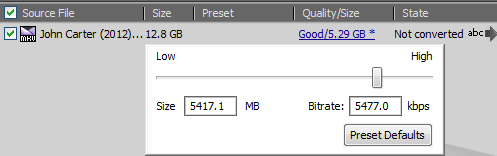
You can simply drag the slider to the left or to the right to make the output file smaller or bigger (higher quality).
Finally, click the big "Convert" button in the right lower corner of the program (3). The MKV converter will start processing your video.
The free trial version of Movavi Video Converter adds a logo to all converted videos (the source files remain unchanged). If you like the program, you can remove this limitation by registering Movavi Video Converter.


Search
Related
- How to convert videos for You Tube?
- How to convert a video file with subtitles?
- How to convert video for Android?
- How to convert MKV to DVD?
- How to convert TS to AVI?
- How to convert AVI to WMV?
- How to convert AVI to FLV?
- How to convert MKV to MP4?
- How to convert DVD to MKV?
- How to convert MKV to AVI?
- How do I convert to DVD?
- How to convert DVD to MP4?
- How to convert MOV to AVI?
- How to convert AVI to MOV?
- How to convert MP4 to AVI?
- How to merge video files?
- How do I convert AVI to PSP format?
- How do I convert AVI to 3GP?
- How do I convert WMV to AVI?
- How do I convert video to flash?
- ConvertMovie 4.0 review
- Imtoo 3GP Video Converter 3.1 review
- How to convert a video file into the 3GP format?
- Xilisoft 3GP Video Converter 2.1 review
- Videozilla review
- How do I convert MTS to AVI?
Ask our expert
- How to share screen videos online?
- How to sort duplicate music files by ID3 tags?
- How to get quick updates on movies by director?
- How to convert multiple MIDI files into an MP3?
- How to rotate videos?
- How to convert WMA to WAV?
- How to play MIDIs on an iPhone?
- How to split an audio file into equal parts?
- How to split m4b audiobooks into chapters for free?
- How to convert videos for You Tube?
