




How to create a CD cover?
Introduction.
After burning a CD you often take a marker and write the name or describe in short the contents of the disc. After dozens of such "faceless" CDs, the collection of family videos or anything else will not look as attractive as it could be if the CDs had covers like officially published discs.
But we can create illustrated covers for our CDs with custom text and images on it, too. DeepBurner Pro is a tool capable of creating and printing CD labels, case inserts, and even booklets.
Step 1: Download and install the program.
Download DeepBurner Pro to a known location. Run setup and follow on-screen instructions to install the application.
Step 2: Start the program. Open the CD cover editor.
Launch the disk cover creator. Its main window will be shown:
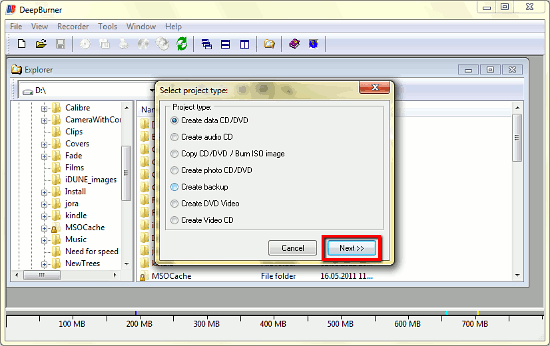
The wizard prompts to choose the type of CD that should be burned, but we only want to create a CD cover, so the choice doesn't really matter. Simply click "Next" on all steps of the wizard.
Now the main window of the CD project is shown. Select the "Print label" category on the left and choose a CD box type.
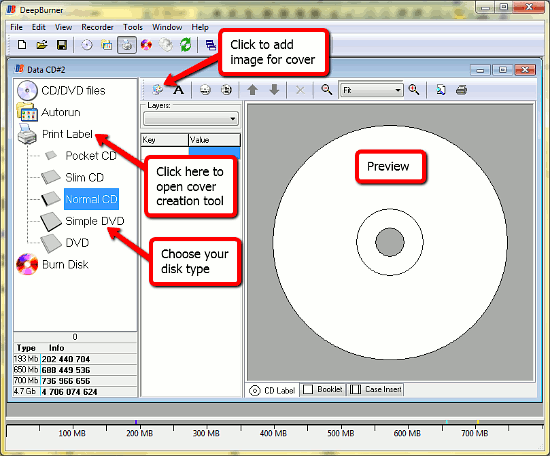
Preview of the CD cover will appear on the right, and three tabs below it allow us to switch between cover, label and booklet modes. The process is almost the same for all of them, so we will use the "CD Label" tab and start creating our cover.
Step 3: Create CD/DVD cover.
Click the "Insert picture" button on the toolbar to open a picture file that will become our CD cover. The picture will appear in the "Preview" area.
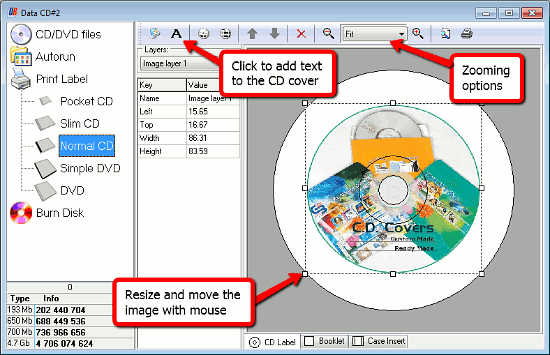
You can move and resize it dragging it or its borders with the mouse. Place the CD cover image the way you like it. Use zoom controls on the toolbar for precise positioning.
Now it's time to add some text description on the cover. To add text lines, click "Insert text" on the toolbar. A small window will appear, enter your text there:
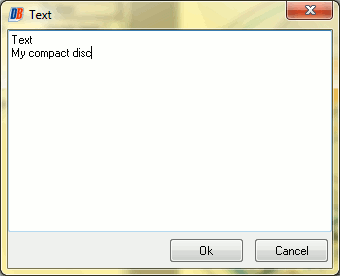
Click "OK" to add it to the disc cover.
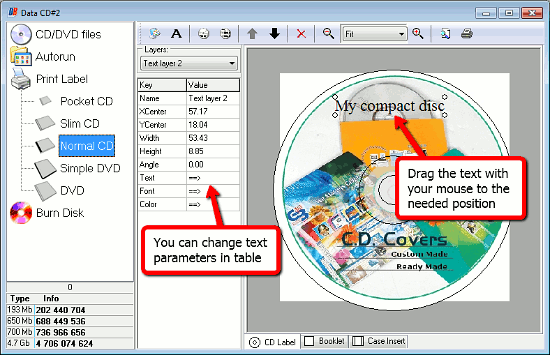
Drag the text fragment with your mouse to where you want it to be. The table on the right shows the parameters of your text. You can adjust them by clicking on the corresponding line and column. Font size, angle, font face, color can be changed. Do not hesitate to experiment with this tool, it will help you to create bright and original CD or DVD covers.
Finally, click the "Print" button on the toolbar, and the created CD cover will be sent to your printer.
The trial version of DeepBurner Pro will work for 30 days. If you like the program, you can register it and use without any limitations.


Search
Related
Ask our expert
- How to share screen videos online?
- How to sort duplicate music files by ID3 tags?
- How to get quick updates on movies by director?
- How to convert multiple MIDI files into an MP3?
- How to rotate videos?
- How to convert WMA to WAV?
- How to play MIDIs on an iPhone?
- How to split an audio file into equal parts?
- How to split m4b audiobooks into chapters for free?
- How to convert videos for You Tube?
