




How to download lyrics for songs?
Introduction.
When you buy an Audio CD, usually you get a booklet with lyrics and other important or not so important information. As you rip your CDs to MP3 or other audio formats, you still can look into the booklet for lyrics. However, MP3 and other formats offer you much better choice. You can store lyrics, as well as other information, inside your music files. You can also save lyrics as text files. Most media players recognize both of the methods. They will show lyrics while playing the corresponding file, so you won't need to search for a text in booklets.
This option can be even more valuable if you have thousands of songs in your collection. Or if you have no booklets at all.
To download lyrics for songs from the Internet, you will need some tool like mp3Tag Pro.
Step 1: Download and install the program.
Download mp3Tag Pro to a known location. Run setup and follow on-screen instructions to install it.
Step 2: Start the program. Select a song that you want to get lyrics for.
Launch mp3Tag Pro. Enter the path to your audio files into the address field, or just browse to the folder like you do in Windows Explorer.
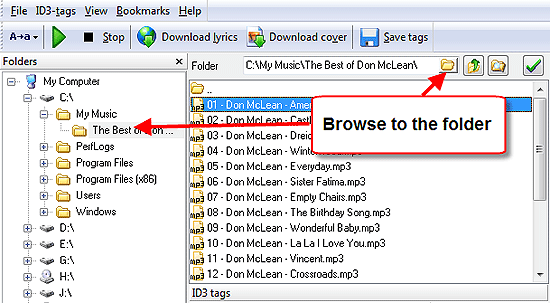
You can browse your computer by clicking the folder symbol next to the address field, or entering drive letter into the address field and then double-clicking folders (Windows Explorer-like style), or using the tree on the left.
Once you are in the right folder, make sure that your files contain all necessary information (1).
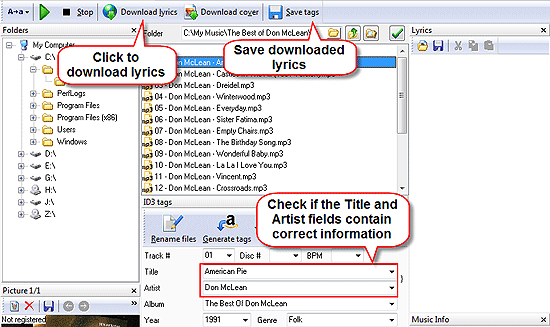
Now you can select a file and download lyrics for it. Just click the Download lyrics button on the toolbar. If after a few seconds no lyrics is shown, click the green arrow button that will appear near the Download lyrics one on the toolbar to switch to another source.
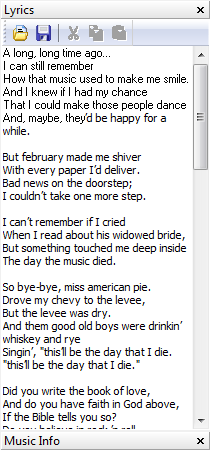
OK, the lyrics is there, in our lyrics editor. Now you should save it. There are two basic methods, as we have already mentioned. The lyrics can be saved inside your MP3 (FLAC, APE, OGG etc.) file, or into a new text file. To use the first method, just click "Save" on the toolbar (note that UAC of Windows Vista doesn't allow to change files in a custom folder; if you can't save tags, change ownership on the folder, or start mp3Tag Pro as administrator). To save lyrics into a text file, click the diskette symbol in the lyrics window.
Step 3: Get lyrics for many files at once.
If you need to download lyrics for multiple files, the described above method can be boring. However, mp3Tag Pro allows you to fetch lyrics for thousands of audio files at once. Just select all the files using "Select all" button, or with your mouse, and click the Download lyrics button on the toolbar:
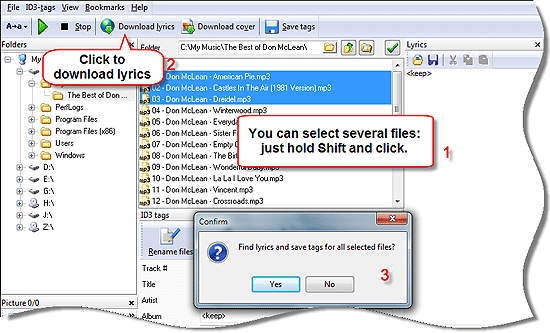
Now, if you click "Yes" in the dialog box, the lyrics will be downloaded and saved for all selected files automatically.
If you need to get lyrics for files from multiple directories, use the "Scan subfolders" button to the right of the address field.
The trial version of mp3Tag Pro downloads only a half of lyrics for each file. If you are satisfied with the feature, you can purchase the program online and remove all restrictions immediately with your registration data.


Search
Related
- How to sort duplicate music files by ID3 tags?
- How to add cover art to an mp3 file?
- How to rename a batch of audio files?
- How to find all songs on your PC
- How to import ID3 tags from CSV?
- How to find MP3 duplicates by sound?
- How to fix ID3 tags?
- How to export ID3 tags to MS Excel?
- How to edit FLAC tags?
- How to download FLAC lyrics for free?
- How to add track numbers to ID3 tags?
- Duplicate File Finder for Music
- How to extract MP3 tags from filenames?
- How to download MP3 lyrics for free?
- How to remove music duplicates?
- How do I find duplicates in my music collection?
- How to rename MP3 files using ID3 tags?
- What ID3 tag editor can edit WMA tags?
- How to edit AAC tags?
- How to download MP3 album art?
- How do I get ID3 tags from the Internet?
- How to download lyrics for songs?
- How do I tag MP3 files with ID3 data using filenames?
- How do I sort MP3 files? I want to organize my music collection.
- How to keep track of my borrowed music albums?
- How to make a catalog of my music collection using album barcodes?
- How to get the biography of an artist?
- How to manage my music collection on a Dune HD media player?
- How to organize my music collection?
- How do I organize my music collection?
- How do I remove duplicates on my computer?
- How to create a playlist?
- Media Catalog Studio 4.5 review
Ask our expert
- How to share screen videos online?
- How to sort duplicate music files by ID3 tags?
- How to get quick updates on movies by director?
- How to convert multiple MIDI files into an MP3?
- How to rotate videos?
- How to convert WMA to WAV?
- How to play MIDIs on an iPhone?
- How to split an audio file into equal parts?
- How to split m4b audiobooks into chapters for free?
- How to convert videos for You Tube?
