




How to make a video tutorial?
Introduction.
Sometimes we face the problem of explaining to someone what is happening on our computer screen in order to get help or, the other way around, somebody asks for help, and we need to explain what to click and where to look. In such cases words can be useless, the person needs to see what to do. This is exactly where a video tutorial might be helpful, but how do we create one?
Here we will check how to record on-screen actions and shoot video tutorials with HyperCam, a screen recorder software with some advanced features.
Step 1: Download and install the program.
Download HyperCam to a known location. Run the downloaded setup program and follow on-screen instructions to install the application.
Step 2: Start the program. Select a screen region to capture.
Launch the screen recorder. Its main window will be shown:
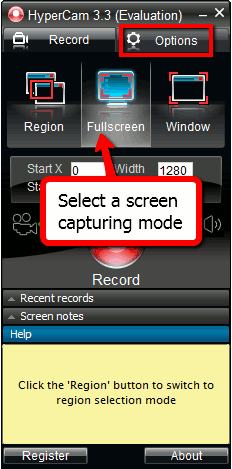
Decide which part of your screen needs to be recorded: a region that you specify, the entire screen or just some window. For our example, we will pick the "Fullscreen" mode to be able to capture screen showing everything that happens on it.
Step 3: Adjust screen capture options.
Let's adjust some screen capture settings. Click "Options" on the right from the "Record" tab. A new window will pop up:
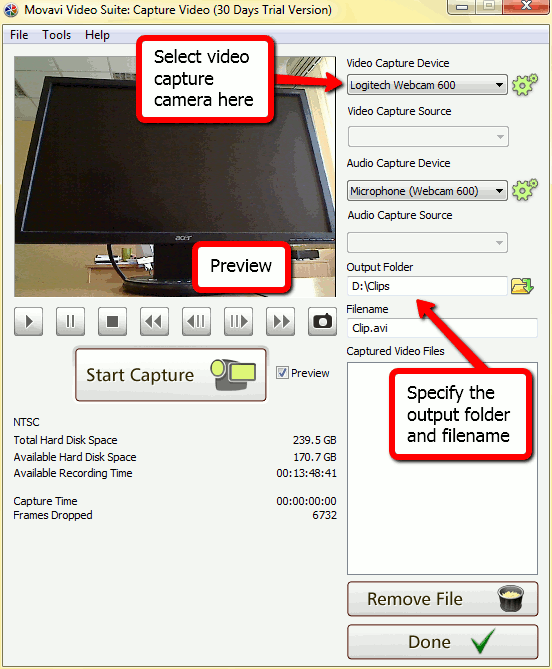
In this tab of video capturing options, we should pay attention to the output folder and output format fields. Select some video format for your video tutorial from the corresponding drop-down list. You can record in AVI, WMV or ASF. We choose AVI, as it is one of the most popular video formats.
In the "Output folder" field, specify the folder where you'd like your tutorials to be saved to. Make sure you have enough disk space for the planned video recording.
The "Extras" tab allows us setting important details for making tutorials.
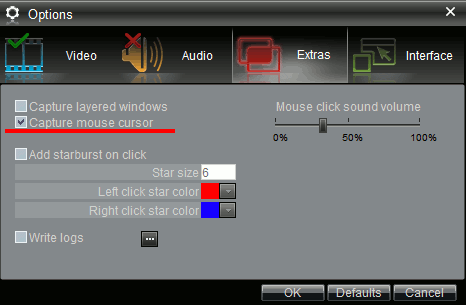
The usual video capturing mode doesn't "see" the mouse cursor, so we need to enable the "Capture mouse cursor" option to be able to record all movements of the cursor. You can also adjust the volume of mouse clicks and their visual highlighting.
The "Audio" and "Interface" tabs control audio format settings and quick-action hotkeys respectively, you can change them as well.
After all is set, click "OK" to save the changes and proceed.
Step 4: Screen recording.
Now let's take a look at the area around the "Record" button:
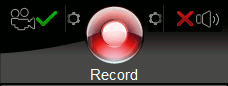
Near the video camera sign, there is a tick. This means that the video stream will be captured. And the red cross on the opposite side means that audio will not be recorded while capturing screen video. You can click on the icon to turn audio capturing on. The cogwheel icons open the "Options" window on the audio or video settings tab.
Everything is ready for screen recording now. Simply click on "Record" to start making a video tutorial. The captured area will be highlighted.
The small pane in the lower corner of the captured area allows you to stop capturing screen:
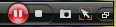
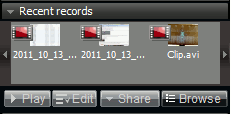
After you stop capturing, the recorded video will be listed in the "Recent records" category.
The trial version of HyperCam will work for 30 days. If you like the program, you can register it and use without any limitations.


Search
Related
- How to share screen videos online?
- How to rotate videos?
- How to capture video?
- How do I convert AVI to Zune?
- Movavi VideoSuite 4.4 review
- How to record a screen video?
- How to make a video tutorial?
 How to add a watermark to your video?
- How to fix a blurred video?
- How to increase brightness of a dark video?
- How do I combine AVI episodes into a full-length professional looking movie?
- How do I stay anonymous in a webcam chat?
- How do I improve quality of videos and old movies?
- AVS Video Editor 3.4 review
- MOVAVI Releases EnhanceMovie 2.0
- MOVAVI Releases EnhanceMovie 1.3
- How to play MKV file?
- How to play any video?
Ask our expert
- How to share screen videos online?
- How to sort duplicate music files by ID3 tags?
- How to get quick updates on movies by director?
- How to convert multiple MIDI files into an MP3?
- How to rotate videos?
- How to convert WMA to WAV?
- How to play MIDIs on an iPhone?
- How to split an audio file into equal parts?
- How to split m4b audiobooks into chapters for free?
- How to convert videos for You Tube?
