




How to play FLAC with CUE?
Introduction.
FLAC is a popular lossless audio format, its name stands for Free Lossless Audio Codec. Lossless means that no audio information is discarded when you convert audio to this format, so the resulting files have exactly the same quality as the original. This makes FLAC very attractive for storing music and other audio where quality is important. This format is often used to back up complete CD albums.
If you have an entire album stored as one FLAC file, you will find a small file having the .cue file extension next to your FLAC file. CUE is a simple text file containing information about tracks in the big FLAC. Using CUE, you can not just easily navigate to any track in the album, but also see titles of individual tracks, artist, duration, and other details. However, this kind of combination is only partially supported by common software players (they will play FLAC as a whole file without using information from CUE).
You can fully appreciate the convenience of the FLAC + CUE combination with CrystalWolf Free Audio Player.
Step 1: Download and install the program.
Download CrystalWolf Free Audio Player to your computer and start the downloaded file. Follow on-screen instructions to install the player.
Step 2: Play FLAC + CUE.
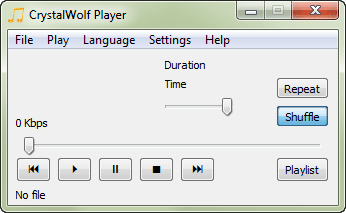
Start CrystalWolf Free Audio Player. The main window of the player will be shown:
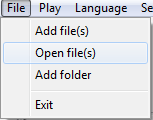
Select "File" - "Open file(s)":
A usual "Open file" dialog will be shown. Browse to the folder where your FLAC and CUE are stored and select the CUE file.
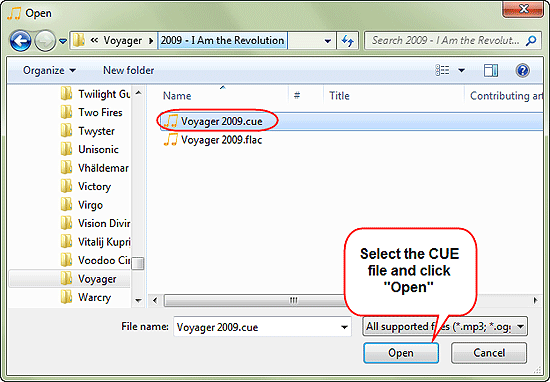
Note that selecting FLAC is also possible, but you will get it played as a whole file, without any track information.
Click "Open".
CrystalWolf Free Audio Player will start playing your FLAC file, showing information about every track: title, artist, album, year etc.
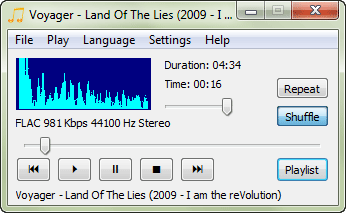
Now we can click the "Playlist" button and check the complete track list of the album:
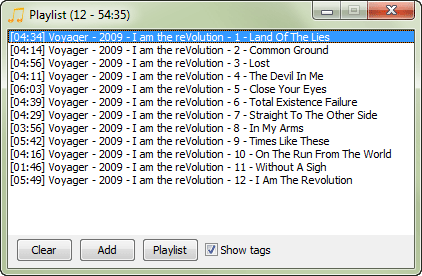
Double-click any track in the list to play it. The program can also shuffle the list, playing all added tracks at random. This would not be possible if you did not use the CUE file.
You can associate CrystalWolf Free Audio Player with all supported file types and with folders (see "Settings" - "General settings"). This will allow you easily playing FLAC + CUE combinations by right-clicking your music folders and selecting "Play in CrystalWolf Player". The player will automatically recognize all CUE files in the selected folder and load them into its playlist.

Search
Related
Ask our expert
- How to share screen videos online?
- How to sort duplicate music files by ID3 tags?
- How to get quick updates on movies by director?
- How to convert multiple MIDI files into an MP3?
- How to rotate videos?
- How to convert WMA to WAV?
- How to play MIDIs on an iPhone?
- How to split an audio file into equal parts?
- How to split m4b audiobooks into chapters for free?
- How to convert videos for You Tube?
