




How to record online radio?
Introduction.
Online radio broadcasting has become rather popular and it features one undisputable advantage compared to the regular radio: you can listen to your station while being anywhere on the globe. Using the internet, you can connect to a channel and enjoy much better sound quality, compared to the traditional radio. But from time to time you may want to record a song from streaming radio, for example, a new amazing hit, or some old rare song that is not available in stores anymore. To be able to record from online radio, you need a special tool, Hit-Recorder.
Step 1: Download and install the program.
Download Hit-Recorder to a known location. Run setup and follow on-screen instructions to install the application.
Step 2: Start the program. Select your radio channel.
Launch the online radio recorder. The main window will be shown:
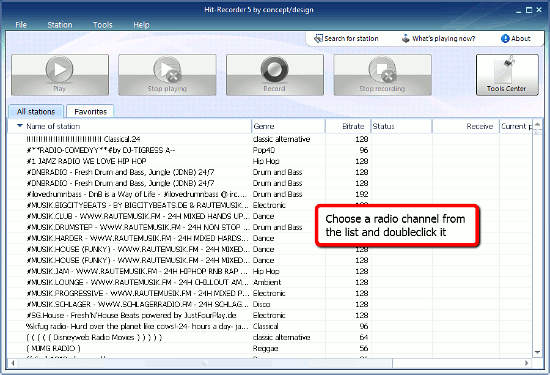
Here you see the list of available online radio stations. This list can change from time to time, so the program may prompt you to update it. Confirm the update and wait until ready.
Now let's find a radio channel that we'd like to record from and double click it. Alternatively, you can select it and click "Play" on the toolbar.
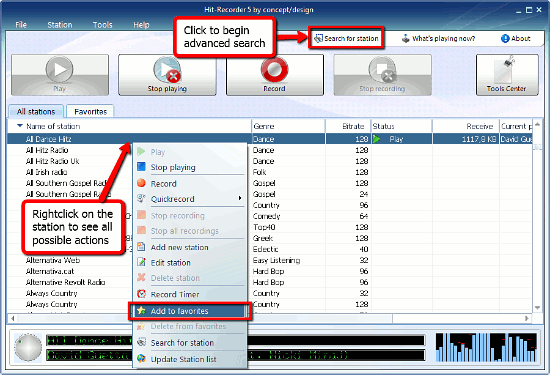
When the playback starts, a mini player will appear at the bottom of the program window. You can also start advanced search for a radio channel by clicking the "Search for station" button.
The radio station list has a "Favorites" tab. To add a channel to the list of your favorites, right click it and select the action from the context menu. It will be shown in "Favorites" immediately, and you will be able to find it quickly next time.
In the context menu, special recording modes can be applied: record for 10, 20, 30, etc. minutes; Record by the timer; Start recording now. We do not need these now, so we start recording with the toolbar buttons. While the radio channel is playing, click the "Record" button on the toolbar to record online radio.
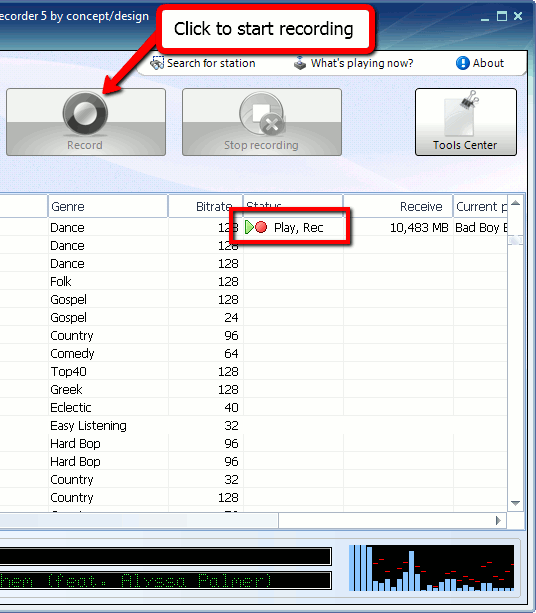
In the "Status" column, the "Rec" sign will appear, and the streaming audio will be recorded. Click "Stop recording" to finish. Hit-Recorder can simultaneously record up to 20 radio channels.
Now we need to find where the program saved recorded audio. Click "File" - "Program settings" - "Settings", and a simple window will pop up:
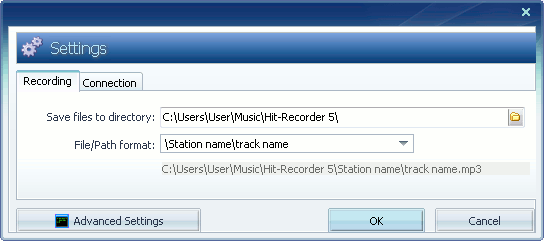
Here you can see and change where online recorder should save output files. Filename format can be adjusted here as well. The bottommost text string shows the currently applied full path. Default settings are suitable in most cases, so you can just keep them. In order to get more advanced settings, click the "Advanced settings" button.
The trial version of Hit-Recorder works for 7 days. If you like the program, you can register it and continue recording internet radio.

Search
Related
Ask our expert
- How to share screen videos online?
- How to sort duplicate music files by ID3 tags?
- How to get quick updates on movies by director?
- How to convert multiple MIDI files into an MP3?
- How to rotate videos?
- How to convert WMA to WAV?
- How to play MIDIs on an iPhone?
- How to split an audio file into equal parts?
- How to split m4b audiobooks into chapters for free?
- How to convert videos for You Tube?
