




How to rip a DVD?
Introduction.
Taking a backup copy of a video DVD (also known as ripping DVD) is essential for any movie collector. Unfortunately, polymer discs are not the safest data carriers, they tend to crack or break under any mechanical impact. So the need to rip the DVD with your favorite movie is usual and understandable. Luckily there are DVD ripping tools that can rip DVDs to your hard drive, creating high quality videos. We will use ImTOO DVD Ripper Platinum to show how to rip a DVD video in a few simple steps. Along with standard features, such as DVD ripping to numerous video formats, splitting a DVD rip into several video files and using different video quality settings, this DVD ripper enable you to rip DVD in several simultaneous threads, boosting the DVD ripping process speed, to adjust subtitle settings and to select an audio stream. So let's take a look how to rip a DVD with this user-friendly tool.
Step 1: Download and install the program.
Download ImTOO DVD Ripper Platinum to a known location. Run the setup and follow the on-screen instructions to install the application.
Step 2: Start the program. Open DVD video to rip.
Launch ImTOO DVD Ripper Platinum. The main window will be shown:
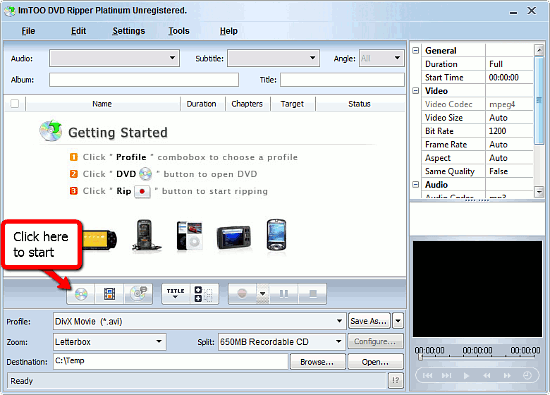
As you can see, hints are shown in the start up window of the DVD ripper, so there will be no problem for inexperienced users to get started. Let's insert our DVD into the drive and click on the "DVD" button to select our disc. In the pop up window, select the DVD to rip and click "OK". After a second of waiting the DVD ripper will provide information about the disc, we will see the list of folders with DVD video chapters inside.
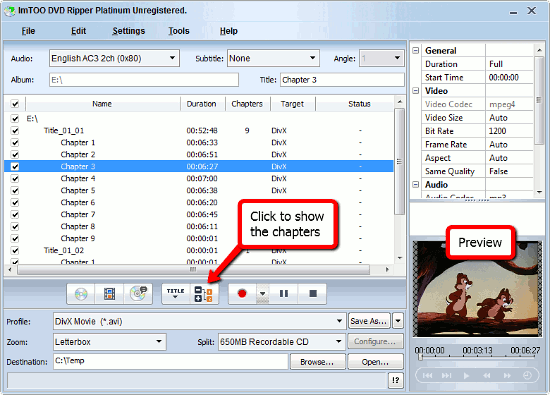
Step 3: Adjusting settings. Ripping DVD.
Click on the button shown on screenshot above to expand the list and see all video chapters of the DVD to rip. You can check or uncheck them depending on your intention to rip them or not. The preview of every chapter is available in the lower right corner of the DVD ripper.
To set options for a DVD chapter, let's double-click on it. A menu will emerge offering us to adjust settings:
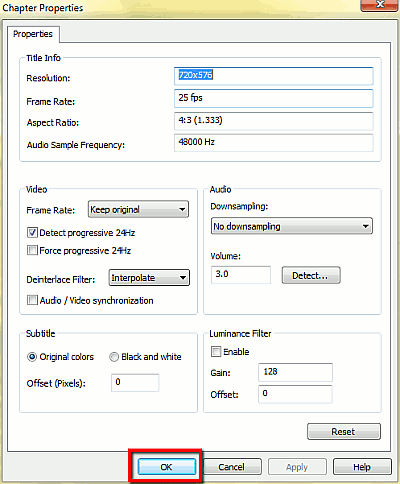
Make all needed corrections and click "OK" to proceed. If you want to assign DVD ripping settings for all selected chapters in the list, please click "Settings" - "Preferences" on the upper toolbar of the DVD ripper. A similar menu will pop up, and you will be able to select the number of simultaneous DVD ripping processes, preview and output options, audio, video, subtitle options and more.
Finally, let's choose an output video file format from the "Profile" drop-down menu in the lower part of the ImTOO DVD Ripper window under the chapter list. There are lots of pre-installed profiles that should satisfy any need. Below we can choose how the DVD ripper should cut the output video, and the destination folder for it. Finally we click on the "Start ripping" button (with a red dot on it) and enjoy the fast progress:
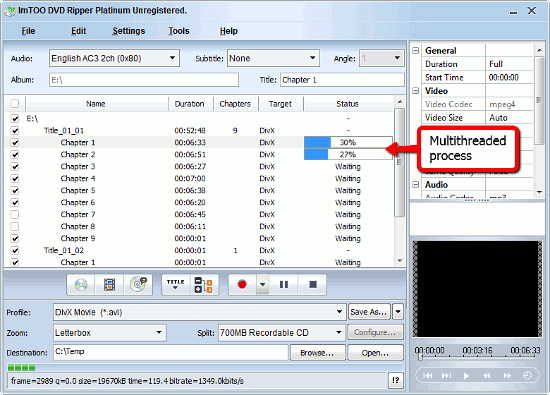
The trial version of ImTOO DVD Ripper Platinum has a limitation of ripping only first 5 minutes of any video. If you like the program and its features, you can register it and remove all limitations immediately.


Search
Ask our expert
- How to share screen videos online?
- How to sort duplicate music files by ID3 tags?
- How to get quick updates on movies by director?
- How to convert multiple MIDI files into an MP3?
- How to rotate videos?
- How to convert WMA to WAV?
- How to play MIDIs on an iPhone?
- How to split an audio file into equal parts?
- How to split m4b audiobooks into chapters for free?
- How to convert videos for You Tube?
