




MP3 Tag Editor + Audio Converter + MP3 Splitter/Joiner + Duplicate Remover + MIDI Converter = 70% OFF
EN DE ES IT FR RU
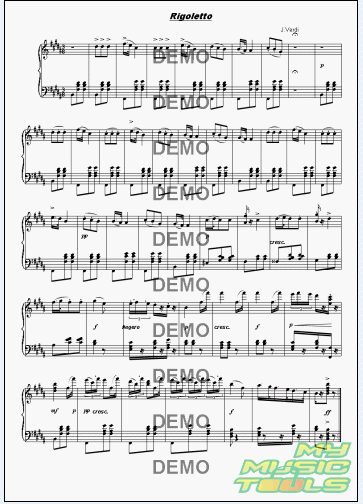
How to transfer the score you have created to a picture?
1. Start MagicScore Maestro.
2. Press the button "Open" in the Toolbar to open the score you have created before.

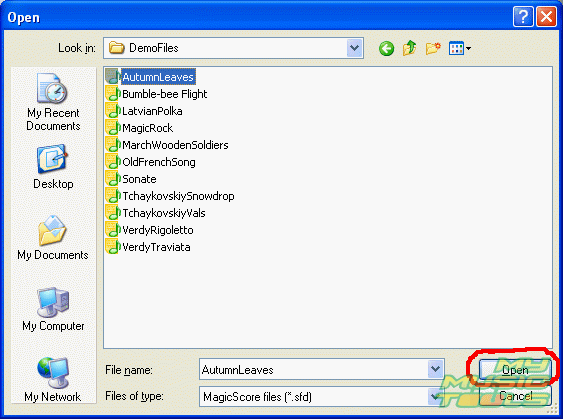
3. In the "Open" dialog box select the required score file (*.sfd) and press the button "Open".
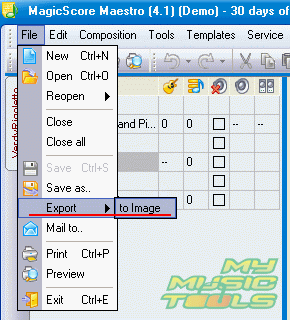
4. When the score is opened, select the menu item File -> Export - >to Image.
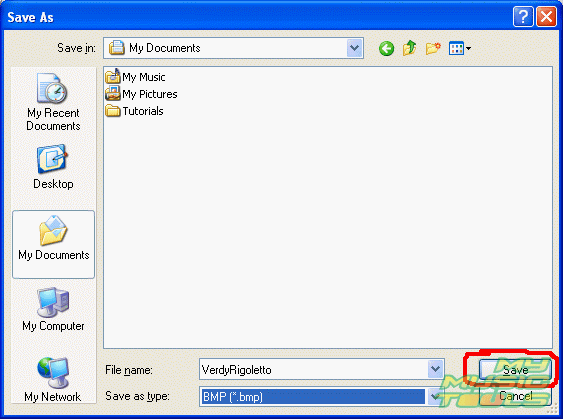
5. In the dialog box "Save As" select the folder where you want to save the file, set the format of the saved image and press the button "Save".
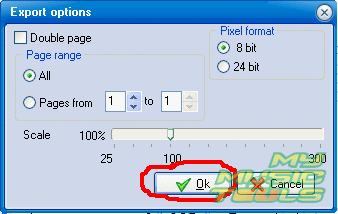
6. In the emerging "Export options" dialog box set the image quality, its scale, the number of pages of the score saved on one image. Press the button "Ok".
7. After the file is saved, you can see the image of the score in an image viewer and print the score, if needed.


Search
Related
Ask our expert
- How to share screen videos online?
- How to sort duplicate music files by ID3 tags?
- How to get quick updates on movies by director?
- How to convert multiple MIDI files into an MP3?
- How to rotate videos?
- How to convert WMA to WAV?
- How to play MIDIs on an iPhone?
- How to split an audio file into equal parts?
- How to split m4b audiobooks into chapters for free?
- How to convert videos for You Tube?
