




MP3 splitter with batch mode support
Introduction.
There are two basic types of MP3 splitters. Some of them convert files to WAV, then split the WAVs and convert them back to MP3. This method has two major drawbacks: it is slow, and it reduces quality of split files. MP3 is a lossy format, which means that every time you convert files to this format some quality is lost.
The other group of MP3 splitters uses a different approach. It splits MP3 files directly, without converting them to WAV and back. This spares much time and leaves the original quality as it is.
Although the second group of MP3 splitters is much quicker, there may be significant delays when splitting large MP3 files. These delays are inevitable, because they depend on how quick the computer can transfer the given amount of data from and to the hard drive disk. Unfortunately, HDDs are still very slow, so neither the best available processor nor a huge amount of memory can help here. Things may be better for SCSI hard drives or certain RAID levels, but SCSI and RAID are rarely used on personal computers.
If you value your time, you may find even such delays annoying. As no program can eliminate these inevitable system delays, the only way to spare your time is doing the split in a batch.
For example, consider the situation when you need to split a dozen of huge MP3 files into a certain number of smaller files each. You can mark for splitting and split each file separately, thus waiting for the splitting process to be completed every time. Another way would be to mark all files without splitting and to split them later. This way the process of splitting can be done in your absence, in the background, and you don't need waiting for the system to complete read/write operations.
Visual MP3 Splitter & Joiner is an MP3 splitter with batch mode support. The program does not convert files to WAV and back to MP3 while splitting.
Step 1: Download and install the program.
Download Visual MP3 Splitter & Joiner to a known location. Run the downloaded setup package and follow on-screen instructions to install the program.
Step 2: Start the program. Mark MP3 files for splitting.
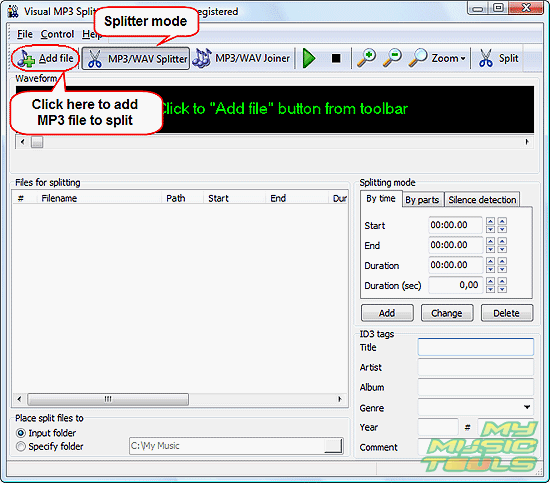
Launch Visual MP3 Splitter & Joiner. Make sure that the program is in the MP3 splitter mode (the "MP3/WAV Splitter" button should be depressed). Click the leftmost button on its toolbar to open MP3 files that you want to split.
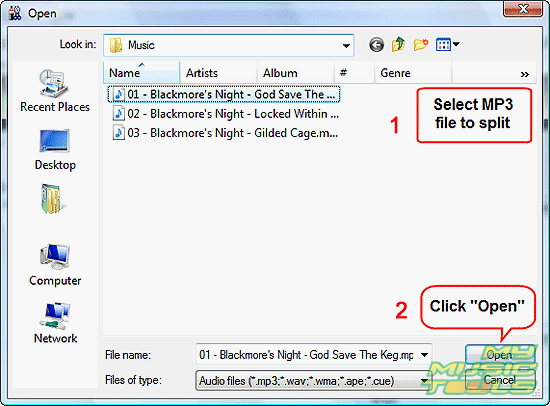
A usual "Open" dialog will appear. Browse to the folder where you keep your MP3 files to split, select a file, click "Open".
The MP3 cutter reads the file and creates its waveform. If this process takes too much time, make sure that you didn't zoom out too much. Building the waveform of a huge file may take a few minutes on a slow computer, so I would recommend to use the default zooming level.
If the program builds the waveform too long, click "Zoom" on the toolbar and select the shortest available interval.
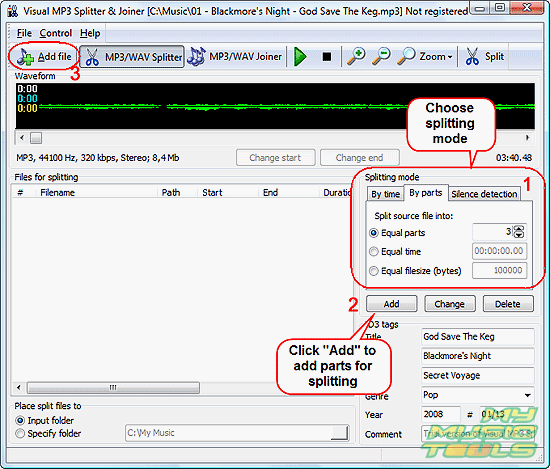
In the "Splitting mode" area, select how you want to split your MP3 files (1). The program supports visual splitting, splitting by a number of equal parts, or splitting by silence (silence detection). For our example, we split files into 3 equal parts.
Click "Add" in the same area (2) to mark parts for splitting.
Finally, click "Add file" (3) and repeat the process for the rest of your files.
Step 3: Split MP3 files in batch.
After marking all files for splitting you can adjust start/end time of each part, or merge some parts together (if necessary).
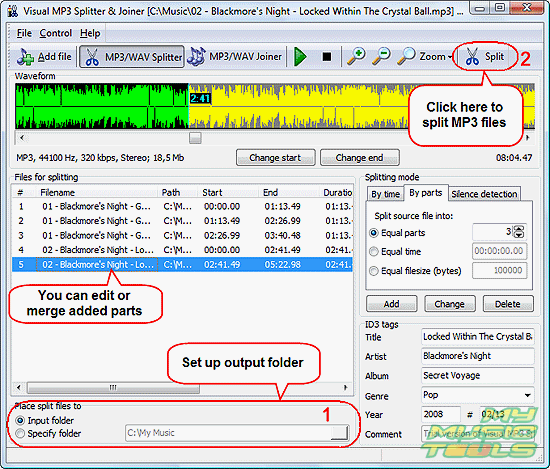
As next, you should decide where to save split files. You can choose to save them into the same folder where your input files are stored (if input files are stored in different folders, output files will be sorted correspondingly), or select any other folder on your computer (1).
When ready, click "Split" on the toolbar (2) to start splitting MP3 files according to your settings. Now you can leave the program working and do other things.
The trial version of Visual MP3 Splitter & Joiner splits only to 5 parts a time. If you are satisfied with the performance and features, you can register your copy and remove all limitations.


Search
Related
- How to split an audio file into equal parts?
- How to join WAV files?
- Easy MP3 Joiner 5.0 - Merge Your Audio Easily
- How to split APE files?
- How to create MP3 ringtones?
- How to merge MP3 files and keep the original quality?
- How to split WAV by CUE?
- MP3 splitter with batch mode support
- How to join MP3 files?
- How do I create a CUE sheet?
- How do I split MP3 file using silence detection?
- How do I cut MP3 album using CUE sheet?
- Easy MP3 Cutter 2.4 review
- Visual MP3 Splitter & Joiner 5.1 review
Ask our expert
- How to share screen videos online?
- How to sort duplicate music files by ID3 tags?
- How to get quick updates on movies by director?
- How to convert multiple MIDI files into an MP3?
- How to rotate videos?
- How to convert WMA to WAV?
- How to play MIDIs on an iPhone?
- How to split an audio file into equal parts?
- How to split m4b audiobooks into chapters for free?
- How to convert videos for You Tube?
