




Voice recorder with silence detection
Introduction.
In a voice recorder, silence detection can be used for different purposes. First of all, the program that recognizes silence can be set to stop recording if nothing happens for a while. This allows to minimize the size of output files and to use disk space more effectively. By skipping large amounts of silence such an audio recorder also does another job: it automatically cuts out useless parts, and the user doesn't need to check manually for recorded voice in a sea of silence later.
Another feature that could be useful in such a program would be splitting files. Some amount of silence may be used to separate different parts logically (for example, in an audio book). If a program could record such parts into separate files, that would help organizing the content later.
We will take a look at a sound and voice recorder with silence detection that can do both of the above things, MP3 Recorder Studio.
Step 1: Download and install the program.
Download MP3 Recorder Studio to a known location. Run setup and follow on-screen instructions to install the program.
Step 2: Start the program. Set up voice recording.
Launch the MP3 recorder. Depending on your system configuration, the program may be ready to record immediately. However, we will check and adjust different settings here.
First of all, decide what format you want to record to. MP3 Recorder Studio can record sound into WAV and MP3. WAV PCM is uncompressed audio format, which means that resulting files will be very large. If you want to record to WAV, you need to make sure that you have enough space on the target device (at least several gigabytes).
By default MP3 Recorder Studio, as the name suggests, records to MP3. If you need to change this or to adjust quality, click "Change" (1).
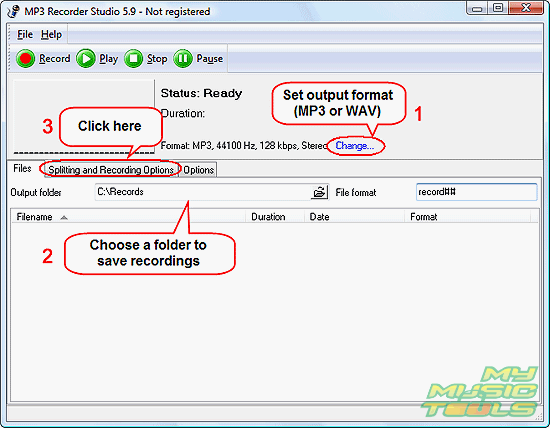
As next, select a folder to save your recordings (2). You should have necessary permissions on the folder.
Click the "Splitting and Recording Options" tab (3).
This will change the content of the lower part:
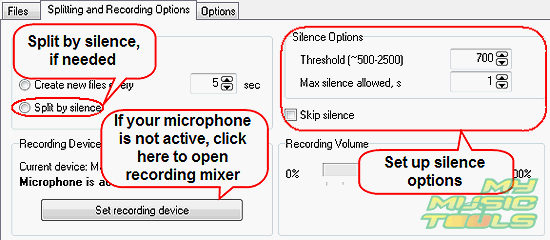
Here we can see a "Silence Options" area. It contains two values: Threshold and Max silence allowed. The threshold value defines how much noise can be counted as silence. There is always some background noise, even if sometimes we can't hear it. If silence detection doesn't work properly on your system, try adjusting this value.
Max silence allowed defines how much silence should be included into a recording before some action is triggered (skip silence or split file). The program can detect silence immediately, but if it cuts out all pauses from a voice message, the message will become very hard to understand. Here you should enter a value that suits your needs.
Furthermore, in the "Silence Options" area you can check the box to skip silence.
In the "Splitting Options" area, it is possible to choose no splitting or splitting by silence (the third option is to create a new file every given time). If you don't want any splitting, everything will be recorded into a single file. Silence will be skipped, if the "Skip silence" box is checked in the "Silence Options" area.
On the screen shot above, the program tells us that our microphone is active. If microphone is not active on your system, click "Set recording device".
This will invoke a usual recording devices mixer of your system. On Windows XP and earlier systems, check microphone and close the window. On Windows Vista, select microphone and click "Set Default":
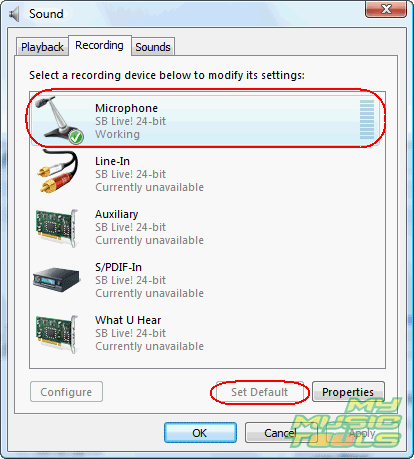
Close the window by clicking "OK".
Step 3: Record your voice and skip silence.
Now everything's ready. You can return to the "Files" tab of the program to get clear overview. Click "Record" on the toolbar to start recording.
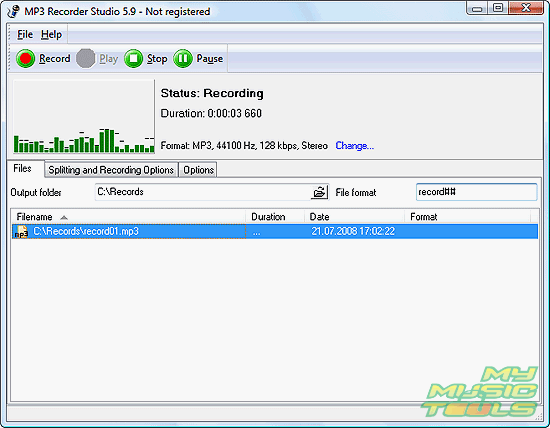
If "Skip silence" box is checked on the "Splitting and Recording Options" tab, the program will stop recording if silence is detected:
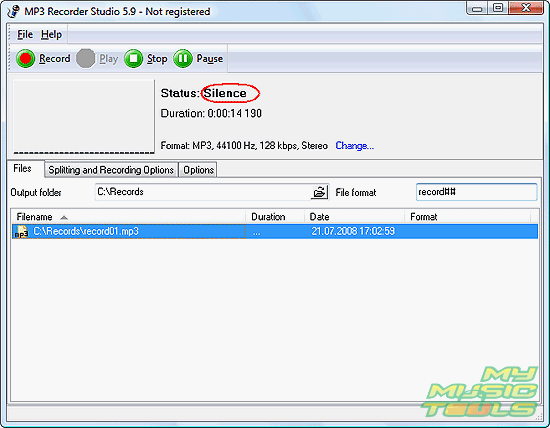
If you say something to your microphone once again, the program will start recording immediately, without skipping a single sound.
The trial version of MP3 Recorder Studio can record only 60 seconds of a file. If you are satisfied with the quality and features, you can register your copy and remove all restrictions.


Search
Related
- How to record a song?
- How do I record from microphone?
- How to record my voice to MP3?
- Voice recorder with silence detection
- How to record Skype calls?
- How do I record sound on my computer?
- How do I remove copy protection from music purchased online?
- Remove DRM Copy Protection
- How do I convert my LPs to MP3?
- Audio Record Wizard 3.99 review
- Tunebite Review
- How to play several audio files?
- Re-Recording Protected Music Files Now Even Easier
Ask our expert
- How to share screen videos online?
- How to sort duplicate music files by ID3 tags?
- How to get quick updates on movies by director?
- How to convert multiple MIDI files into an MP3?
- How to rotate videos?
- How to convert WMA to WAV?
- How to play MIDIs on an iPhone?
- How to split an audio file into equal parts?
- How to split m4b audiobooks into chapters for free?
- How to convert videos for You Tube?
