




How do I convert Video on Mac?
Introduction.
Nowadays virtually everyone has a video collection at home. However, not every format is suitable for any device. Sometimes you may want to transfer your videos to your iPod or some other portable player to watch it later on train. Or maybe you intend to burn a DivX compatible CD/DVD. Can you convert video on a Mac?
The answer is, yes. Moreover, it is quite easy with a special program, like Xilisoft MP4 Converter for Mac.
Step 1: Download and install the program.
Download Xilisoft MP4 Converter for Mac to a known location. Run setup and follow instructions to install the application.
Step 2: Launch the program. Add your video to the list.
Launch the Mac MP4 converter. You will see a window like the following one:
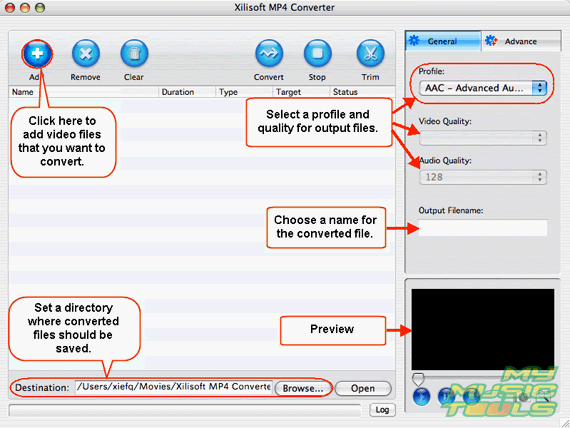
Click "Add" button. Browse to the directory with your movies and select one (or more). After opening the movie will appear in the large list below the toolbar. Select it to be able to preview it and to set parameters.
Step 3: Set destination and filename, choose format and quality.
You can set a path for output files in the lower part of the window. See "Destination" field on the screen shot above. You can either type the path in, or use "Browse" to open a usual system dialog for browsing.
Type some name for the output file in (just above the preview area).
Xilisoft MP4 Converter allows you to set output format by selecting a profile (right pane, up). Preinstalled profiles contain most typical settings. You can adjust quality settings by selecting the appropriate values from the corresponding drop-down menus (see "Video Quality" and "Audio Quality" on the screen shot).
If you have added several videos to the list, select another one to adjust its settings.
Finally, click "Convert" button on the toolbar to convert AVI to MP4 on Mac.

It may take some time to convert a full-length movie, depending on your system's capabilities.


Search
Related
Ask our expert
- How to share screen videos online?
- How to sort duplicate music files by ID3 tags?
- How to get quick updates on movies by director?
- How to convert multiple MIDI files into an MP3?
- How to rotate videos?
- How to convert WMA to WAV?
- How to play MIDIs on an iPhone?
- How to split an audio file into equal parts?
- How to split m4b audiobooks into chapters for free?
- How to convert videos for You Tube?
