




How do I record sound on my computer?
Introduction.
Sound recording may be useful in a number of cases. For example, imagine that you want to send a recorded voice message to your friend or relative. The easiest and straightest way to do that is to record the message into some well-known format (like MP3) and attach it to your e-mail.
Other examples would include recording of internet calls, internet radio, different kinds of lectures or readings, music, capturing sound from TV-shows, recording your singing etc. As I see it, a sound recorder is quite a necessary piece of software.
We will discuss a simple audio recorder, MP3 Recorder Studio. Apart from being able to record sound directly to MP3 without wasting disk space and your time, the program also offers some nice features, like the ability to skip silence, or to split output according to your settings.
Step 1: Download and install the program.
Download MP3 Recorder Studio to a known location. Run setup and follow on-screen instructions to install the application.
Step 2: Start the program. Make necessary preparations.
Launch the audio recorder. You will see the following window:
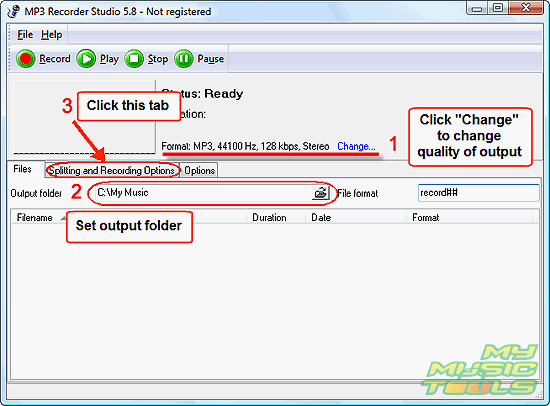
1. The default output format is MP3 44KHz, 128 Kbit/s, Stereo. These settings are sufficient for the most situations. However, if you want to change them, or if you want to record to WAV, click the highlighted "Change".
2. Set output folder where your recordings should be saved. Please note that Windows Vista has a new feature - User Account Control (UAC). By default it is enabled and won't allow you to change or save files in a custom directory, even if you have administrator's privileges. You should own the folder, and by default all folders on your computer are owned by Administrator. The only folder that you really own is your 'home directory' (where you find "My pictures", "My Documents", "My Downloads" etc.). So, you may need to point to a folder of you home directory.
3. Click "Splitting and Recording Options" tab.
Let's take a look at the content of the tab:
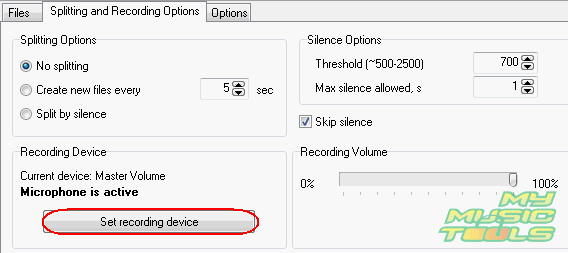
Here we can set splitting and silence options, but for now let's consider the "Recording Device" area. We see that our microphone is active. Perfect. But what if we need to record sound from a different source?
Click "Set recording device". This will open a usual recording mixer from Windows:
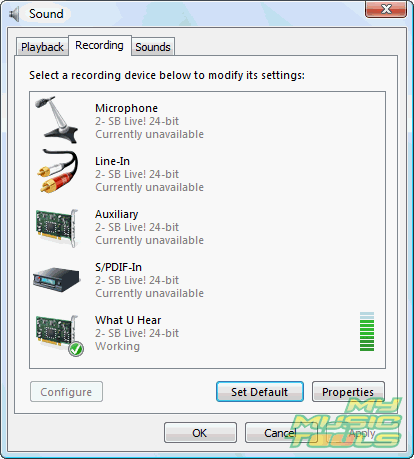
Select the device you want to record from. If you intend to capture everything you hear, just select "Stereo Mix", or "What U Hear" on Sound Blaster cards. Click "Set Default" to switch the system to the selected device, then click "OK" to close the window.
Now you can return to the "Files" tab and click "Record":

If everything is configured correctly and something is being played, you will be able to see bars in the spectrum analyzer:
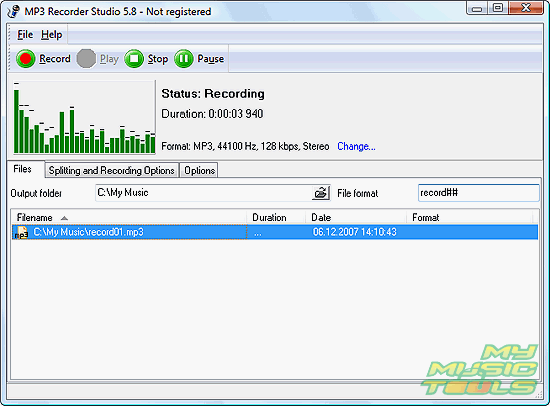
The trial version of the MP3 recorder will record only 60 seconds of a file. If you like the interface and functionality, you will be able to remove this limitation immediately after purchase with your registration data.


Search
Related
- How to record a song?
- How do I record from microphone?
- How to record my voice to MP3?
- Voice recorder with silence detection
- How to record Skype calls?
- How do I record sound on my computer?
- How do I remove copy protection from music purchased online?
- Remove DRM Copy Protection
- How do I convert my LPs to MP3?
- Audio Record Wizard 3.99 review
- Tunebite Review
- How to play several audio files?
- Re-Recording Protected Music Files Now Even Easier
Ask our expert
- How to share screen videos online?
- How to sort duplicate music files by ID3 tags?
- How to get quick updates on movies by director?
- How to convert multiple MIDI files into an MP3?
- How to rotate videos?
- How to convert WMA to WAV?
- How to play MIDIs on an iPhone?
- How to split an audio file into equal parts?
- How to split m4b audiobooks into chapters for free?
- How to convert videos for You Tube?
