




How to broadcast radio online?
Introduction.
Being a DJ is a cherished dream for many people. Expressing yourself with music and getting more and more listeners, what can be more rewarding? With modern technologies and internet, it has become rather easy to try yourself in the role of a broadcasting DJ (as in many other roles, too). Here we will discuss how to create an online radio station and make it broadcast over the internet with the help of a professional, yet simple and intuitive program, SAM Broadcaster.
Step 1: Download and install the program.
Download SAM Broadcaster to a known location. Run the downloaded setup and follow its instructions to install the program.
Step 2: Start the program. Set ready to broadcast.
Launch SAM Broadcaster. When you start it for the very first time, the program prompts to select some basic settings. There are several steps, and some of them may look complicated to you at the first glance, but you can simply press "Next" all the time. The default settings are suitable in most cases.
Then the main program window appears:
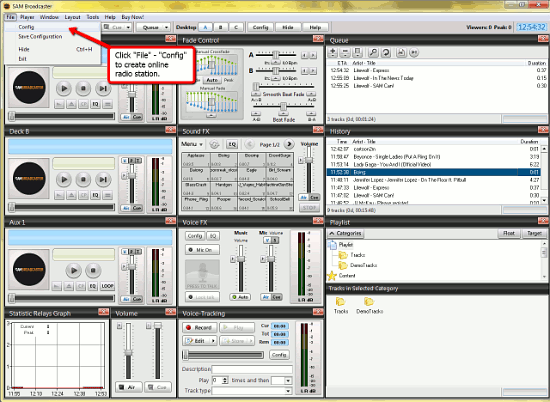
It may look confusing for the first time, but later you will discover that working with this software doesn't take much effort. Now we should create an online radio station before starting to broadcast, and this is done on the spacialnet.com website. Click "File" - "Config" to begin. A new window will pop up:
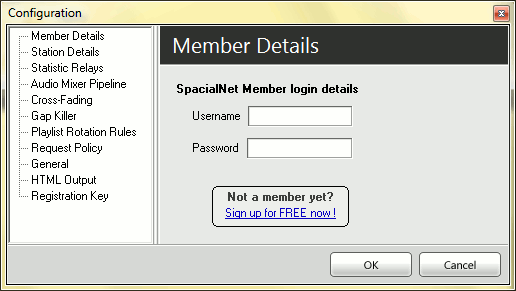
Here, in the "Member Details" section, click on the "Sign up for free now" link and you will be redirected to the online radio broadcasting website, where you should register and create your own station. Follow the simple instructions on the site to complete creating your internet radio channel. Consider doing this while SAM Broadcaster is working. You will get a link to your own online radio station. Now you can invite your friends to listen to your channel. The link can be seen on the "Broadcasters" - "View all broadcasters list" - "Player launch link" page.
Step 3: Broadcast online radio
Return to the online broadcaster window. Click "File" - "Config" again and enter your login and password that you've received after registering your channel. Now, that you're logged in, let's take a closer look at the upper part of the window, it is most important and used frequently:
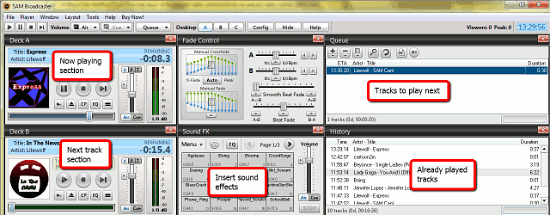
The whole window is divided into sections, each responsible for some feature. In the upper right corner, there is a "Queue" section where music to be played is listed. To add some track, simply drag&drop the audio file from Windows explorer into the section or use the "+" button at the top of it. After a track is in the list, you can press "Play" right under the "File" menu of the program window, and the playback starts.
In the "Deck A" section, the currently played track is shown. You can adjust its volume and control playback here. Right below, in "Deck B", the next track from the queue appears. You can replace it with another one using the "Next" button.
"History" shows the list of already played music tracks.
The "Sound FX" section brings some fun to your online radio station. Here you can insert different sounds while playing back music or broadcasting your voice.
When you are ready to begin the show, make sure the "Air" button is turned on and glows green. Simply click "Play" on the toolbar and invite your friends to listening.
The trial version of SAM Broadcaster can be tested for free during its trial period of 30 days. If you like the program, you can register it and keep on broadcasting your own online radio.

Search
Related
Ask our expert
- How to share screen videos online?
- How to sort duplicate music files by ID3 tags?
- How to get quick updates on movies by director?
- How to convert multiple MIDI files into an MP3?
- How to rotate videos?
- How to convert WMA to WAV?
- How to play MIDIs on an iPhone?
- How to split an audio file into equal parts?
- How to split m4b audiobooks into chapters for free?
- How to convert videos for You Tube?
