




How to convert OGG to MP3?
Introduction.
OGG is a popular free container format suitable for audio and video streams. Quite often it is used with the Vorbis codec; the latter is known to be quite effective for encoding music. Thus pure (without video) audio files in OGG format are often referred to as OGG Vorbis files.
However, the problem with audio files in OGG format is the same as with other formats. Many devices simply don't support the format. That's why many people still prefer keeping their collections in the MP3 format. The latter is supported by a wide range of devices, including portable players, mobile phones, DVD players, etc.
To convert OGG to MP3, you can use a tool like AudioConverter Studio.
Step 1: Download and install the program.
Download AudioConverter Studio to a known location. Run setup and follow its on-screen instructions to install the application.
Step 2: Start the program. Select OGG files to convert.
Launch AudioConverter Studio. By default the program starts in the Wizard mode. If for some reason the Wizard isn't shown, press "Ctrl" + "W" on your keyboard, or choose "Show Wizard" from the "File" menu.
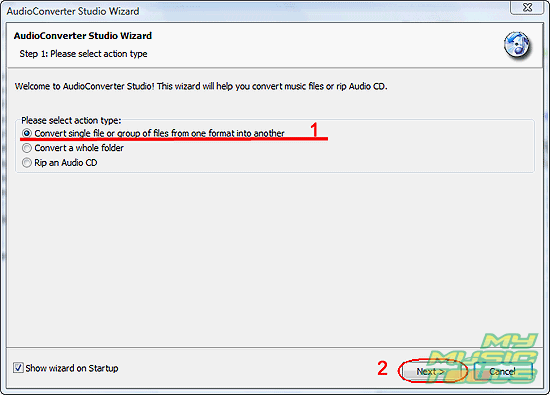
Select to convert a group of files and click "Next".
A usual "Open" dialog will pop up. Browse to the folder where your OGG files are stored, select the ones that you want to convert to MP3. Click "Open".
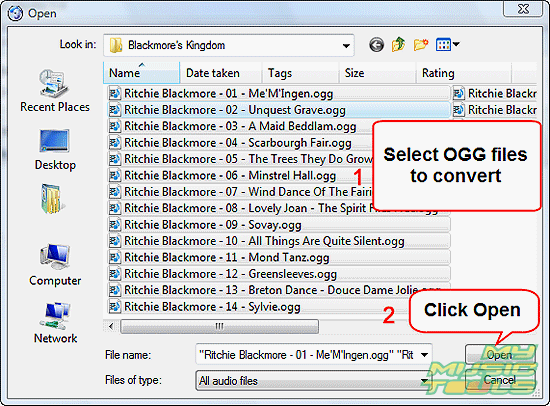
The files will be added to the conversion list of the OGG converter.
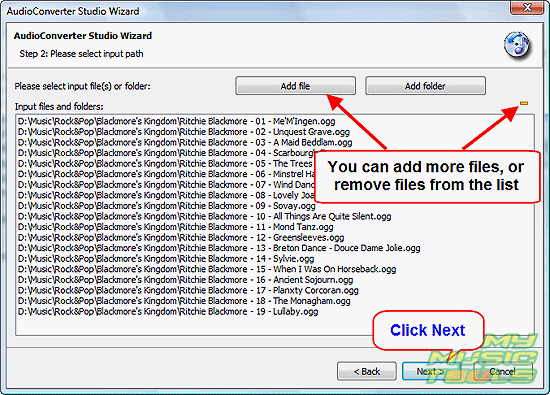
You can add more files, or remove some mistakenly added files from the list. If you need to convert only selected OGG files, just click "Next".
Step 3: Set output folder and filename format.
The next step of the wizard asks for output folder (1) and filename format (2).
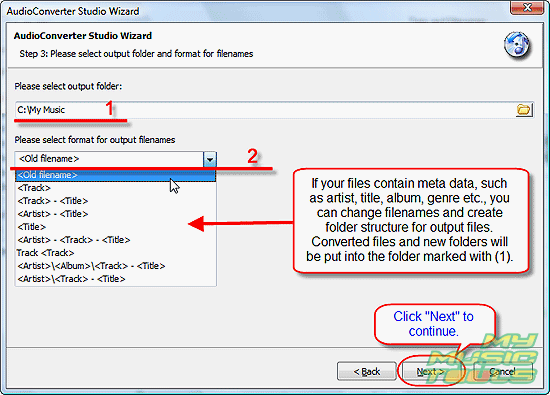
You can set any folder on your computer as output folder. If you want to use the same folder where the input files are stored, you can check the corresponding box in the "Options" menu.
The second option, output filename format, allows to rename files while converting. However, if you choose something different from <Old filename> here, the corresponding information should be present in ID3 fields of the source files. While renaming, AudioConverter Studio can also create folders.
If you are not sure which filename format to select, it is always safe to use "Old filename".
Click "Next" to continue.
Step 4: Set MP3 quality.
The next step offers to set an output format and its quality. We choose MP3 here.
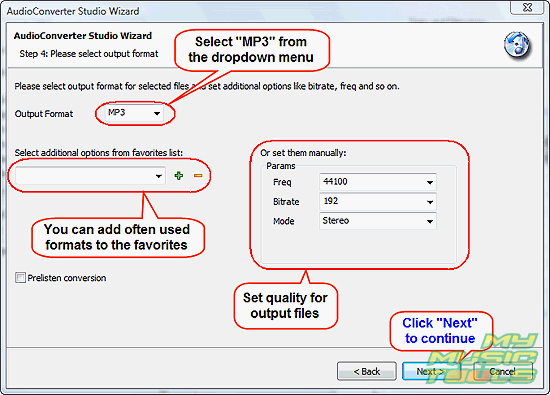
Quality settings (bit rate, frequency, mode) can be freely adjusted within their ranges, but you can use default settings.
"Prelisten conversion" means that only a few seconds of each song will be converted. We don't need this option, so we simply uncheck it.
Click "Next".
Step 5: Check your settings. Convert OGG to MP3.
The final page of the wizard shows a summary.
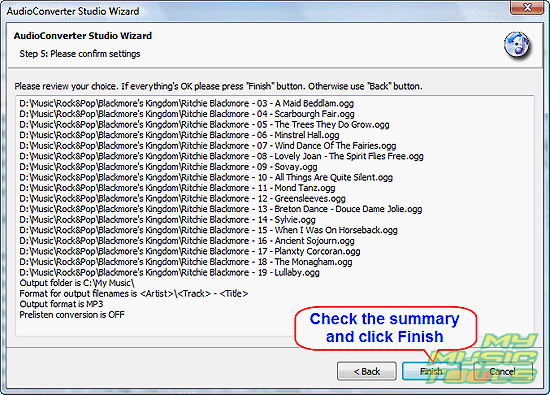
Check the settings and click "Finish" to start converting OGG to MP3.
The trial version of AudioConverter Studio can convert 10 files at a single turn, but you can repeat the process any number of times.


Search
Related
- How to convert WMA to WAV?
- How to convert FLAC to WAV?
- How to convert APE to FLAC?
- How to rip Audio CD to APE?
- How to rip Audio CD to FLAC?
- How to convert MP3 to WAV?
- How to convert WMA to MP3?
- How do I convert MPC to MP3?
- How to change bitrate of MP3 files?
- How to convert WAV to MP3?
- How to convert CDA to MP3?
- How to convert OGG to MP3?
- How do I convert APE to MP3?
- How do I convert FLAC to MP3?
- How to convert a whole folder of audio files into the OGG format?
- AudioConverter Studio 6.0 review
- AudioConverter Studio review
Ask our expert
- How to share screen videos online?
- How to sort duplicate music files by ID3 tags?
- How to get quick updates on movies by director?
- How to convert multiple MIDI files into an MP3?
- How to rotate videos?
- How to convert WMA to WAV?
- How to play MIDIs on an iPhone?
- How to split an audio file into equal parts?
- How to split m4b audiobooks into chapters for free?
- How to convert videos for You Tube?
