




How to create a banner with Flash?
Introduction.
Flash animation is used everywhere, and creating a banner or an intro for some website does not take much effort or time. Numerous software flash builders allow you to create an animation and put it on your website with no coding whatsoever. We will take a look at one of such Flash animation tools, Amara Flash Intro and Banner Builder.
Step 1: Download and install the program.
Download Amara Flash Intro and Banner Builder to a known location. Run the downloaded setup and follow its instructions to install the program.
Step 2: Start the program. Create a new animation template.
Launch the Flash builder. The main window will be shown:
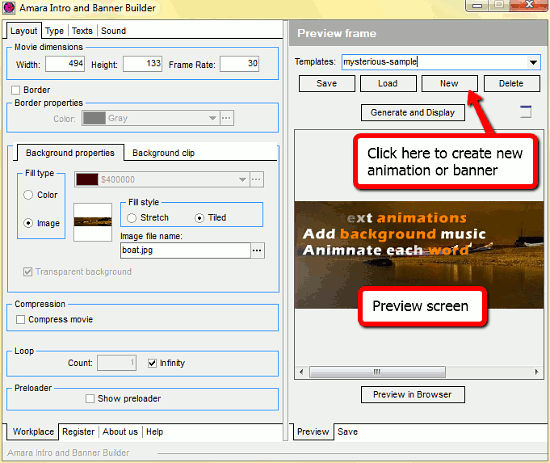
There are two main areas. On the right, a preview of the current banner is shown. There is a demo-animation available, showing us capabilities of the program. The left are shows the parameters and values of the current banner. Here we can see how the demo animation is built and what properties are responsible for the effects.
To create a new flash banner, click "New" in the upper right corner of the program window. All fields and the preview area will turn empty. Let's give a name to the newly created Flash animation. Just enter some name into the "Templates" field.
Step 3: Set banner's options. Create Flash animation.
Now let's take a look at the left area. Here we can specify some values, select effects and finally click the "Generate and display" button in the right part of the Flash editor's window to preview our adjustments.
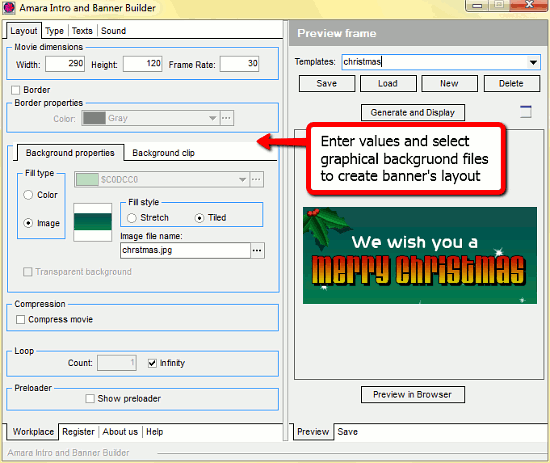
The tabs at the top of our workplace are each responsible for an options category, and the first one, "Layout", enables us to set dimensions of our banner, its background, loop settings and border colors. Enter appropriate values and select a background image or clip with the help of the "..." button next to the "Image/Clip file name" field.
Now switch to the "Type" tab and specify general parameters for the animation.
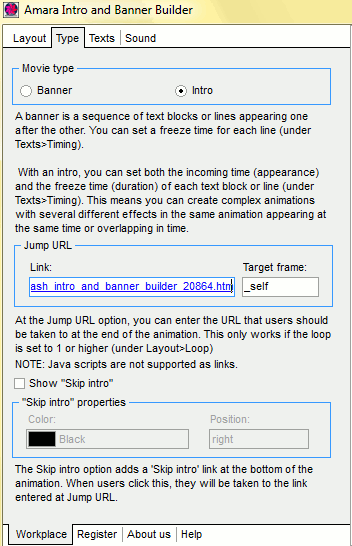
There is a detailed description for every option. "Banner" or "Intro" determine some basic properties of the animation. "Link" allows you to redirect a user watching the intro to some specific website after the animation is finished. The "Skip intro" settings allow you to create such option for users of the website where this animation is shown.
The "Texts" tab provides us with all tools necessary to create a Flash text animation. Here you choose effects for the text, its position, timing and fonts.
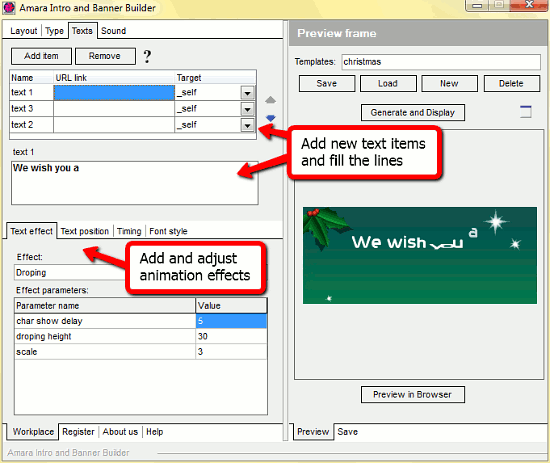
Click "Add item" to create a new text line with its properties, enter some text and apply an animation effect from the drop-down list below. We can get more precise adjustments using the "Text position", "Timing", "Font style" tabs. When everything is set, proceed to the "Sound" tab.
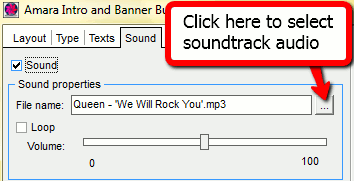
This tool controls the background sound of our Flash animation. Simply click the "..." button to browse and select an audio file.
The main work is done now. We can save our Flash clip and upload it to our website. Switch to the "Save" tab in the right part of the Flash editor and click "Save SWF". This will save the animation, but if you'd like to save your template and project, click "Save" right under the template name field and select a location for the file.
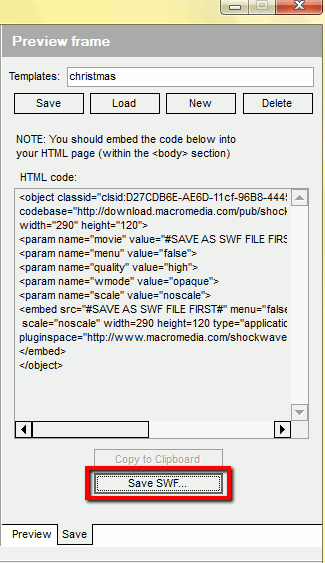
The Flash animation creator also shows you the HTML code that helps embedding the banner to your website. Simply copy and paste it to the HTML code of your site.
The trial version of Amara Flash Intro and Banner Builder can not save any animation or project templates. If you like the program, you can register it and remove all limitations.

Search
Ask our expert
- How to share screen videos online?
- How to sort duplicate music files by ID3 tags?
- How to get quick updates on movies by director?
- How to convert multiple MIDI files into an MP3?
- How to rotate videos?
- How to convert WMA to WAV?
- How to play MIDIs on an iPhone?
- How to split an audio file into equal parts?
- How to split m4b audiobooks into chapters for free?
- How to convert videos for You Tube?
