




How to play APE with CUE files for free?
Introduction.
APE is the file extension for a lossless audio format called Monkey's Audio. "Lossless" means that no quality is lost when you convert audio to this format, which is why the format is preferred by audiophiles to other well-known formats (like MP3). Often complete Audio CD albums are converted to APE for a backup or just for convenience.
If you rip an Audio CD to APE, many programs will provide you with a single APE file containing all tracks of your album and with an additional CUE file. You can play APE file directly in some players, but this is quite awkward, as you will not have any information about individual tracks. Do you need to split APE into individual tracks then?
No, because all necessary information is already available in the small CUE file! You simply need a CUE player that would support the APE format.
We will discuss how to play CUE+APE files with a completely free player, Crystalwolf Free Audio Player.
Step 1: Download and install the program.
Download Crystalwolf Free Audio Player to a known location. Then start the setup and follow its instructions to install the program.
Step 2: Play CUE file.
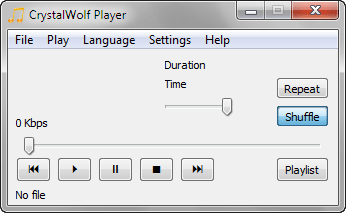
Launch the player. The main window will be shown:
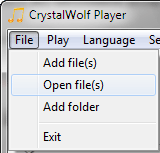
Click "File" - "Open file(s)":
This will invoke the usual "Open file" dialog of Windows. Browse to the folder where your APE and CUE files are stored and select the CUE file.
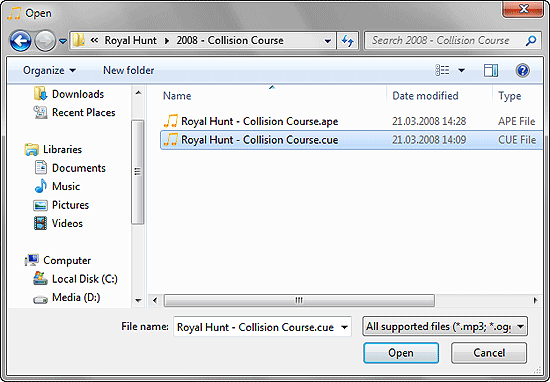
Now just open it.
The program will play the APE album with the complete track list information.
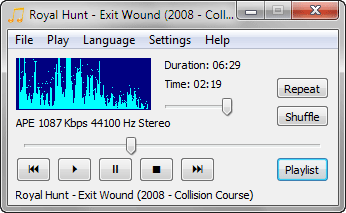
Click the "Playlist" button to open the CUE playlist.
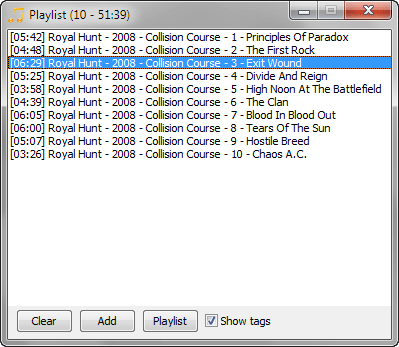
Double-click any track to start playing it.
Please note that you could open your APE file instead of the CUE. The program would play it, but you would not have access to the track list.
There is a nice property of the APE+CUE combination: the album will be played exactly so it is meant to be played. When tracks are mixed into each other (no pauses between tracks), the APE+CUE player will proceed smoothly to the next song, just like a CD player does.
(Optional) Step 3: Associate the Player With Files.
There are several other ways of adding CUE files to the player. For example, you can choose to add the folder containing your APE and CUE files. Crystalwolf Free Audio Player will automatically extract the track list from the available CUE file.
Yet another convenient way of playing files is to add file associations. You can associate Crystalwolf Free Audio Player with all supported audio files and create an entry in Window Explorer's right-click menu for folders. Thus you will be able to right-click a folder in Windows Explorer and choose to play all songs it contains with Crystalwolf Free Audio Player, or double-click any supported audio file or CUE file to play it.
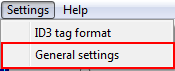
In the player, click "Settings" - "General settings":
A new window will be shown. See the association options in the lower part of the window:
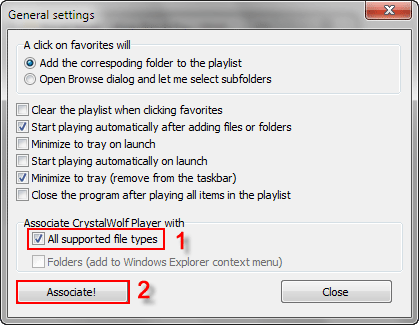
Select options that you want to use (1) and click "Associate!" (2). Then simply close the window.
Now you can double-click any CUE file in Windows Explorer to start playing it with Crystalwolf Free Audio Player.
About Crystalwolf Free Audio Player
Crystalwolf Free Audio Player is a completely free player that supports all popular audio formats, including: MP3, WMA, WAV, APE, FLAC, OGG Vorbis, AAC, MP4, M4a, M4b, AC3, MPC, and many others. It can also play CUE files coming with any of the supported formats.

Search
Related
Ask our expert
- How to share screen videos online?
- How to sort duplicate music files by ID3 tags?
- How to get quick updates on movies by director?
- How to convert multiple MIDI files into an MP3?
- How to rotate videos?
- How to convert WMA to WAV?
- How to play MIDIs on an iPhone?
- How to split an audio file into equal parts?
- How to split m4b audiobooks into chapters for free?
- How to convert videos for You Tube?
