




How to record my voice to MP3?
Introduction.
To record your voice to MP3 or some other audio format on a computer, you need a few things: a computer with a sound card that supports input from microphone, a microphone, and a program that can record sound. The first thing is quite common in the modern world: most people have a computer at work or/and at home, and almost all modern computers are automatically supplied with sound cards (often they are simple or advanced on-board solutions) that support all necessary functions. A PC microphone is also easy to get, notebook computers often have a built-in mike, some desktop computers are supplied with headsets or even speakers/microphone as a 'special offer', and so on. Of course, if you want to record sound with a supreme quality, you need to have a quality microphone (which almost always means expensive), but for most cases even cheap devices are okay. No need to purchase expensive devices if all you want to record are voice messages.
However, quality of your recordings depends mostly on the microphone that you use.
The last (but not the least) thing on our list is a recorder program. There are simple recorders that record sound to WAV. But an uncompressed WAV file can be very big, and it is easy to run out of space even with comparatively short recordings. So, an easier and more robust solution would be to record sound directly to MP3.
MP3 Recorder Studio does just that.
Step 1: Download and install the program.
Download MP3 Recorder Studio to a known location. Run setup and follow on-screen instructions to install the application.
Step 2: Set up voice recording.
Launch the MP3 recorder. The main window will be shown:
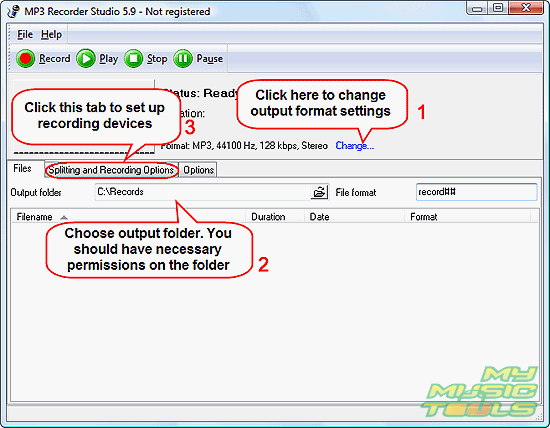
By default, the program offers to record sound to MP3, 128 Kbit/s, 44 KHz, Stereo (1). This setting is good for most cases. If you need higher or lower bit rate or other adjustments, click "Change" near the format description (see the screen shot above, 1).
As next, choose a folder where your recordings should be saved. It is recommended to create a special folder for recordings (2). Also make sure that you have necessary permissions on the folder.
MP3 Recorder Studio also allows you to set a custom filename pattern for recorded file (see the file format field). You can replace 'record' with anything you like, but keep the "" part intact. This will be used to assign a unique number to each recording. If you remove the "", you won't be able to record more than one file.
At last, click the "Splitting and Recording Options" tab (3).
This will change contents of the lower part of the window:
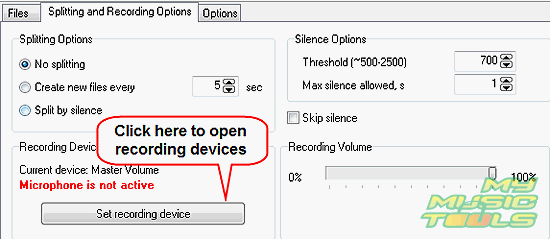
In our example, we can see that microphone is not active on our system. To record our voice, we need to activate our microphone.
This can be done by clicking the "Set recording device" button. A usual recording devices system mixer will appear. For Windows XP and earlier systems, you will need to activate microphone by checking the corresponding box. In Windows Vista, sound recording devices window looks different:
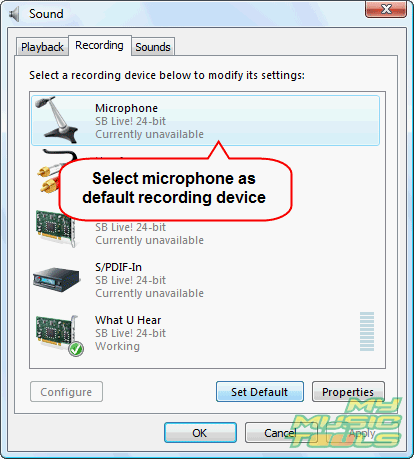
Here you need to select "Microphone" and click the "Set Default" button to activate it.
Click "OK" to close the recording devices window.
Step 3: Record your voice.
Now everything is set up, and we can start recording our voice. Of course, you can specify splitting and silence detection, but for now we will simply click "Record" on the toolbar:
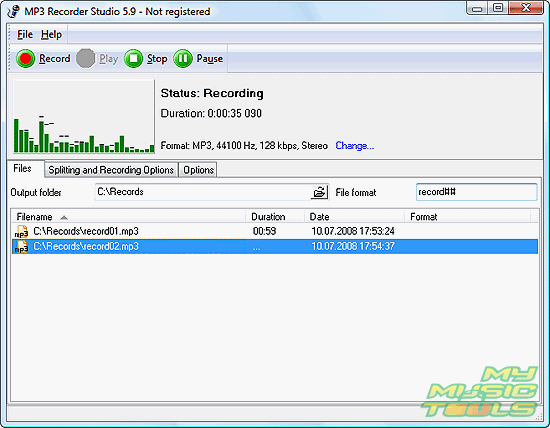
The voice recorder starts working. As you say something to your microphone, green bars start dancing on the spectrum analyzer. This indicates that your voice is captured by the program and recorded to an MP3 file.
Once finished, click "Stop" on the toolbar.
The trial version of MP3 Recorder Studio records only 60 seconds of each file. If you are satisfied with the features, you can register your copy and remove all limitations.


Search
Related
- How to record a song?
- How do I record from microphone?
- How to record my voice to MP3?
- Voice recorder with silence detection
- How to record Skype calls?
- How do I record sound on my computer?
- How do I remove copy protection from music purchased online?
- Remove DRM Copy Protection
- How do I convert my LPs to MP3?
- Audio Record Wizard 3.99 review
- Tunebite Review
- How to play several audio files?
- Re-Recording Protected Music Files Now Even Easier
Ask our expert
- How to share screen videos online?
- How to sort duplicate music files by ID3 tags?
- How to get quick updates on movies by director?
- How to convert multiple MIDI files into an MP3?
- How to rotate videos?
- How to convert WMA to WAV?
- How to play MIDIs on an iPhone?
- How to split an audio file into equal parts?
- How to split m4b audiobooks into chapters for free?
- How to convert videos for You Tube?
