




How to remove voice from a song?
Introduction.
Nowadays music creation and editing isn't a big deal. Since every computer has the capability to process audio, mixing and morphing songs has become an easy entertainment. Probably everyone who tried playing with sound editors wished he or she could take some popular song and make a karaoke, or even a remix. Karaoke requires removing vocals, which can be quite hard to accomplish.
We will use a powerful sound editor program, AV Music Morpher Gold, to remove voice of the artist.
Step 1: Download and install the program.
Download AV Music Morpher Gold to a known location. Run the downloaded setup and follow its instructions to install the program.
Step 2: Start the program. Select an audio file to remove vocals.
Launch the audio editor. The main window will be shown:
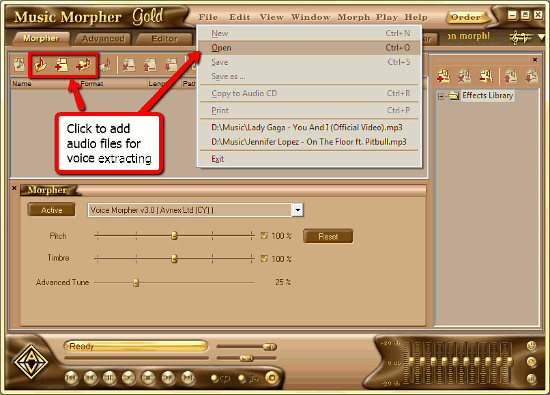
We can see that there are several tabs in the main program window, and we are on the "Morpher" tab. Let's stay on it, this tab will fit our needs for voice removal.
Now let's open some audio to edit. Click "File" - "Open" or one of the buttons on the toolbar as shown on the screenshot above to add a song to the vocals remover. Alternatively, you can drag and drop a song into the program window directly from Windows Explorer.
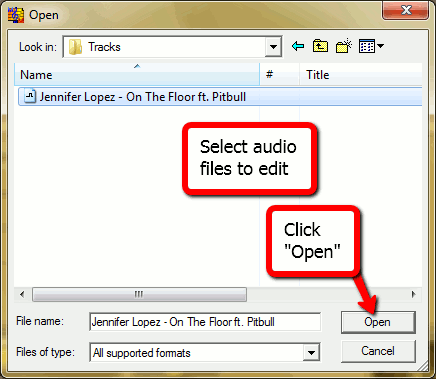
The selected songs will be added to the editing list.
Now let's take a look at the lower part of the window. Here you can see a drop-down list with various functions for audio post-editing. You can experiment with each of them, but now we will pick the "Voice remover" function.
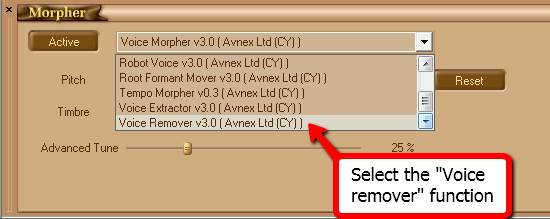
The "Morpher" area will change its contents, and the advanced vocals removal options will be shown:
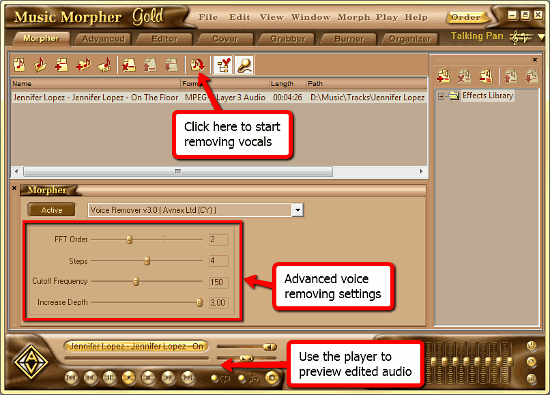
The meaning of these options:
- FFT Order is used to set precision of the deconvolution algorithm.
- The Steps slider is used to set the number of frames to be analyzed every 50 ms. It has effect on the smoothness of the produced result.
- Cutoff Frequency defines the low frequency border of the high-pass filter.
- Increase Depth is used to define the suppressing strength level of the musical instruments volume.
But if you are unsure what should be adjusted just leave it as it is, the default options are good for most cases.
To get an idea of how the audio will be changed use the player at the bottom of the program window to preview the song.
Finally, click once more on the song in the editing list and hit the "Morph selected files" button on the toolbar to start removing voice. A small window will pop up:
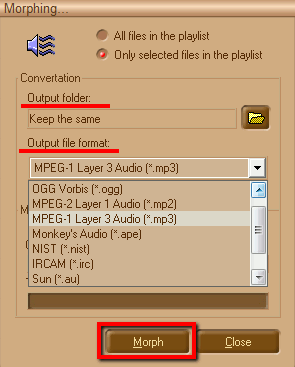
Here you set the output folder for the edited audio file and an audio format from the drop-down list. When done, just click "Morph" to remove vocals from the song.
After a few seconds a karaoke version of your favorite track will appear in the output directory.
AV Music Morpher Gold has many other audio editing features and can also do the opposite, i.e. extract vocals from a song, which can be useful if you'd like to get some acapella tracks.


Search
Related
Ask our expert
- How to share screen videos online?
- How to sort duplicate music files by ID3 tags?
- How to get quick updates on movies by director?
- How to convert multiple MIDI files into an MP3?
- How to rotate videos?
- How to convert WMA to WAV?
- How to play MIDIs on an iPhone?
- How to split an audio file into equal parts?
- How to split m4b audiobooks into chapters for free?
- How to convert videos for You Tube?
