




MIDI to Ringtone Converter
Introduction.
Some mobile phones are capable of playing MIDI files directly. If your cellular is among them, you don't need any converter. Simply load MIDI files to your phone and select them to be played as ringtones.
However, the MIDI format becomes less and less popular in mobile phones. The reason for such behavior is quite simple: to get quality sound with a MIDI file, one needs an expensive synthesizer. This would greatly increase the price of an average mobile phone without bringing much functionality to end users. One can achieve the same sound quality by using a comparatively inexpensive solution, a ready-made audio format, like MP3, WAV, WMA, or others.
Of course, we don't take into account cheap MIDI solutions here, because they can't produce music of any acceptable quality.
So, if you need a quality ringtone for your mobile phone, you can convert your MIDI to ringtone with MIDI Converter Studio.
Step 1: Download and install the program.
Download MIDI Converter Studio to a known location. Run setup and follow on-screen instructions to install the application.
Step 2: Start the program. Select MIDI files to convert.
Launch MIDI Converter Studio. In the main window, click the leftmost button on the toolbar:
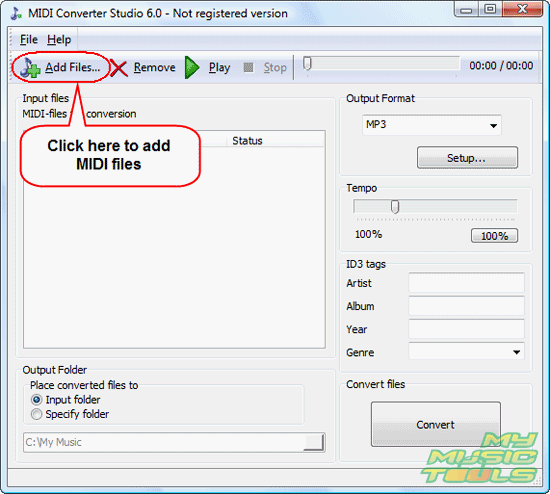
This will invoke a usual "Open" dialog:
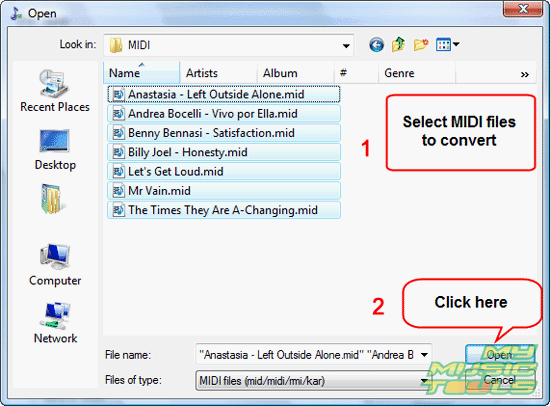
Browse to the folder where you keep your MIDI files, select the ones that you want to convert to ringtones, click "Open".
Alternatively you can drag and drop MIDI files from Windows Explorer or some other file manager that supports Drag&Drop.
Step 3: Convert MIDI to ringtones.
The files will be added to the conversion list. Now you can preview each file by selecting it and clicking "Play" on the toolbar. To stop playing, click "Stop".
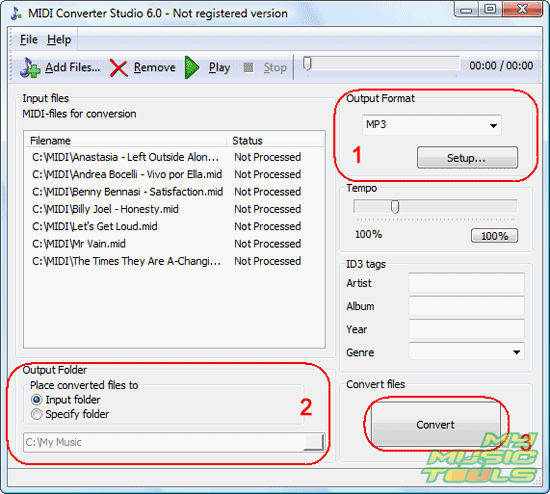
In the output format area (1), select MP3 from the dropdown list. Then click "Setup" to adjust MP3 settings.
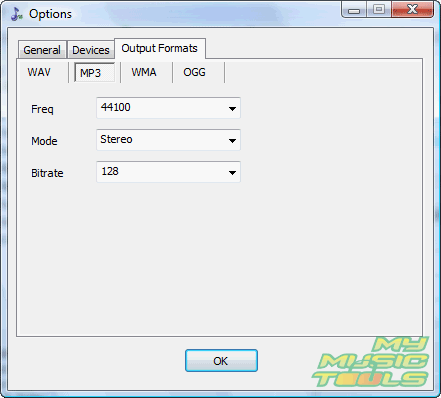
By default, MIDI Converter Studio converts to 44 KHz, 128 Kbit/s, stereo. For a mobile phone, you can reduce quality to 22 KHz, 64 Kbit/s, mono. This will make files significantly smaller.
Once you have adjusted the quality, click "OK" to close the window and return to the main window (see the previous screenshot).
As next, decide where you want to save converted files. The MIDI to ringtone converter can save them to the same folder where input files are stored (2), but you can choose any other folder on your computer.
Finally, click the big "Convert" button in the right lower corner of the program (3).
MIDI Converter Studio will start converting your MIDI to MP3 ringtones. It will take some time, depending on the number of input files. You can stop the process any time by clicking the same big button (it will become "Stop").
When the process is complete, fetch converted MP3 files from the output folder (2) and load them to your cellular. Ready to set up ringtones.
The trial version of the program can convert only 60 seconds of each file. If you are satisfied with the quality and features, you can register your copy and remove all limitations.


Search
Related
- How to convert multiple MIDI files into an MP3?
- How to play MIDIs on an iPhone?
- Play MIDI files on your iPod!
- How do I convert MIDI to WAV?
- How to convert MIDI to OGG?
- How to convert MIDI to WAV?
- How to convert MIDI to CDA?
- How to convert MIDI to MP3 using several SoundFonts?
- How to convert MIDI to WMA?
 How to convert MIDI to MP3
- MIDI to MP3 converter with ID3 tags support
- MIDI to Ringtone Converter
- How do I convert KAR to MP3?
- How do I convert MIDI to MP3?
- Fast MIDI to MP3 Converter 5.6 review
- How to convert a mid to mp3?
- ManiacTools Releases MIDI Converter Studio 4.6
- How do I edit MIDI files?
- WIDI Recognition System Professional 3.3 Review
- How do I convert MP3 to MIDI?
- Able MIDI Editor 1.3 review
Ask our expert
- How to share screen videos online?
- How to sort duplicate music files by ID3 tags?
- How to get quick updates on movies by director?
- How to convert multiple MIDI files into an MP3?
- How to rotate videos?
- How to convert WMA to WAV?
- How to play MIDIs on an iPhone?
- How to split an audio file into equal parts?
- How to split m4b audiobooks into chapters for free?
- How to convert videos for You Tube?
