




How to convert video for iPad?
Introduction.
iPad is a tablet computer developed by Apple. Its 9.7 inch screen and powerful hardware allow doing various things. For example, you can read e-books, browse web pages, and, of course, watch videos.
But where can you get videos for your iPad?
The answer is pretty simple: you can convert your existing movies to the iPad format. Like other products from Apple, iPad prefers music and videos in the MP4 format. Thus it is possible to convert AVI movies to MP4 and watch them on your iPad. In order to get the maximum quality along with reasonable sizes of the converted videos, you need to use special settings adjusted for iPad.
We will discuss a program that makes it easy to convert video for iPad, Cucusoft iPad Video Converter.
Step 1: Download and install the program:
Download Cucusoft iPad Video Converter to a known location. Start the setup package and follow its instructions to install the program.
Step 2: Start the program. Add video files to convert.
Launch the iPad video converter. Its main window will be shown:
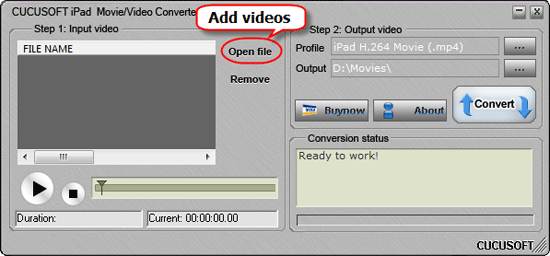
In the "Step 1" area, click the "Open file" button (highlighted on the screenshot above). A usual "Open file" Windows dialog will be shown. Browse to the location of your video files and select the movie you'd like to convert. You can add several movies at once.
Cucusoft iPad Video Converter supports all popular video formats: AVI, MP4, AVS, MPEG (MPG, VOB, M2P, M2V), Windows Media Video (ASF, WMV etc.), MOV, MKV, Flash movies, and so on. You can convert files from any of these formats for your iPad.
After adding a movie to the "Input video" list you can preview it in the additional window that looks like your iPad:
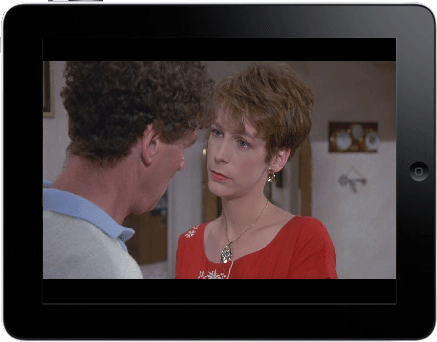
This is the preview window.
Step 3: Convert video for iPad.
Now we are almost ready to convert video to the iPad format. Cucusoft iPad Video Converter comes with several preinstalled profiles specially adjusted for iPads, so you don't need to set up the codec manually. We can simply use the default profile (if you do want changing the profile, just click the '...' button next to the profile field).
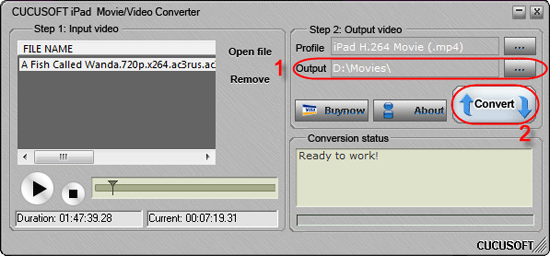
As the last step, let's check where the converted movie will be saved. This information is shown in the "Step 2" area, see the "Output" field (1). We can set any folder as output folder, just click "..." next to the field to browse your computer.
Finally, click the "Convert" button (2). Cucusoft iPad Video Converter will convert the files you have added to its list into the format fully compatible with iPad.
The trial version of Cucusoft iPad Video Converter adds a logo to all converted files (source files are not modified). If you like the program, you can register it and remove all limitations. In the registered version, no logos are added to converted files.


Search
Related
Ask our expert
- How to share screen videos online?
- How to sort duplicate music files by ID3 tags?
- How to get quick updates on movies by director?
- How to convert multiple MIDI files into an MP3?
- How to rotate videos?
- How to convert WMA to WAV?
- How to play MIDIs on an iPhone?
- How to split an audio file into equal parts?
- How to split m4b audiobooks into chapters for free?
- How to convert videos for You Tube?
