




How do I find duplicates in my music collection?
Introduction.
One of the most annoying problems for music lovers is having repetitive tracks in the audio collection. However, it's inevitable. If you gather music of different genres or artists you will always have to deal with varying file parameters, editions, reissues of the same albums, collections of greatest hits, and eventually some of them will stay on your hard drive, on a NAS, or on the shelf instead of being deleted. In such way you may waste a significant amount of free disk space.
Here we will discuss how to find and delete audio duplicates on your computer with the help of Music Duplicate Remover.
Step 1: Download and install the program.
Download Music Duplicate Remover and launch the setup to install it.
Step 2: Start the program. Specify the folder to check for duplicates.
Launch the audio duplicate finder. The program window will look like this:
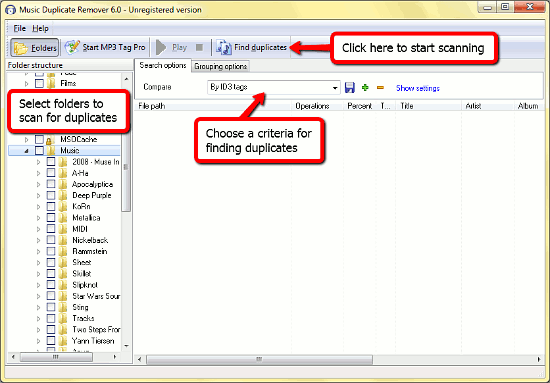
It is divided into three areas. The leftmost one is the tree view of the folder structure on your computer, here you can select the folders that you want to scan for audio duplicates.
The biggest area is now empty. It will contain the list of music duplicates after the program scans the selected folders.
The area just above the list allows choosing parameters for the duplicate scanner. The "Search options" tab defines how your music files should be compared. The drop-down list has such options: "By ID3 tags", "By sound", "By sound and ID3 tags". Note that Music Duplicate Remover can find music duplicates by sound. It will 'listen' to your songs and compare them in this way (only much faster than humans do). This method is very interesting, as it can find duplicates in different formats, having different tags. However, it takes more time.
Finding music duplicates by ID3 tags is much faster. The program reads all tags from your audio files and compares artist, genre, album, title, and other details. It will also take into account parameters of the file. Every similarity is assigned a certain number. If the resulting number is big enough the program will mark the files as duplicates.
"By sound and ID3 tags" is a combined method. It will take more time as the program will need to 'listen' to all of the songs and to scan their ID3 tags as well, but the result will be even more precise. However, if many files from your collection do not have any ID3 tags, comparing by sound will deliver a better result.
Now we can adjust how the program will search for duplicates. Click the "Show settings" link on the left. This will expand the upper area.
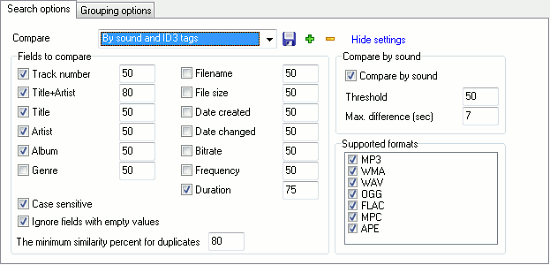
Here you can select which fields of ID3 tags should be taken into account when the program compares your files. The number next to each field allows to define how important the field is.
The default settings are good for the most cases so you may simply hide the options and continue.
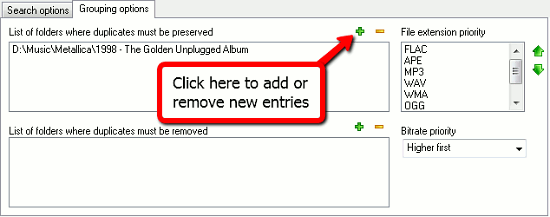
The "Grouping options" tab allows you to create a list of exceptions for the folders, where duplicates won't be deleted even if they are found, and folders where duplicates are always to be deleted. This way you can set priorities for the music duplicate scanner. There is also a priority list of file extensions and an option for bitrate priority.
Step 3: Scan audio for duplicates. Delete music duplicates.
Finally, click the "Find duplicates" button on the toolbar to scan your music collection for duplicates. After checking all files in the selected folders the program will show the following window:
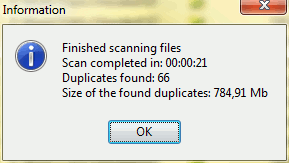
After closing this window we will see that the main list is no more empty. You can click the "Expand all elements" button on the new toolbar directly above the list to see the list of audio duplicates:
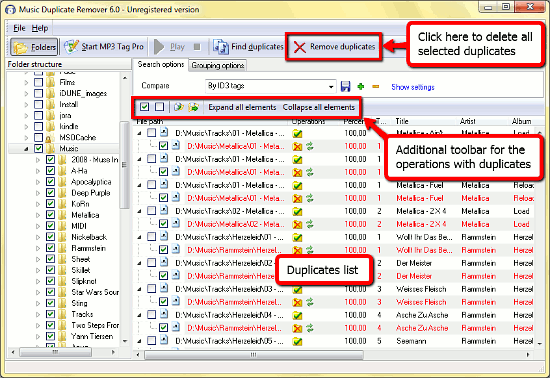
The program shows original files first. Duplicates are shown if you expand the element. You can double click files to play them and swap a duplicate with its "original" file if necessary.
After checking the list and making sure that only unwanted duplicates will be removed click the "Remove duplicates" button on the toolbar to clean your hard drive and get rid of the repeating songs. Alternatively, you can simply move the duplicates to some folder and check if you can live without them.
The trial version of Music Duplicate Remover has the following restrictions: only 20 duplicates can be deleted, file operations (move to folder) cannot be used, a registration reminder window is shown. If you like the program and its features, you can register it and remove all limitations.


Search
Related
- How to sort duplicate music files by ID3 tags?
- How to add cover art to an mp3 file?
- How to rename a batch of audio files?
- How to find all songs on your PC
- How to import ID3 tags from CSV?
- How to find MP3 duplicates by sound?
- How to fix ID3 tags?
- How to export ID3 tags to MS Excel?
- How to edit FLAC tags?
- How to download FLAC lyrics for free?
- How to add track numbers to ID3 tags?
- Duplicate File Finder for Music
- How to extract MP3 tags from filenames?
- How to download MP3 lyrics for free?
- How to remove music duplicates?
- How do I find duplicates in my music collection?
- How to rename MP3 files using ID3 tags?
- What ID3 tag editor can edit WMA tags?
- How to edit AAC tags?
- How to download MP3 album art?
- How do I get ID3 tags from the Internet?
- How to download lyrics for songs?
- How do I tag MP3 files with ID3 data using filenames?
- How do I sort MP3 files? I want to organize my music collection.
- How to keep track of my borrowed music albums?
- How to make a catalog of my music collection using album barcodes?
- How to get the biography of an artist?
- How to manage my music collection on a Dune HD media player?
- How to organize my music collection?
- How do I organize my music collection?
- How do I remove duplicates on my computer?
- How to create a playlist?
- Media Catalog Studio 4.5 review
Ask our expert
- How to share screen videos online?
- How to sort duplicate music files by ID3 tags?
- How to get quick updates on movies by director?
- How to convert multiple MIDI files into an MP3?
- How to rotate videos?
- How to convert WMA to WAV?
- How to play MIDIs on an iPhone?
- How to split an audio file into equal parts?
- How to split m4b audiobooks into chapters for free?
- How to convert videos for You Tube?
