




How to edit AAC tags?
Introduction.
AAC stands for Advanced Audio Coding. It's an audio codec that features a better audio compression than the well-known MP3 format. AAC audio files can have .aac, .m4a, .mp4, and several other extensions (depending on the container format). This codec is actively supported by Apple.
Like ID3 tags in MP3 files, AAC files offer some space for meta information like title, artist, track number, year, comments, genre, album. These tags are important for searching and sorting, they can be used to organize a music collection. Besides, most players nowadays read tags and expect files to have them.
To edit AAC tags, you can use a tool like mp3Tag Pro.
Step 1: Download and install the program.
Download mp3Tag Pro to a known location. Run the downloaded setup package and follow on-screen instructions to install it.
Step 2: Start the program. Select files to edit AAC tags.
Launch the AAC tag editor. Browse to the folder where your AAC files are stored. You can browse as usual, by double clicking folders to enter them and by double clicking '..' to exit a folder (or use the "Level up" button), or selecting folders on the left. Alternatively, click the folder icon in the address field of mp3Tag Pro to invoke a usual "Browse" dialog.
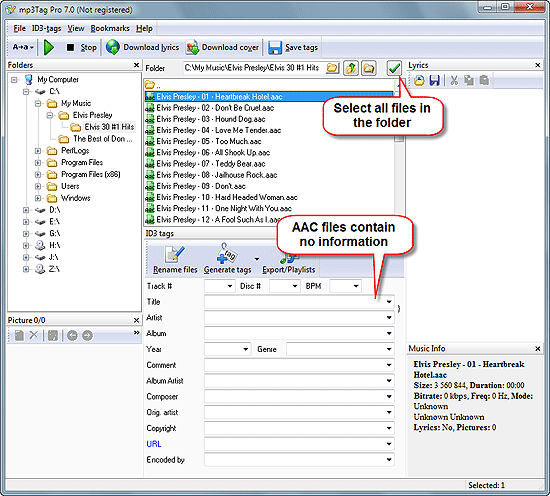
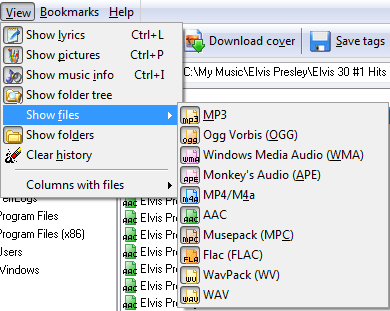
Once you are in the correct folder, AAC files should be shown, like on the screen shot above. If mp3Tag Pro shows no files on your computer, but AAC files are there, click View and select the "Show files" submenu:
Step 3: Edit AAC tags.
Now you have various possibilities to edit AAC tags. mp3Tag Pro supports downloading tag information from FreeDB and Amazon tagging services, importing tags from a CSV file and other tagging methods. As our filenames already contain information about artist, titles and track numbers, we can do the following.
Select all files in the directory by clicking the "Select all" button, as shown on the first screen shot. Alternatively, you can press "Ctrl" + "A" on your keyboard.
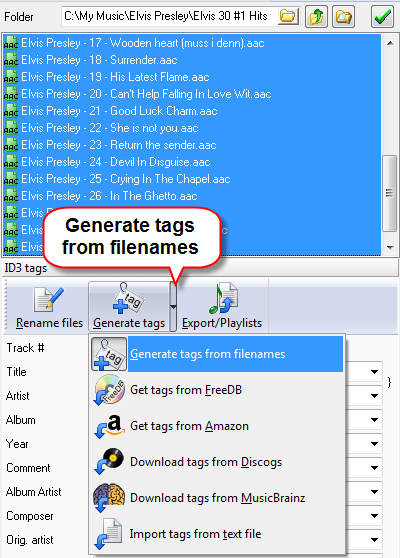
Click the "Generate tags" button. This will open a new window.
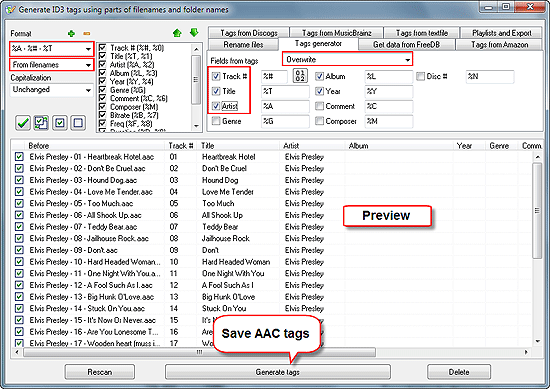
Our filenames consist of three parts: Artist - Track number - Title. Let's tell the AAC tagger this in its format field in the left upper corner of the window. We type %A - %# - %T and choose to overwrite the existing tags. See results in the preview area.
Finally, click "Generate tags" at the bottom of the window to save the information extracted from filenames to AAC tags.
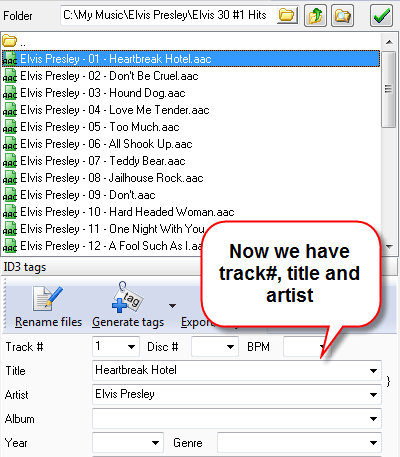
So, we have easily filled out three fields. If you know some additional information about the files, or want to add your comments, select all files again and type any information you want into the corresponding fields.
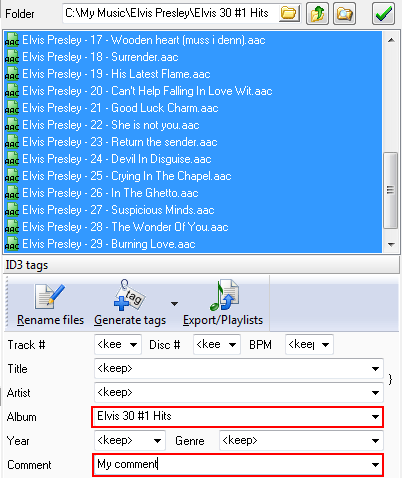
Click "Save" to save changed fields into all selected files.
Both the above described methods can be used for up to 10000 AAC files at once. To select files in more than one folder, use "Scan subfolders" button near the address field of mp3Tag Pro.


Search
Related
- How to sort duplicate music files by ID3 tags?
- How to add cover art to an mp3 file?
- How to rename a batch of audio files?
- How to find all songs on your PC
- How to import ID3 tags from CSV?
- How to find MP3 duplicates by sound?
- How to fix ID3 tags?
- How to export ID3 tags to MS Excel?
- How to edit FLAC tags?
- How to download FLAC lyrics for free?
- How to add track numbers to ID3 tags?
- Duplicate File Finder for Music
- How to extract MP3 tags from filenames?
- How to download MP3 lyrics for free?
- How to remove music duplicates?
- How do I find duplicates in my music collection?
- How to rename MP3 files using ID3 tags?
- What ID3 tag editor can edit WMA tags?
- How to edit AAC tags?
- How to download MP3 album art?
- How do I get ID3 tags from the Internet?
- How to download lyrics for songs?
- How do I tag MP3 files with ID3 data using filenames?
- How do I sort MP3 files? I want to organize my music collection.
- How to keep track of my borrowed music albums?
- How to make a catalog of my music collection using album barcodes?
- How to get the biography of an artist?
- How to manage my music collection on a Dune HD media player?
- How to organize my music collection?
- How do I organize my music collection?
- How do I remove duplicates on my computer?
- How to create a playlist?
- Media Catalog Studio 4.5 review
Ask our expert
- How to share screen videos online?
- How to sort duplicate music files by ID3 tags?
- How to get quick updates on movies by director?
- How to convert multiple MIDI files into an MP3?
- How to rotate videos?
- How to convert WMA to WAV?
- How to play MIDIs on an iPhone?
- How to split an audio file into equal parts?
- How to split m4b audiobooks into chapters for free?
- How to convert videos for You Tube?
