




How do I convert MTS to AVI?
Introduction.
If you have a nice HD camcorder like Sony HDR-SR12E, you can enjoy the crystal-clear picture of your home videos. However, you may also have already faced the problem of publishing such videos on the internet. Their resolution and bitrate are far too high, which makes file size unsuitable even for high-speed connections. A typical short video can take up to several gigabytes, and even if you manage to upload it somewhere, your aunt may spend months downloading the file with her slower internet connection.
Yes, high definition video is perfect, but you have to reduce the quality if going online with it. For example, you can convert MTS to AVI using Xilisoft HD Video Converter.
Step 1: Download and install the program.
Download Xilisoft HD Video Converter to a known location. Run the downloaded setup program and follow on-screen instructions.
Step 2: Start the program. Open your MTS video.
Launch Xilisoft HD Video Converter.
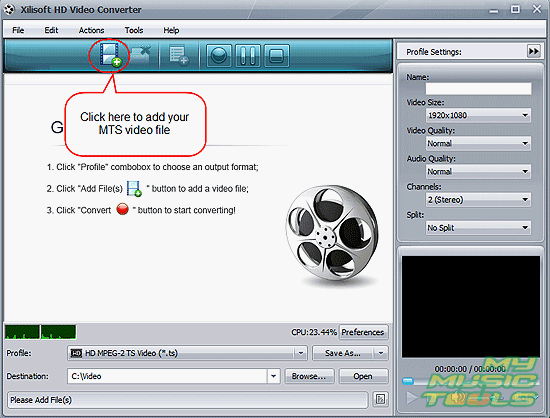
On the toolbar, click the "Add File(s)" button (highlighted on the screen shot above).
This invokes quite a usual "Open file" dialog.
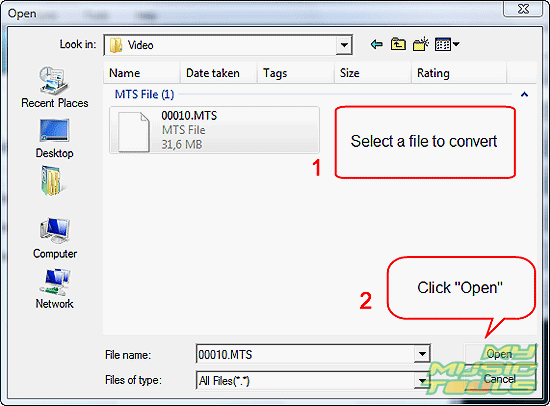
Browse to the location where your MTS videos are saved, select those that you need to convert, click "Open".
Step 3: Set output folder and format. Convert MTS to AVI.
The file(s) will be added to the list of the MTS converter.
Now, in the lower part of the window, find the "Profile" dropdown list. Click it to open the list of output formats:
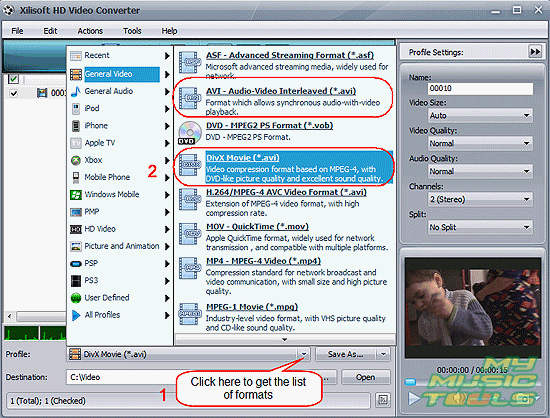
Xilisoft HD Video Converter supports quite a number of formats. Let's go to "General Video" (the left list). Available options will be shown on the right.
We can see that there are several options for AVI files - a usual AVI format, DivX AVI, H.264 AVI etc. For our example we take the DivX AVI, as this format is supported by the majority of software and hardware players.
Click the item to select it. The list will be closed.
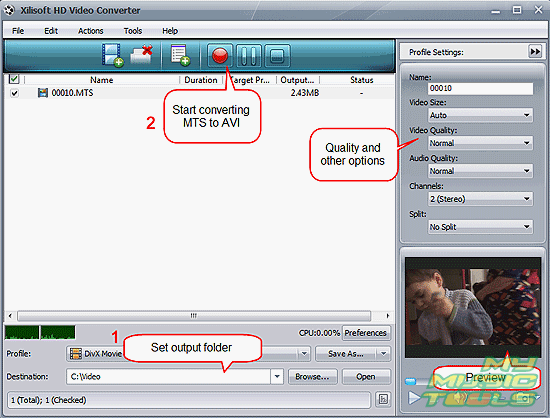
Right below the "Profile" list, find the "Destination" field. Here you can set output folder for converted files. By default it is set to a location inside your 'home' folder (where your documents, pictures and other user-related files are stored), but you can use any other folder that you have necessary permissions for.
On the right, there is a "Profile settings" panel. Here you can easily adjust quality and other settings for your output file.
Finally, click the "Convert" button on the toolbar to start converting MTS to AVI.
Note that the size of our source file was over 30 MB. The converted AVI file is less than 2.5 MB. If this is still to much, we can easily reduce the size further by playing with profile settings (video size, quality etc.).


Search
Related
- How to convert videos for You Tube?
- How to convert a video file with subtitles?
- How to convert video for Android?
- How to convert MKV to DVD?
- How to convert TS to AVI?
- How to convert AVI to WMV?
- How to convert AVI to FLV?
- How to convert MKV to MP4?
- How to convert DVD to MKV?
- How to convert MKV to AVI?
- How do I convert to DVD?
- How to convert DVD to MP4?
- How to convert MOV to AVI?
- How to convert AVI to MOV?
- How to convert MP4 to AVI?
- How to merge video files?
- How do I convert AVI to PSP format?
- How do I convert AVI to 3GP?
- How do I convert WMV to AVI?
- How do I convert video to flash?
- ConvertMovie 4.0 review
- Imtoo 3GP Video Converter 3.1 review
- How to convert a video file into the 3GP format?
- Xilisoft 3GP Video Converter 2.1 review
- Videozilla review
- How do I convert MTS to AVI?
Ask our expert
- How to share screen videos online?
- How to sort duplicate music files by ID3 tags?
- How to get quick updates on movies by director?
- How to convert multiple MIDI files into an MP3?
- How to rotate videos?
- How to convert WMA to WAV?
- How to play MIDIs on an iPhone?
- How to split an audio file into equal parts?
- How to split m4b audiobooks into chapters for free?
- How to convert videos for You Tube?
