




How do I convert video to flash?
Introduction.
Flash is a popular format that supports video, audio, and interactive content. It is used mainly on the Web for advertising, animation, for creating nice web-page components, for small games etc. Most browsers have flash player plug-ins, which makes the format highly portable and independent of installed codecs. Another advantage of flash is the ability to be shown directly in browser.
We will consider how to convert video to flash, the format that can be used to construct flash files. The application we use is Movavi Video Converter - a multifunctional user-friendly video converter that can be used for other tasks as well.
Step 1: Download and install the program.
Download Movavi Video Converter to a known location. Launch setup and follow on-screen instructions to install the software.
Step 2: Launch the program. Open video file to convert.
Start the flash converter. The program's window appears.
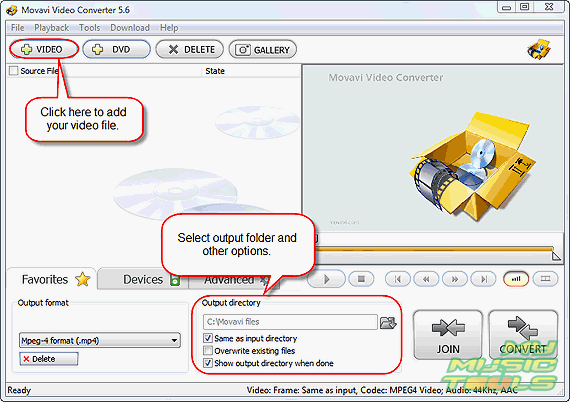
Select a folder where output files should be saved. Click "VIDEO" or "DVD" button to add your video to the conversion list.
Usual "Open" dialog pops up. Browse to your files and pick out one that you want to convert. Click "Open".
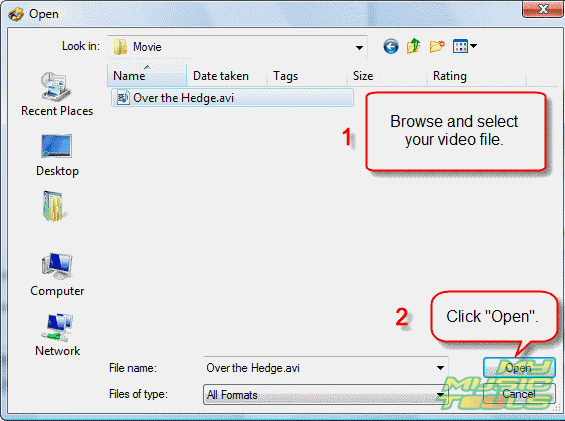
Step 3: Set output format and quality. Start converting video to flash.
The file is added to the list. Click to select it.
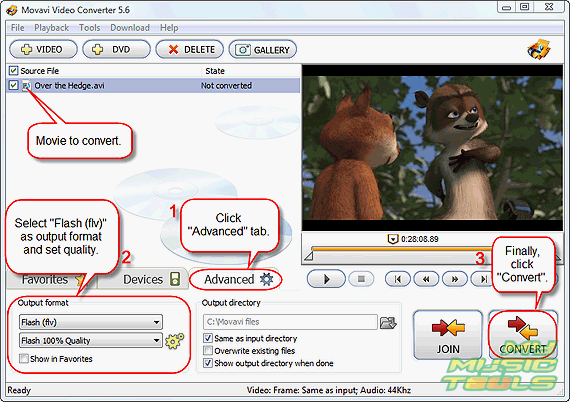
Now you can preview the file, select output format, and convert the video. If you have added some file by mistake, you can remove it from the list by clicking "DELETE" button.
Now click "Advanced" tab and pick out "Flash (flv)" in "Output format" drop-down list. You can also change quality of video. Better quality means bigger file size. If you intend to use the video on your homepage, you may want to reduce quality so that your visitors could see the video within reasonable time.
Finally, click "Convert" button in the right lower corner of the program and wait for the program to finish converting video to flash. With large files the process of converting may take an hour, or even more (it depends on how fast your system is). However, the program doesn't require your attention while converting, so you can minimize it to system tray and proceed with other activities.
Trial version of Movavi Video Converter will convert only 1/3 of the whole movie. If you are satisfied with the quality and functionality, you can purchase the program and remove all restrictions with your personal registration data.


Search
Related
- How to convert videos for You Tube?
- How to convert a video file with subtitles?
- How to convert video for Android?
- How to convert MKV to DVD?
- How to convert TS to AVI?
- How to convert AVI to WMV?
- How to convert AVI to FLV?
- How to convert MKV to MP4?
- How to convert DVD to MKV?
- How to convert MKV to AVI?
- How do I convert to DVD?
- How to convert DVD to MP4?
- How to convert MOV to AVI?
- How to convert AVI to MOV?
- How to convert MP4 to AVI?
- How to merge video files?
- How do I convert AVI to PSP format?
- How do I convert AVI to 3GP?
- How do I convert WMV to AVI?
- How do I convert video to flash?
- ConvertMovie 4.0 review
- Imtoo 3GP Video Converter 3.1 review
- How to convert a video file into the 3GP format?
- Xilisoft 3GP Video Converter 2.1 review
- Videozilla review
- How do I convert MTS to AVI?
Ask our expert
- How to share screen videos online?
- How to sort duplicate music files by ID3 tags?
- How to get quick updates on movies by director?
- How to convert multiple MIDI files into an MP3?
- How to rotate videos?
- How to convert WMA to WAV?
- How to play MIDIs on an iPhone?
- How to split an audio file into equal parts?
- How to split m4b audiobooks into chapters for free?
- How to convert videos for You Tube?
