




How to convert RM to AVI?
Introduction.
RM stands for Real Media. It's a proprietary multimedia container format developed by RealNetworks. Usually it contains RealAudio and RealVideo data that are also formats developed by RealNetworks. RealMedia files can be played by a player from RealNetworks, RealPlayer.
Unfortunately, proprietary means that there are not many alternatives to RealPlayer. Although the latter is a cross-platform application, i.e. it is available for different operating systems, many people prefer more widely supported formats. For example, AVI.
You can convert RM to AVI using YASA MP4 Video Converter.
Step 1: Download and install the program.
Download YASA MP4 Video Converter to a known location. Run setup and follow on-screen instructions to install the application.
Step 2: Start the program. Add RM files to convert.
Launch YASA MP4 Video Converter. The main window will appear:
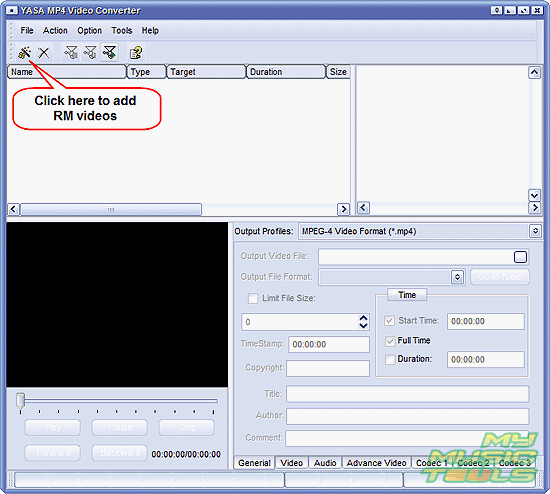
Click the leftmost button on the toolbar to invoke a usual "Open" dialog.
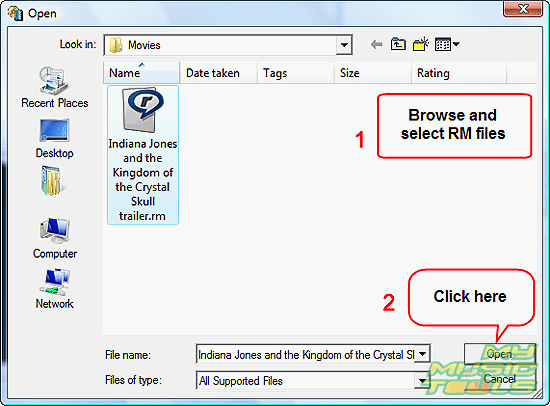
Browse to the folder where you keep your RM files, select one or more of them, click "Open".
Step 3: Convert RM to AVI.
The file(s) will be added to the list of the RM converter. You can preview them by selecting a file from the list and clicking "Play" in the preview area in the lower part of the window.
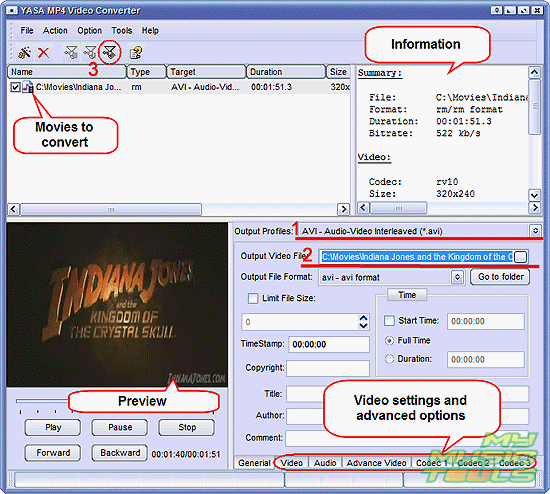
To convert RM to AVI, select the file from the list. You will be able to see different kind of information on the right (see "Information" on the screen shot above). Just below this area, find "Output Profiles". Select "AVI - Audio-Video Interleaved (.avi)" from the dropdown menu (1).
The next line says "Output Video File" (2). You can set output folder and filename here. The program suggests to save files in the default folder for videos, but you can select any folder that you like.
If you want to adjust resolution, frame rate and other video and audio settings, you can select corresponding tabs in the lower part of the window.
Finally, click the "Quick convert" button on the toolbar (3) to start converting RM to AVI.
The trial version of YASA MP4 Video Converter converts only 5 minutes of a file. If you are satisfied with the features, you can register the program and remove all restrictions.


Search
Related
- How to convert videos for You Tube?
- How to convert a video file with subtitles?
- How to convert video for Android?
- How to convert MKV to DVD?
- How to convert TS to AVI?
- How to convert AVI to WMV?
- How to convert AVI to FLV?
- How to convert MKV to MP4?
- How to convert DVD to MKV?
- How to convert MKV to AVI?
- How do I convert to DVD?
- How to convert DVD to MP4?
- How to convert MOV to AVI?
- How to convert AVI to MOV?
- How to convert MP4 to AVI?
- How to merge video files?
- How do I convert AVI to PSP format?
- How do I convert AVI to 3GP?
- How do I convert WMV to AVI?
- How do I convert video to flash?
- ConvertMovie 4.0 review
- Imtoo 3GP Video Converter 3.1 review
- How to convert a video file into the 3GP format?
- Xilisoft 3GP Video Converter 2.1 review
- Videozilla review
- How do I convert MTS to AVI?
Ask our expert
- How to share screen videos online?
- How to sort duplicate music files by ID3 tags?
- How to get quick updates on movies by director?
- How to convert multiple MIDI files into an MP3?
- How to rotate videos?
- How to convert WMA to WAV?
- How to play MIDIs on an iPhone?
- How to split an audio file into equal parts?
- How to split m4b audiobooks into chapters for free?
- How to convert videos for You Tube?
