




How to download MP3 album art?
Introduction.
Many people use portable players or listen to MP3 music while working. There are several nice things about MP3 format: music files are pretty small and can be played virtually everywhere. They also can contain all necessary information about the songs: title, artist, album, year of publishing, lyrics, album art, and other fields of ID3 tags.
Album art can be saved as a separate file for each album (usually it is "folder.jpg", sometimes the file can be hidden). In such case, if a file is moved or copied from the folder to another location (for example, when creating a compilation), it will be no more associated with the album cover, and so no picture will be shown anymore when playing the file.
Another option is to save album art inside each MP3 file. MP3 format has a special picture tag field for this purpose.
You can download MP3 album art using mp3Tag Pro.
Step 1: Download and install the program.
Download mp3Tag Pro to a known location. Run setup and follow on-screen instructions to install the application.
Step 2: Start the program. Select MP3 files.
Launch mp3Tag Pro. Its main window will be shown.
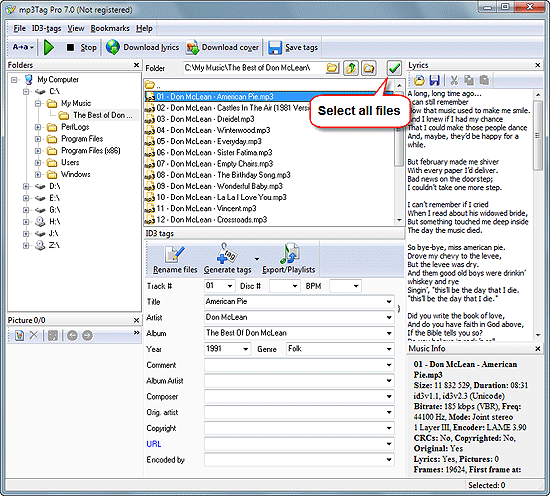
Navigate to the folder where your MP3 files are stored. You can type the path directly into the field in the upper part of the window, or use the "Browse" button on the right. If needed, press "Scan subfolders" button.
Select all files that you want to supply with cover art. Check if the "Artist" and "Album" fields are not empty. mp3Tag Pro can also search for "Title" and "Artist", or any other combination of the fields, but more information means better chances to get correct results. If you know the album's name, but the field is empty, you can simply select all files, enter the name into the corresponding field, and click "Save".
Step 3: Download and save album art.
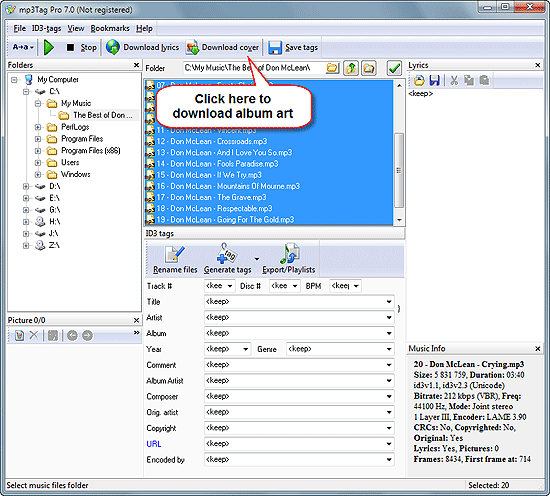
Once the files are selected, click "Download cover" button on the toolbar. If you see no album art area, press "Ctrl" + "P".
The program will ask you if you really want to download and save pictures for all files.
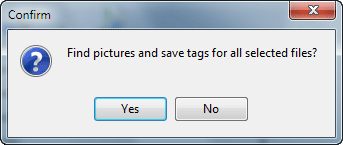
Click "Yes" to continue. mp3Tag Pro will start searching and downloading cover art. The pictures will be saved inside selected MP3 files automatically.
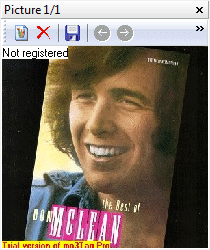
You can use the above method on files from different albums at once (just select as many files as you wish).
The trial version of mp3Tag Pro adds a small logo "Trial version of mp3Tag Pro" to all downloaded pictures. If you like the features, you can register the program and remove this restriction.


Search
Related
- How to sort duplicate music files by ID3 tags?
- How to add cover art to an mp3 file?
- How to rename a batch of audio files?
- How to find all songs on your PC
- How to import ID3 tags from CSV?
- How to find MP3 duplicates by sound?
- How to fix ID3 tags?
- How to export ID3 tags to MS Excel?
- How to edit FLAC tags?
- How to download FLAC lyrics for free?
- How to add track numbers to ID3 tags?
- Duplicate File Finder for Music
- How to extract MP3 tags from filenames?
- How to download MP3 lyrics for free?
- How to remove music duplicates?
- How do I find duplicates in my music collection?
- How to rename MP3 files using ID3 tags?
- What ID3 tag editor can edit WMA tags?
- How to edit AAC tags?
- How to download MP3 album art?
- How do I get ID3 tags from the Internet?
- How to download lyrics for songs?
- How do I tag MP3 files with ID3 data using filenames?
- How do I sort MP3 files? I want to organize my music collection.
- How to keep track of my borrowed music albums?
- How to make a catalog of my music collection using album barcodes?
- How to get the biography of an artist?
- How to manage my music collection on a Dune HD media player?
- How to organize my music collection?
- How do I organize my music collection?
- How do I remove duplicates on my computer?
- How to create a playlist?
- Media Catalog Studio 4.5 review
Ask our expert
- How to share screen videos online?
- How to sort duplicate music files by ID3 tags?
- How to get quick updates on movies by director?
- How to convert multiple MIDI files into an MP3?
- How to rotate videos?
- How to convert WMA to WAV?
- How to play MIDIs on an iPhone?
- How to split an audio file into equal parts?
- How to split m4b audiobooks into chapters for free?
- How to convert videos for You Tube?
